How Kreatli Works: Complete Platform Walkthrough
Learn how Kreatli works - from creating projects and annotating files to versioning, compare mode, sharing, chat, and approvals.
Article summary
Learn how Kreatli works - from creating projects and annotating files to versioning, compare mode, sharing, chat, and approvals.
Kreatli is designed to replace scattered tools with one structured workspace for review, feedback, version control, and approvals.
This guide walks you through how the platform works, step by step - starting from your first project and ending with advanced review features like compare mode, versioning, and guest sharing.
Step 1: Create Your First Project
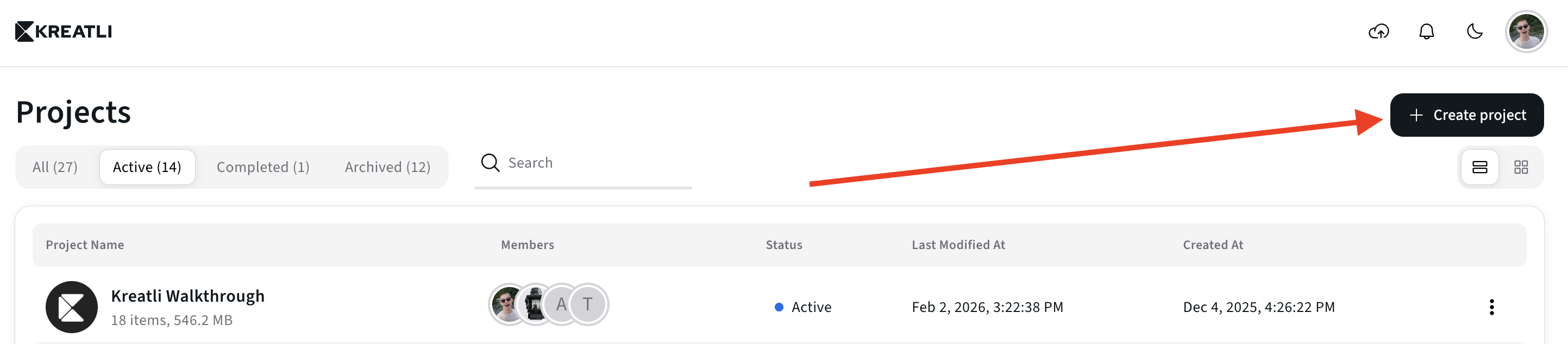
Projects are the foundation of Kreatli.
A project is where:
Files live
Feedback happens
Versions are tracked
Approvals are made
Creating a project ensures everything stays connected - files, people, and decisions.
Step 2: Invite Teammates or Clients
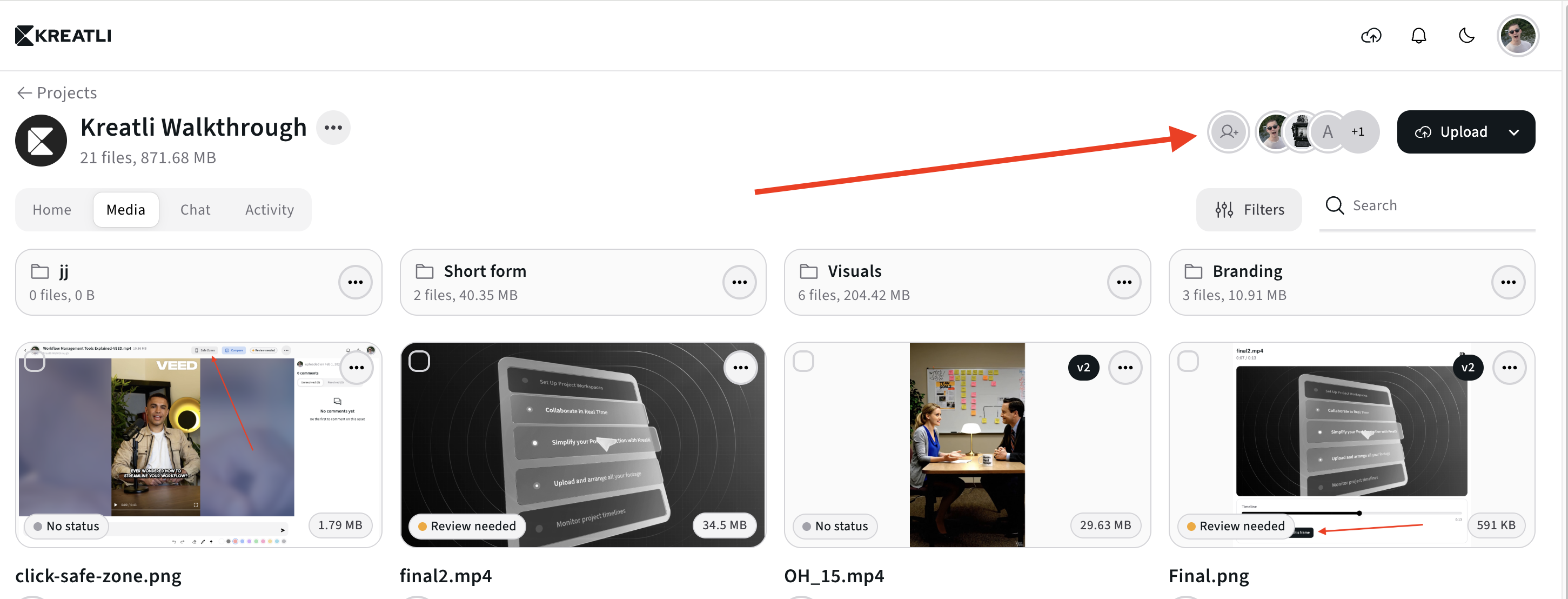
Invite teammates or external collaborators into your project and assign them to assets. Everyone works in the same shared workspace, keeping discussions, feedback, and decisions aligned in one place - no matter the asset type.
Step 3: Upload Your First File
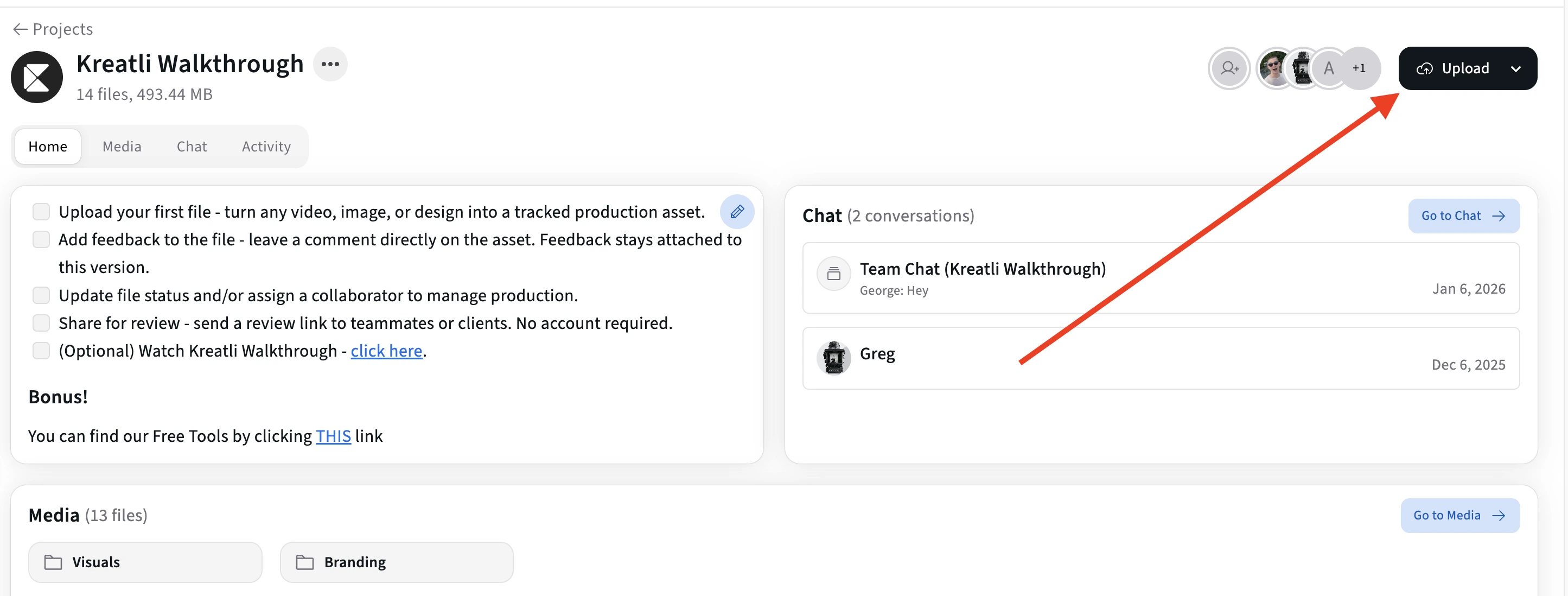
Once inside a project, upload your first file - click the button shown on the screenshot or simple drag & drop multiple assets into the project.
Kreatli supports:
PDFs
Videos
Images
Visual assets
Step 4: Open the File
From the "Home" view:
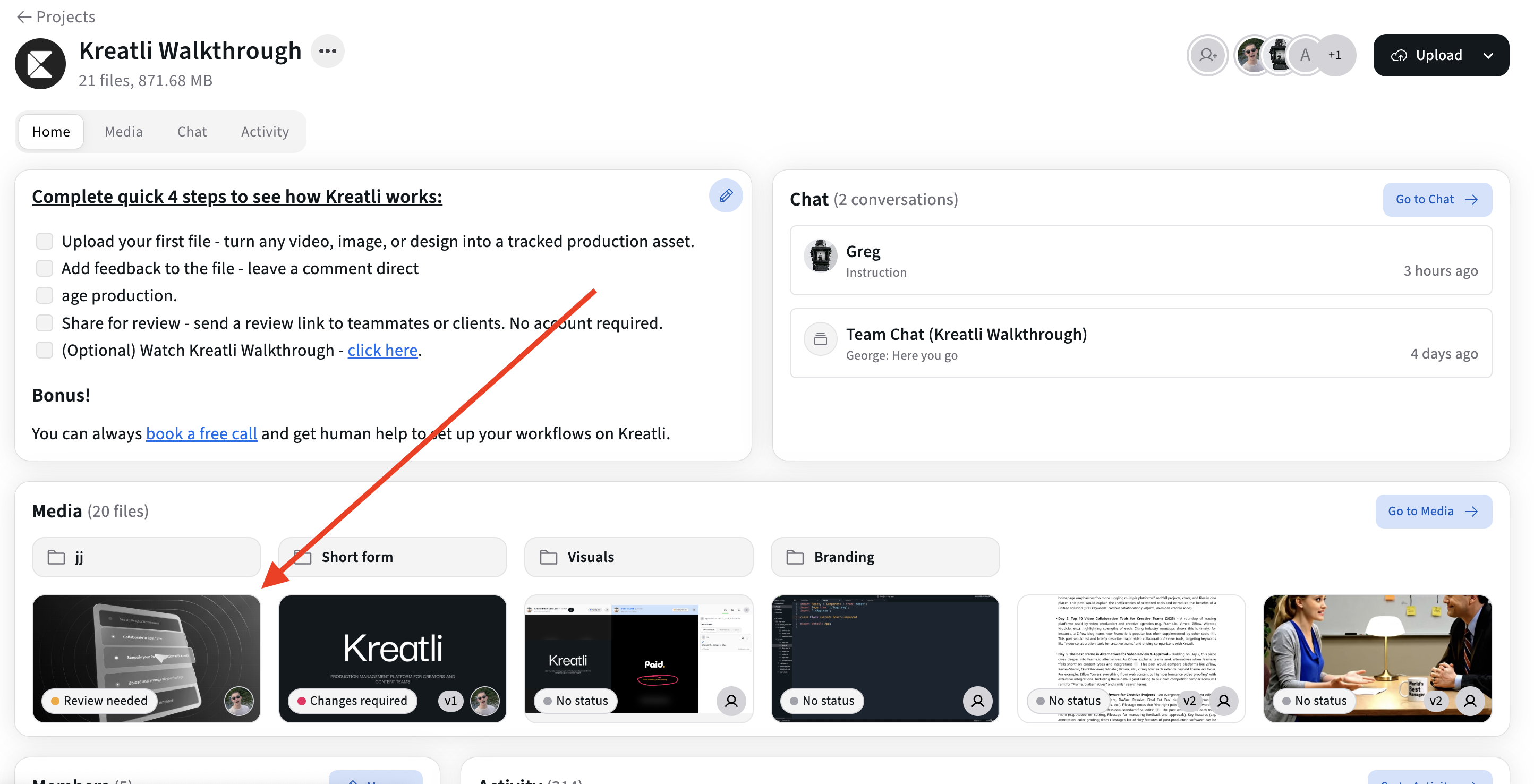
From the "Media" view:
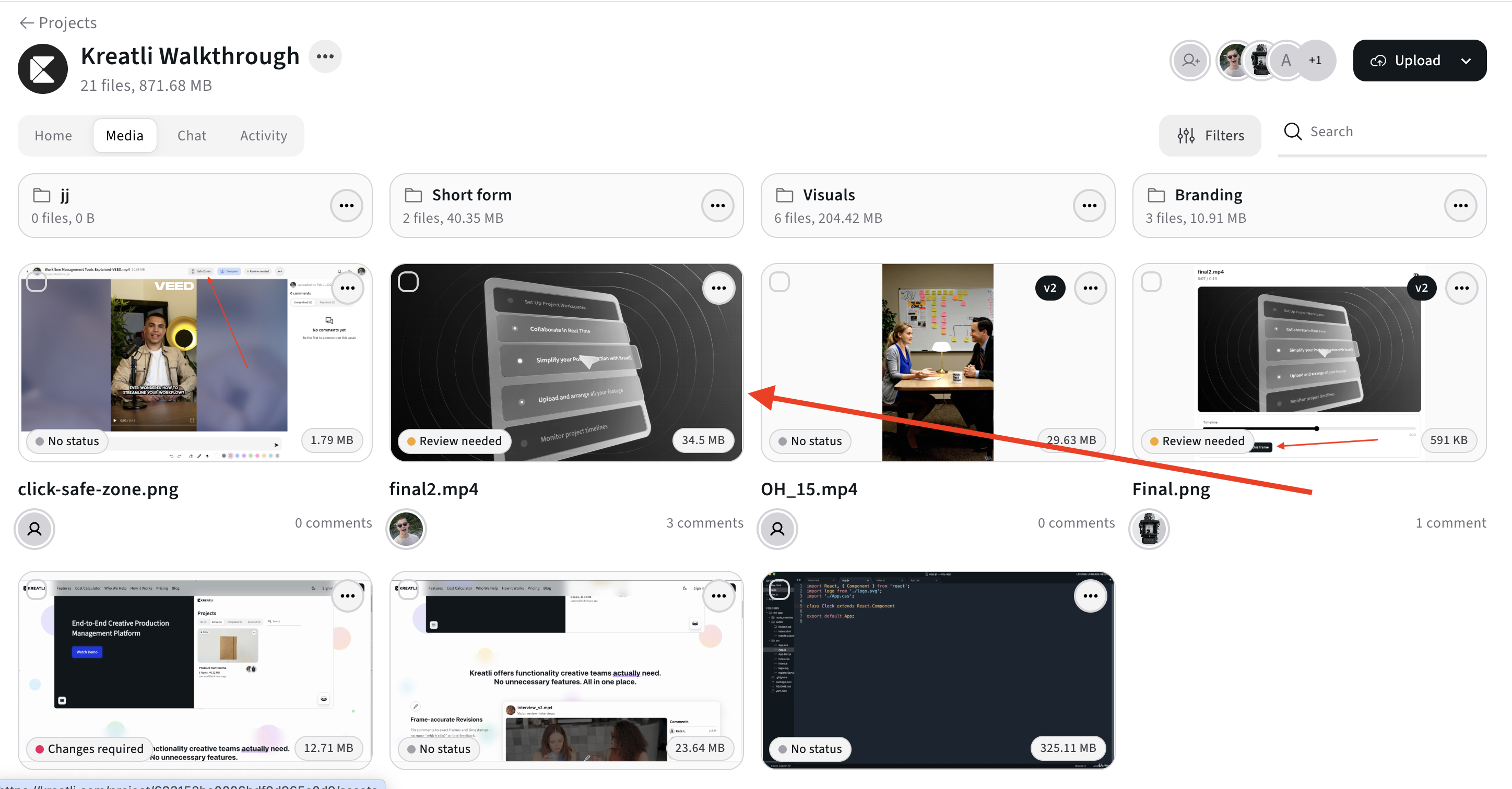
Click any uploaded file to open it in review mode.
This is where Kreatli differs from storage tools:
Files aren’t just viewed
They’re reviewed, discussed, and approved
Step 5: Draw on the File
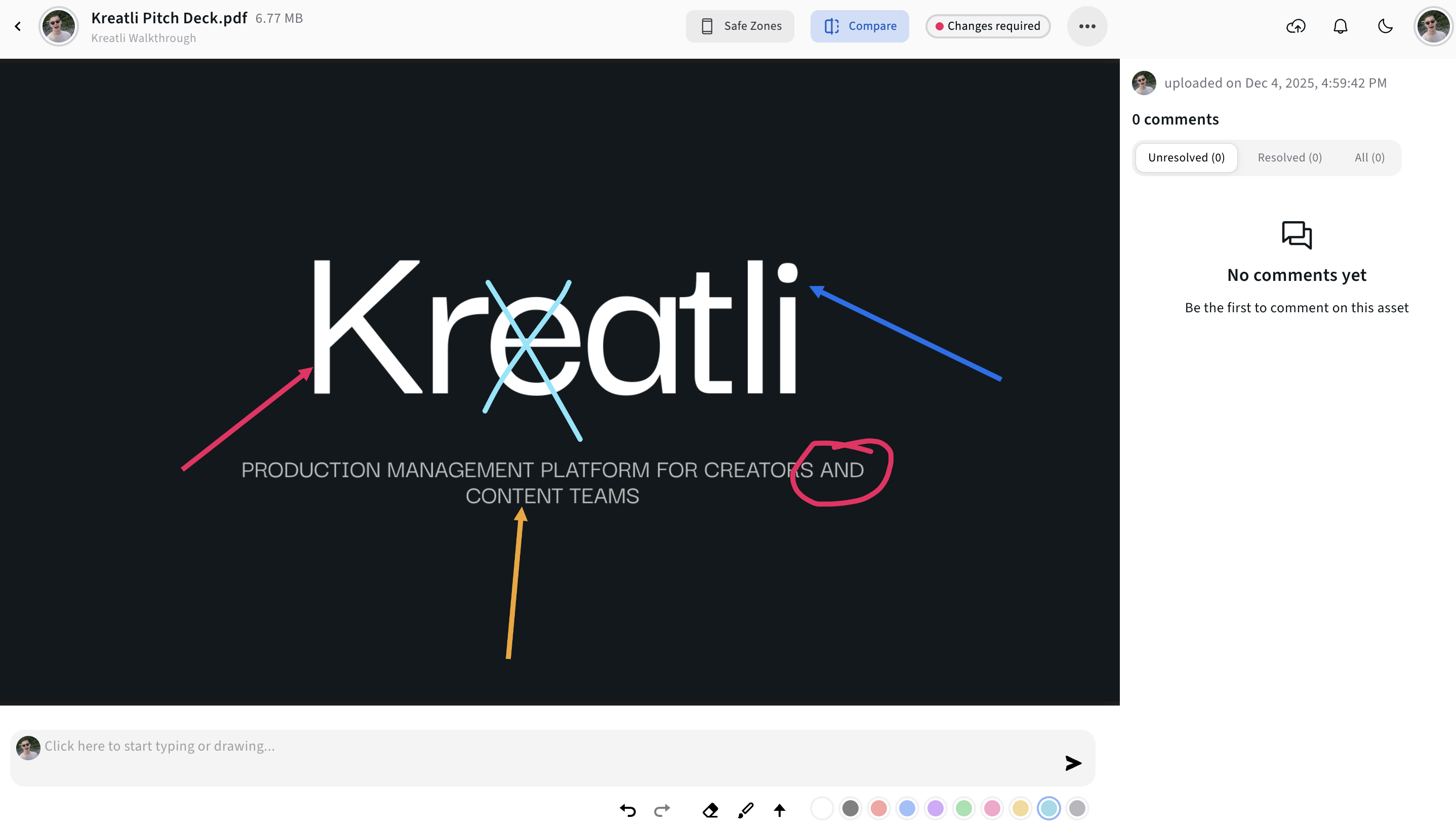
Use visual tools to draw directly on the file:
Freehand drawing
Arrows, etc.
Drawing is ideal for:
Visual feedback
Clarifying changes
Reducing misunderstandings
Each drawing stays tied to context - not lost in chat or email.
Step 6: Leave Comments
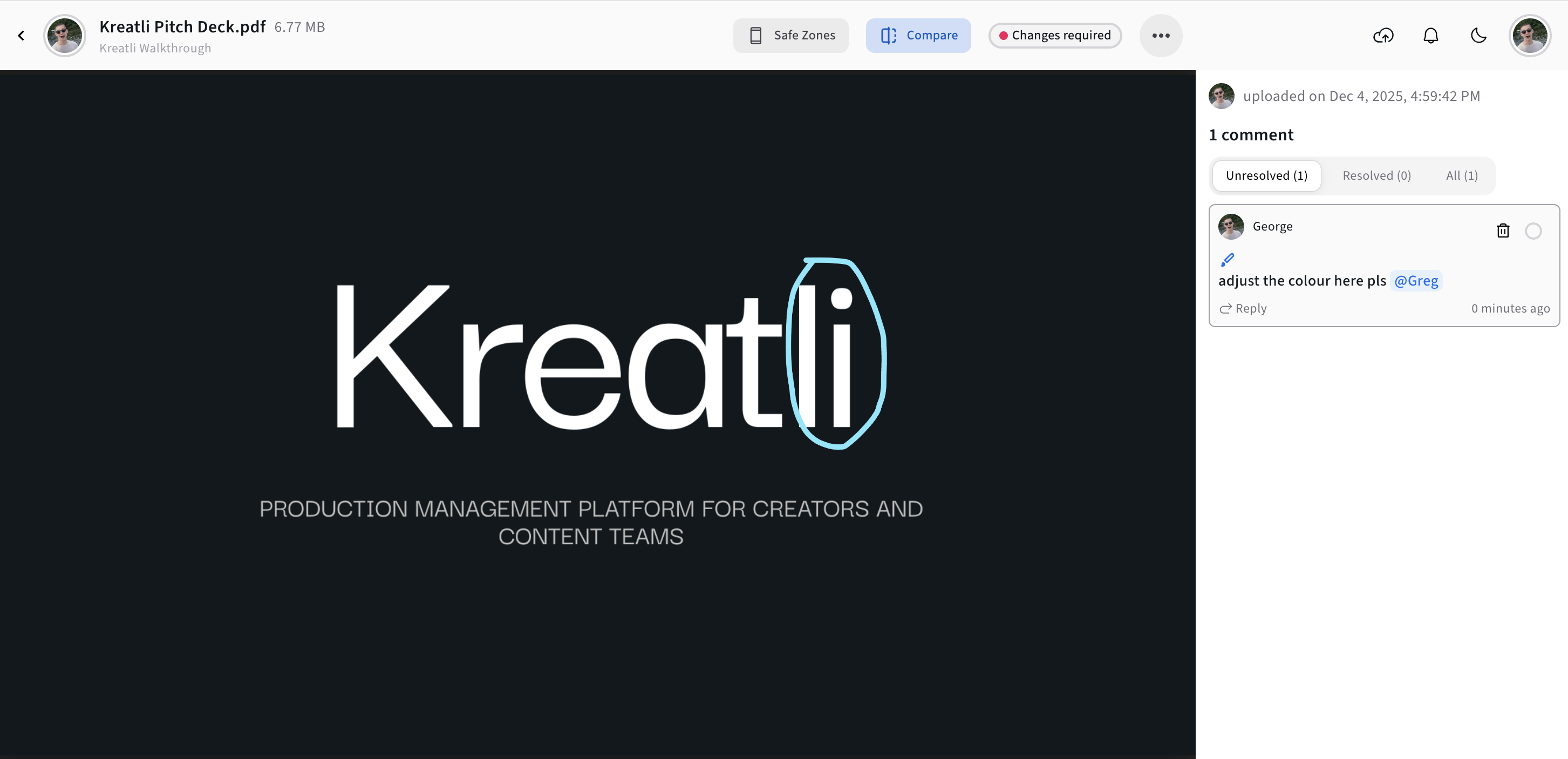
Comments can be:
Pinned to specific timecodes
Replied to in threads
Resolved when addressed
This keeps discussions:
Focused
Actionable
Traceable
@Tag teammates or stakeholders to notify them instantly and keep discussions focused, traceable, and easy to resolve - no back-and-forth emails required.
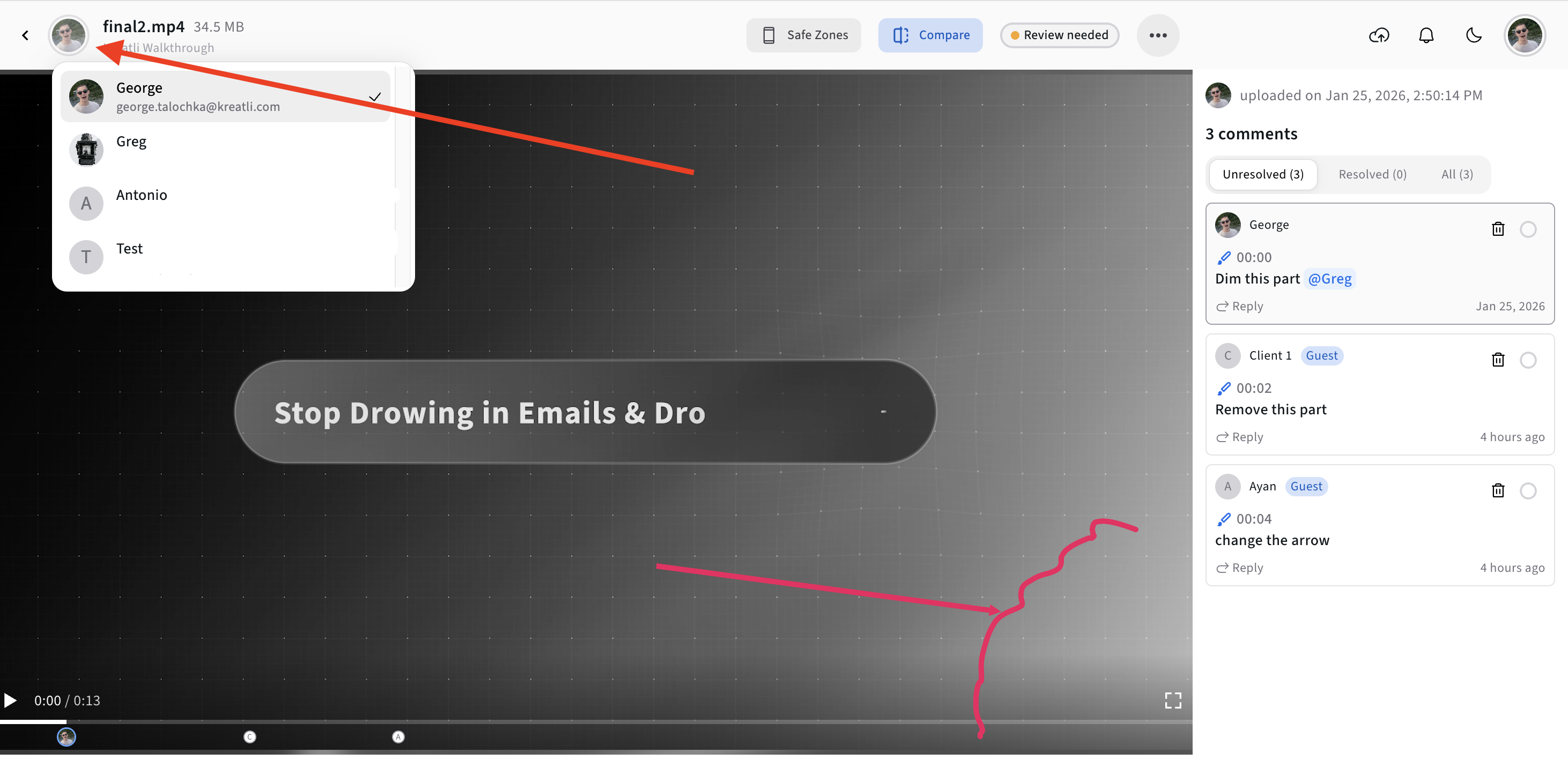
Step 7: Assign Members
In the "Asset" View
In the "Media" View
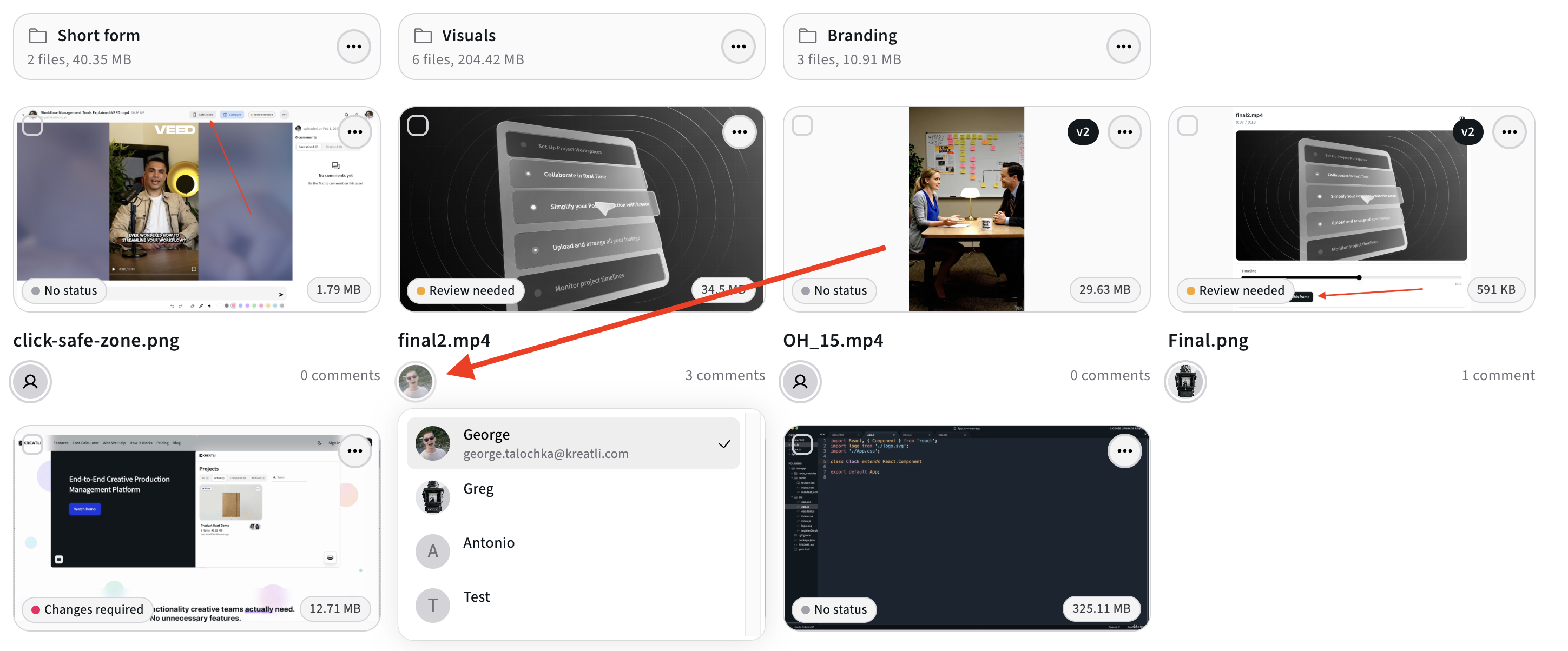
Assign teammates or external collaborators to specific files so everyone knows their role and responsibility from the start. Keep feedback structured, approvals clear, and sensitive work protected - while ensuring the right people are looped in at the right time.
Assign teammates or stakeholders to the project.
Assignments keep feedback structured and ownership clear.
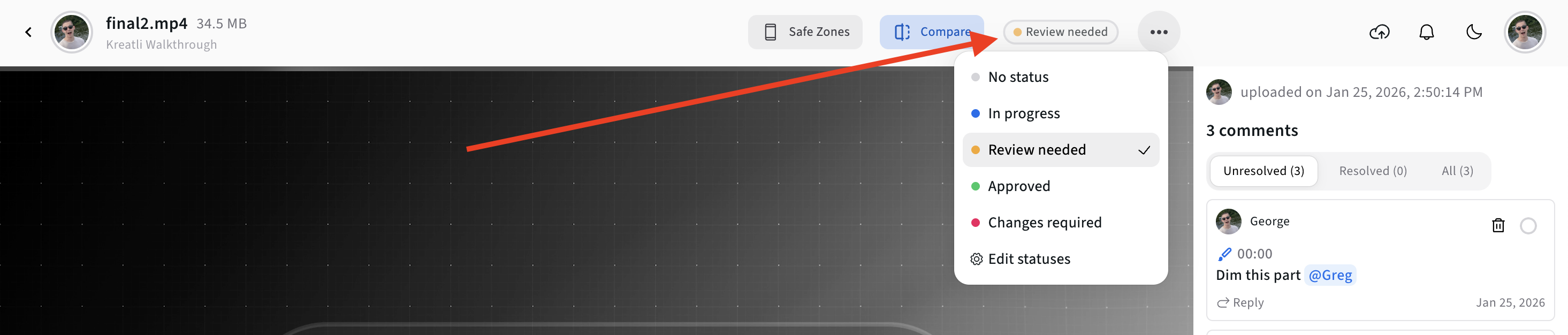
Step 8: Set Status
In the "Asset" View
In the "Media" View
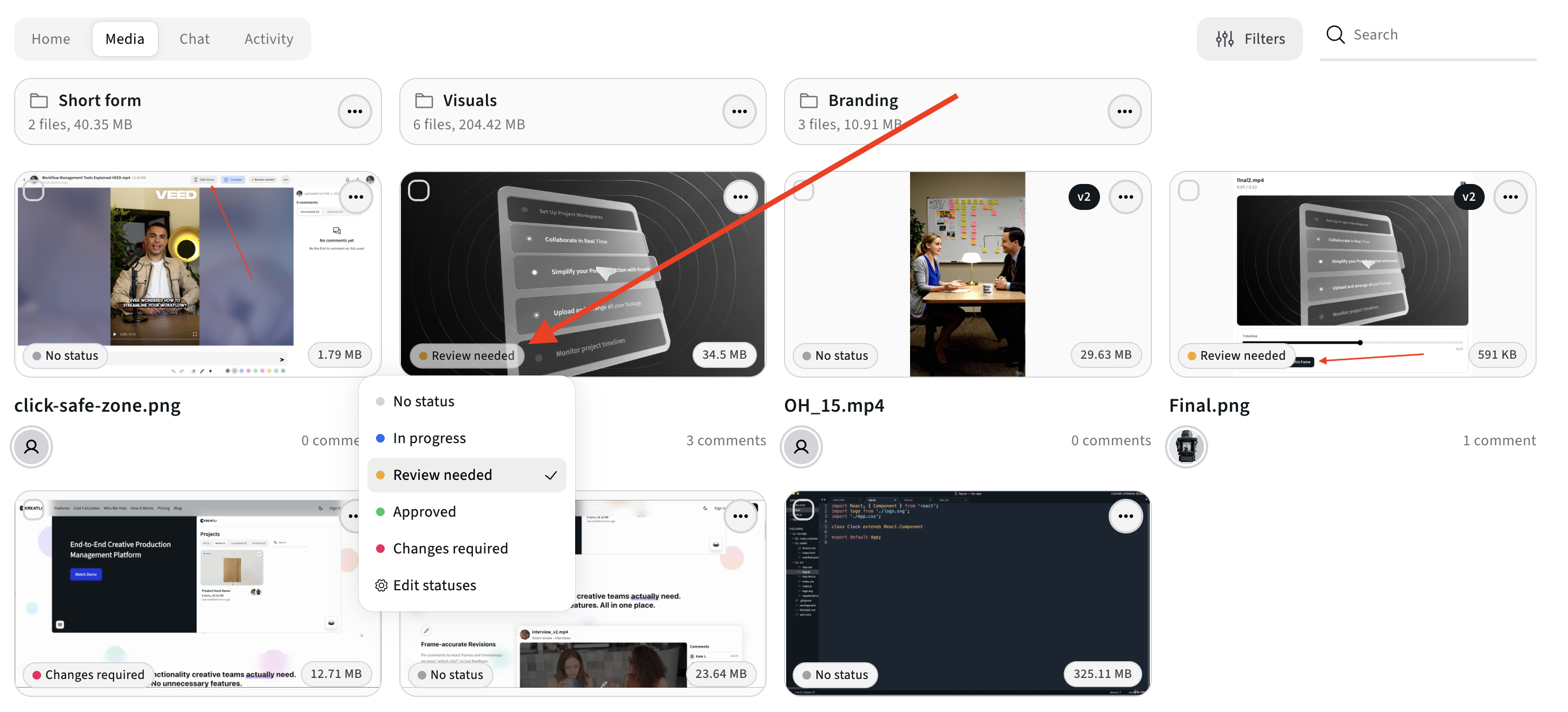
Set a clear status for each file or deliverable so everyone instantly understands where things stand.
You can customise statuses per project to create a unique workflow.
Step 9: Create Your First Folder
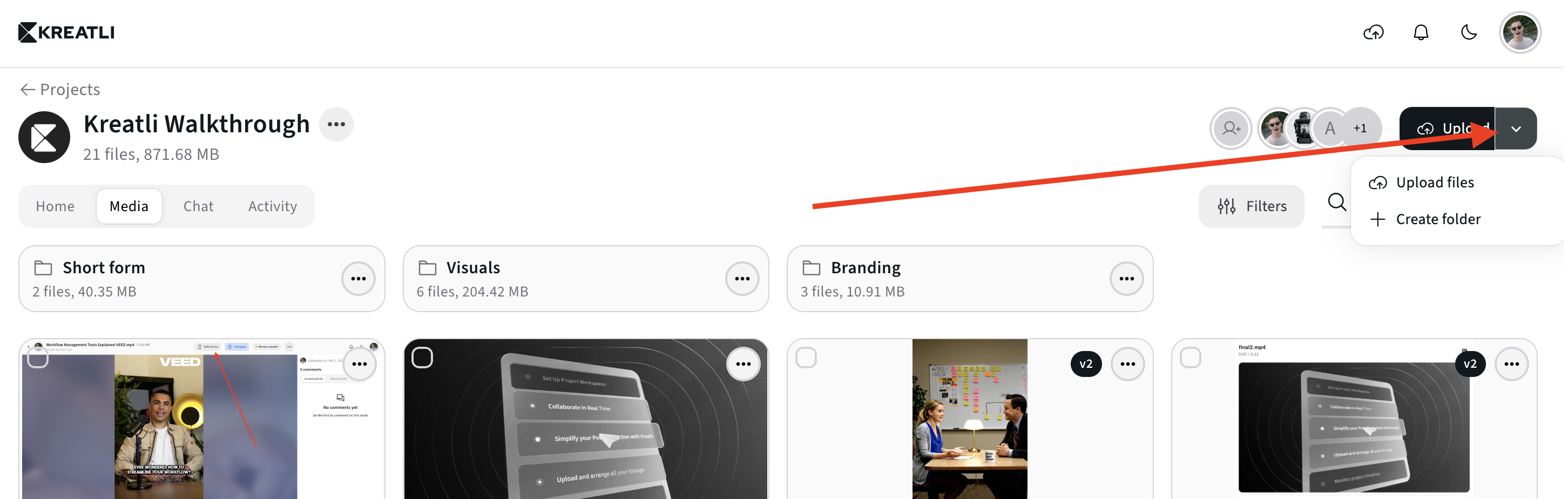
Folders help organize files by:
Phase
Deliverable
Client
Asset type
This is especially useful for projects with multiple revisions and formats.
Advanced Platform Features
Once the basics are in place, Kreatli’s advanced tools keep production moving smoothly.
Compare Mode (Side-by-Side Review)
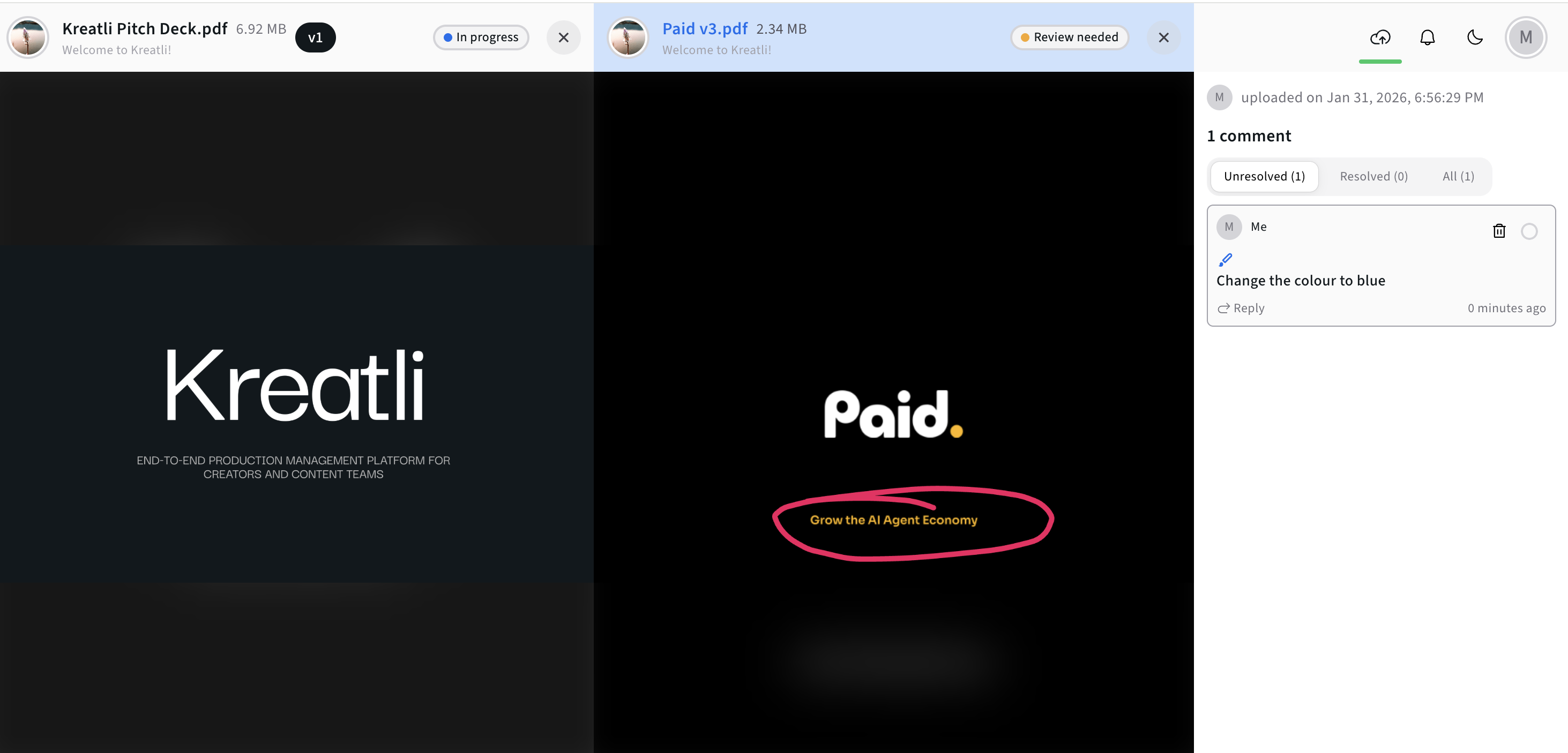
Compare Mode allows you to:
View two versions of the same file
Spot changes instantly
Verify feedback was applied
This is critical for:
Videos, PDFs, etc.
Design revisions
Client approvals
Versioning
Upload New Versions
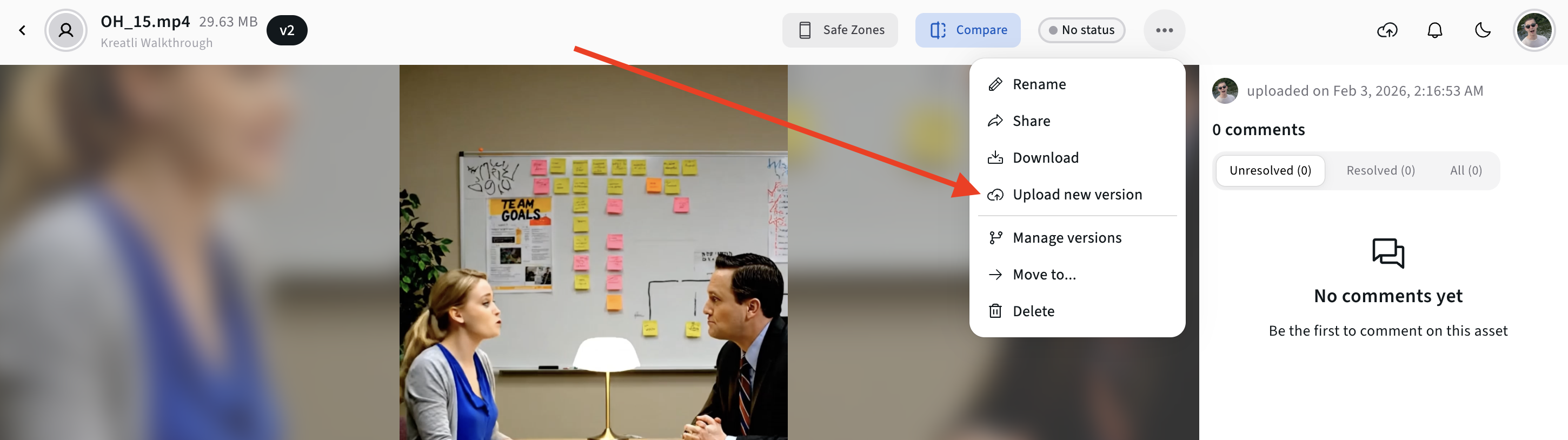
Manage Version Stack
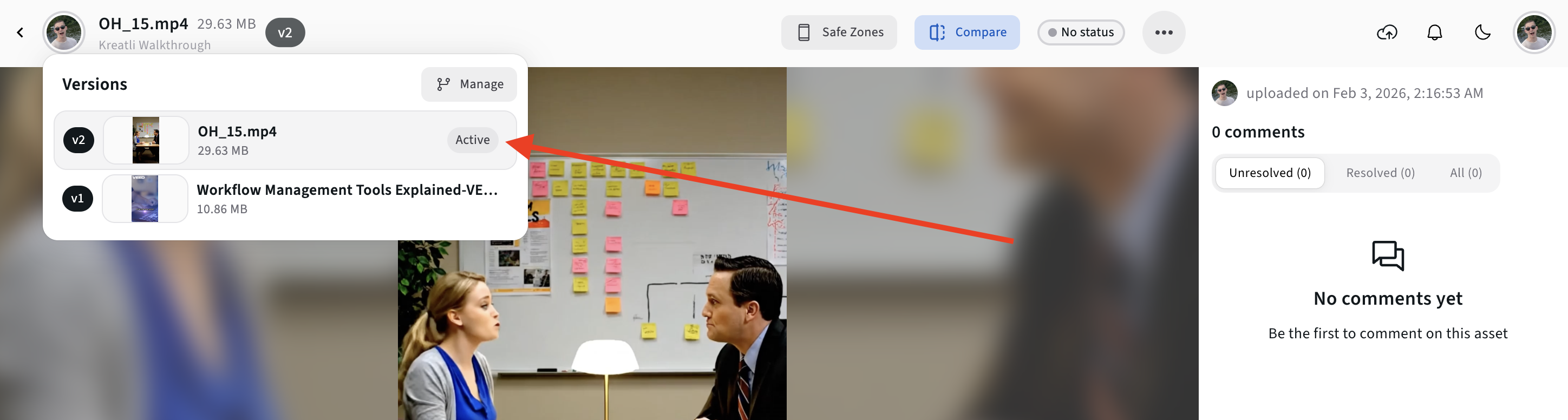
Every time you upload a revised file, Kreatli:
Creates a new version
Preserves previous feedback
Keeps history intact
No more:
“Final_v7_REALFINAL.pdf”
Guessing which file is current
Sharing Files (Guest Experience Included)
Generate Sharable Link from the "Asset" View
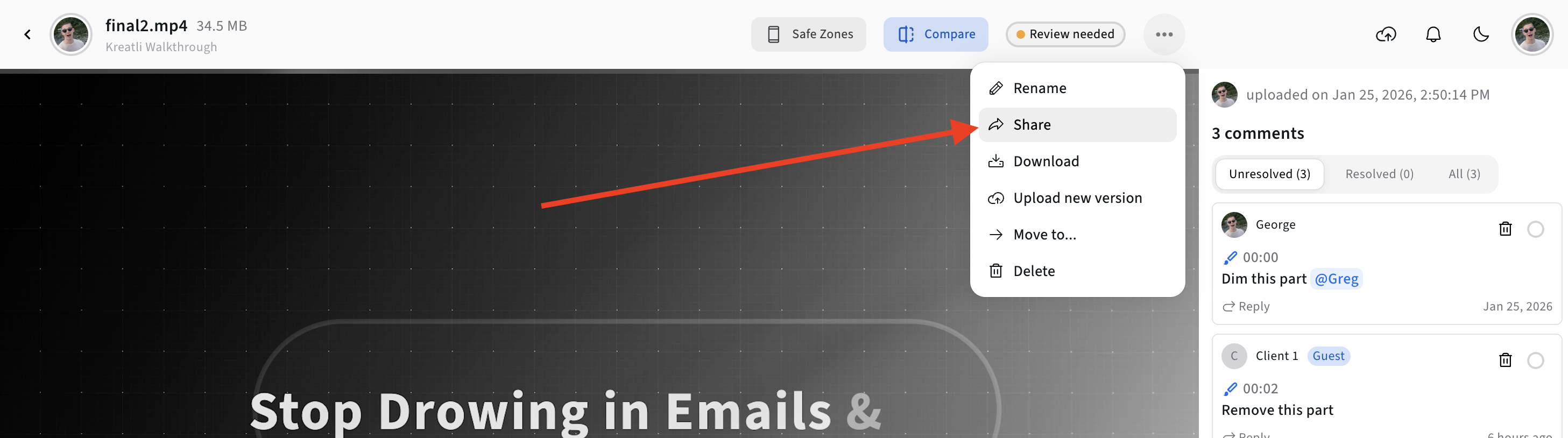
You can generate a shareable link to any file or project.
You control:
View vs comment access
Approval permissions
Generate Sharable Link from the "Media" View
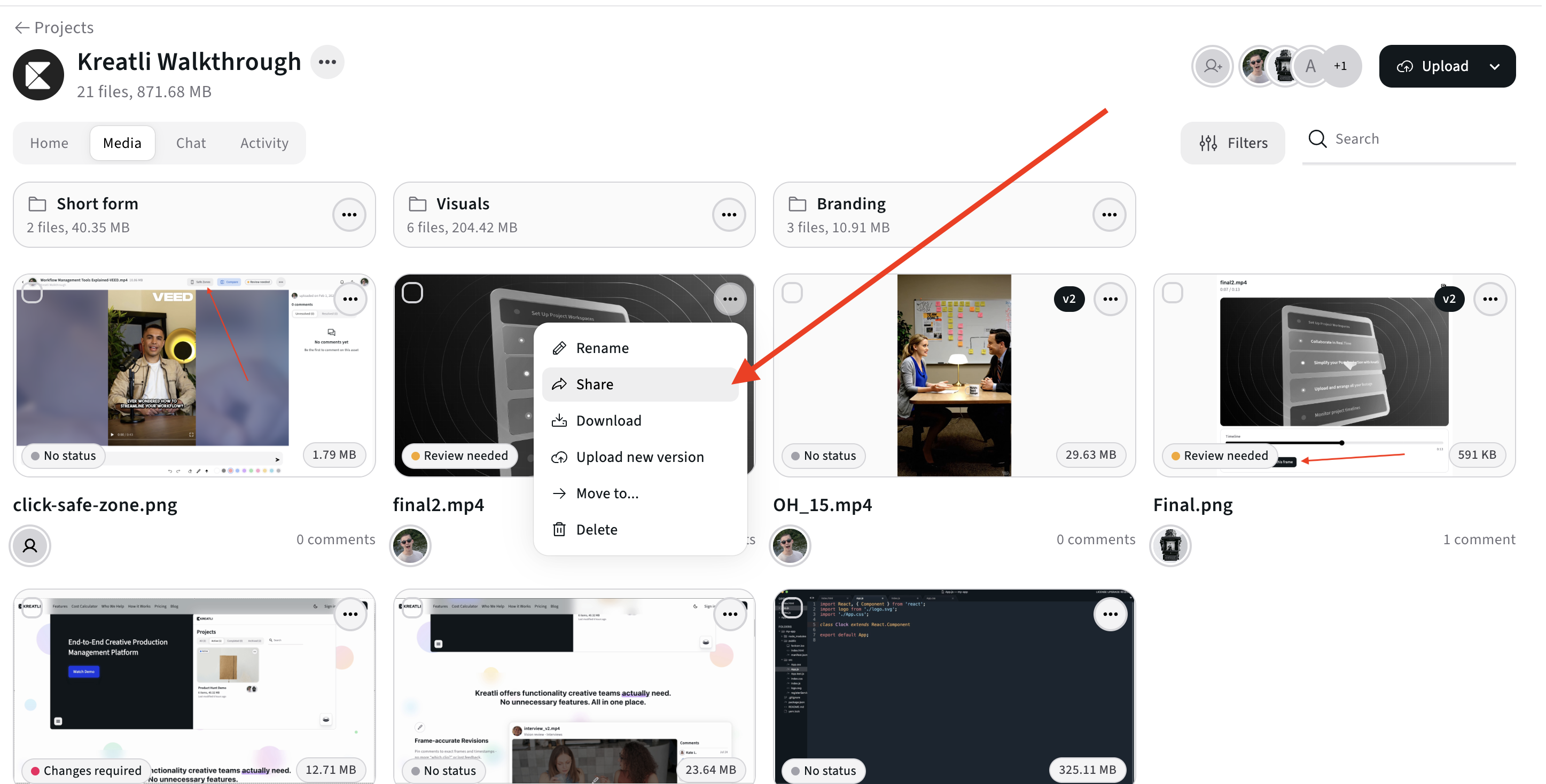
Share the Link via Email
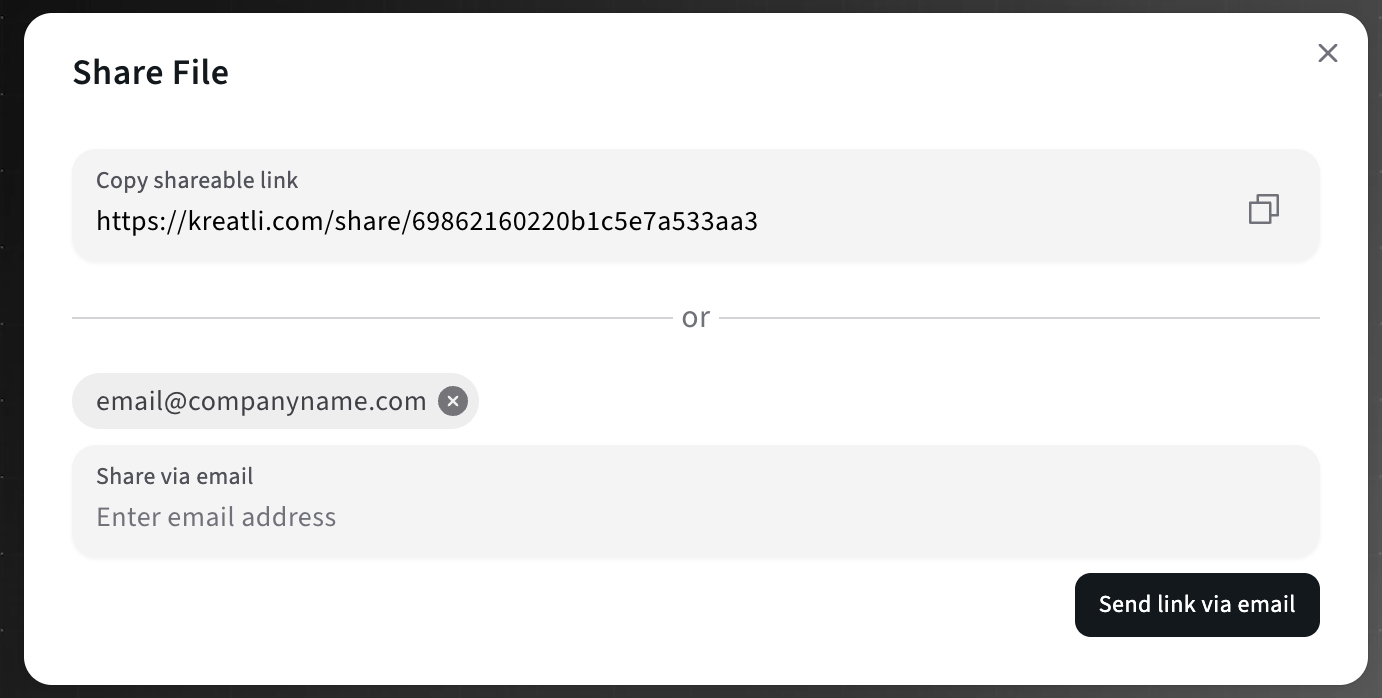
What Guests See
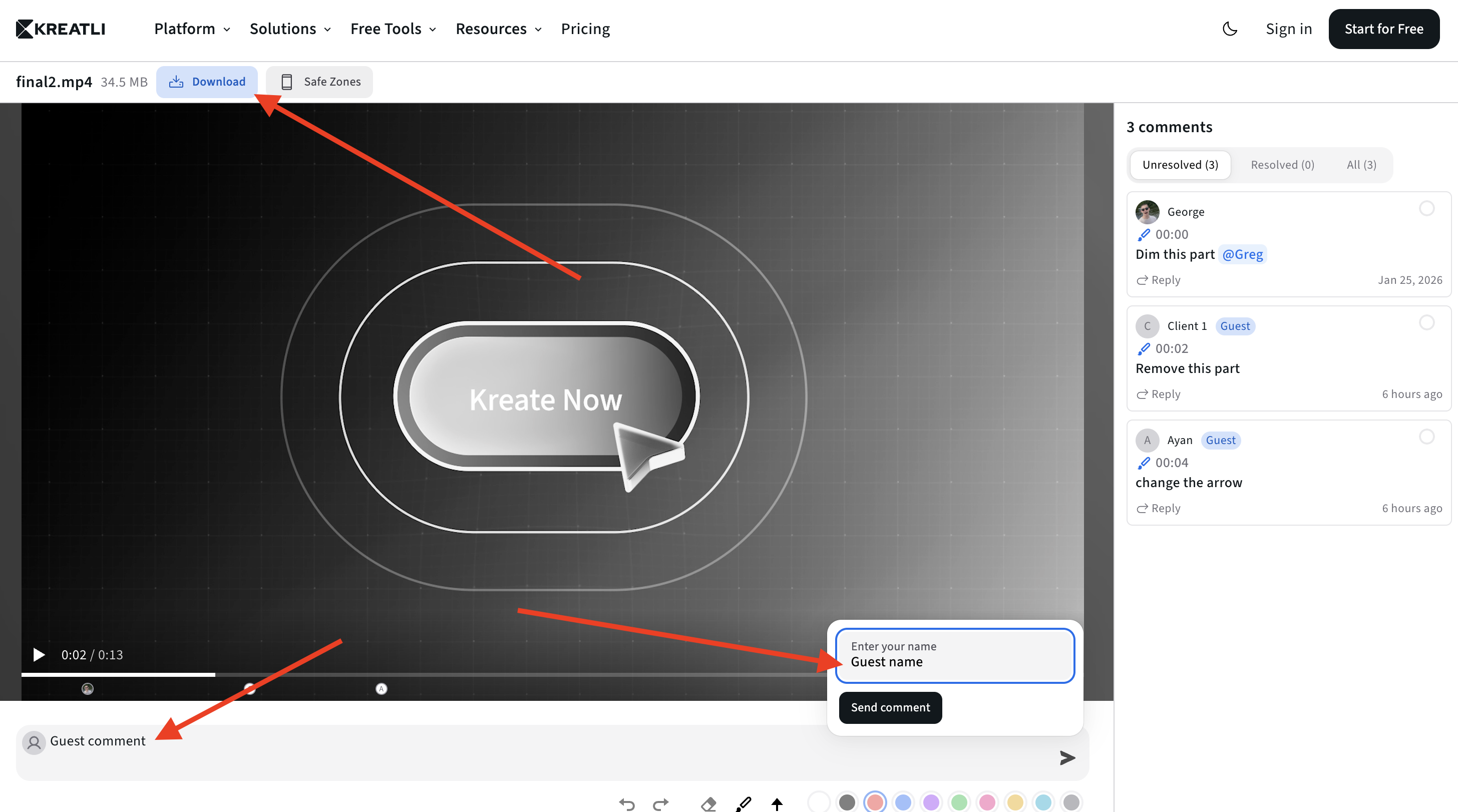
From a guest’s perspective:
Clean review interface
Ability to comment or draw
No account required
This makes client reviews frictionless.
Platform Overlay: Safe Zone Checker
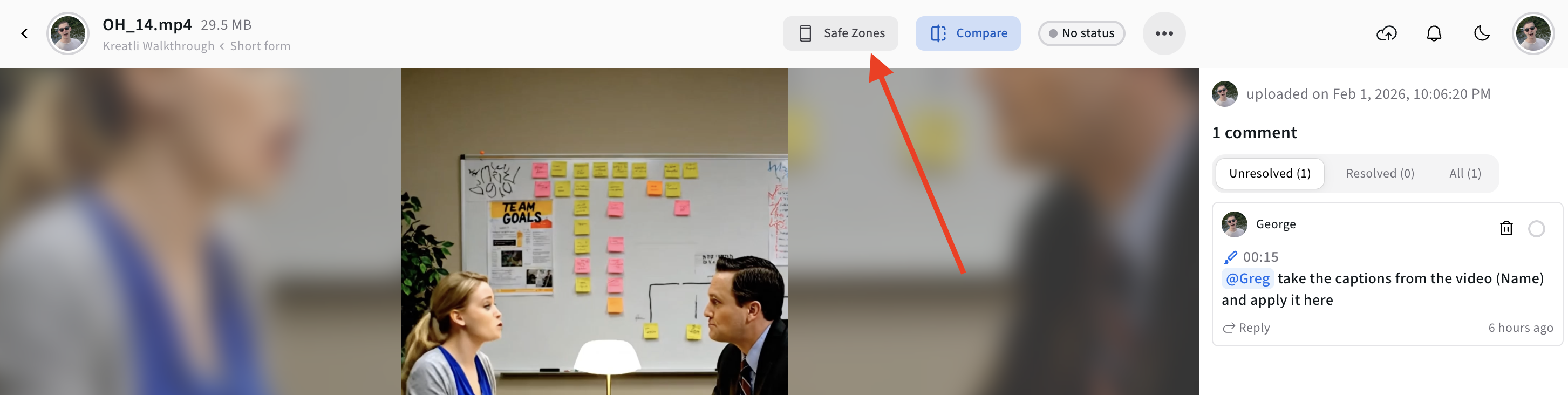
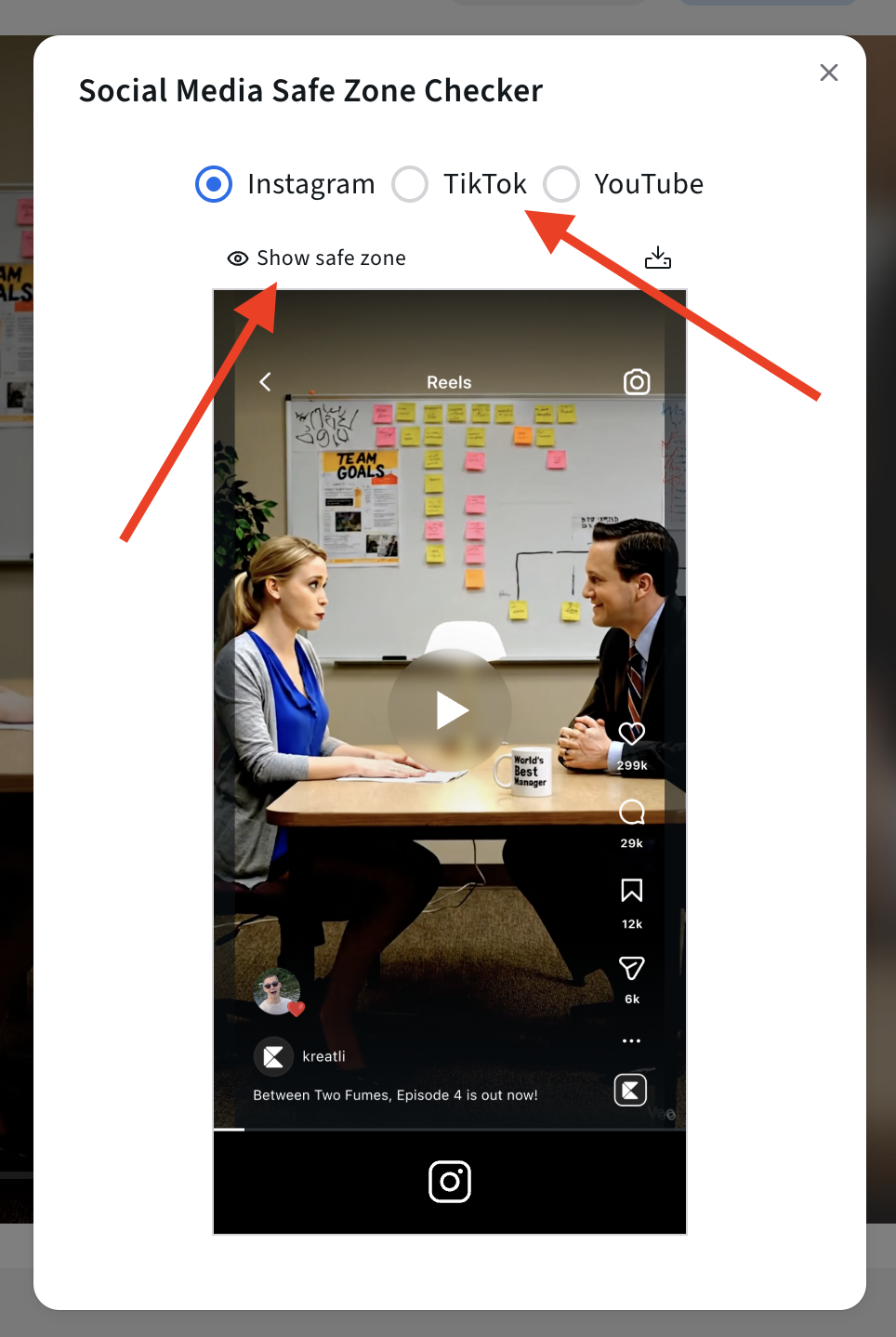
Kreatli includes overlays for:
Social media safe zones
Aspect ratio guides
This helps teams ensure important content stays visible across platforms like TikTok, Instagram, and YouTube.
Chat Inside Kreatli
Attaching Media to Messages
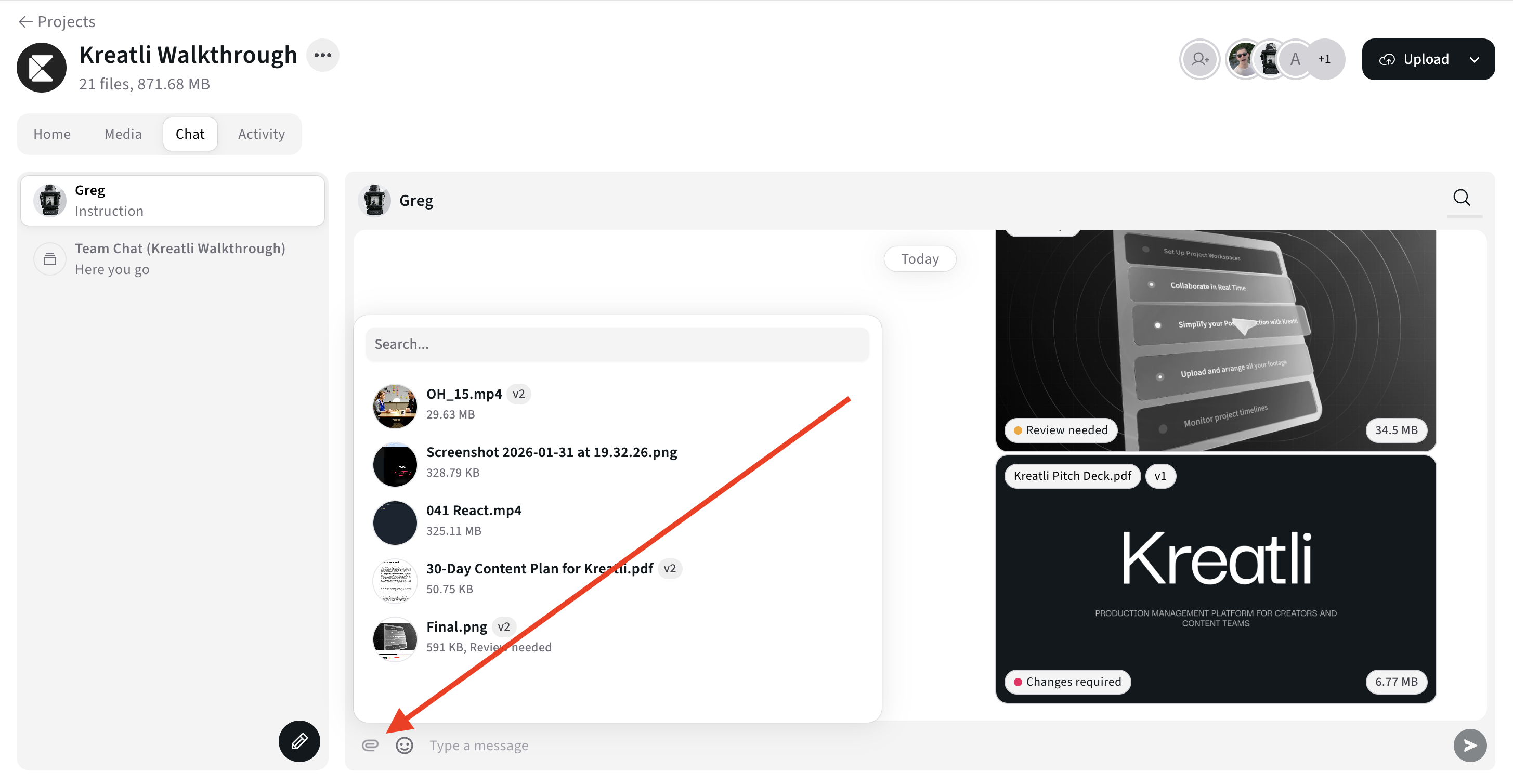
You can attach:
Files
Visual references
Media
Directly inside chat messages - keeping discussions contextual.
Creating 1:1 Chats
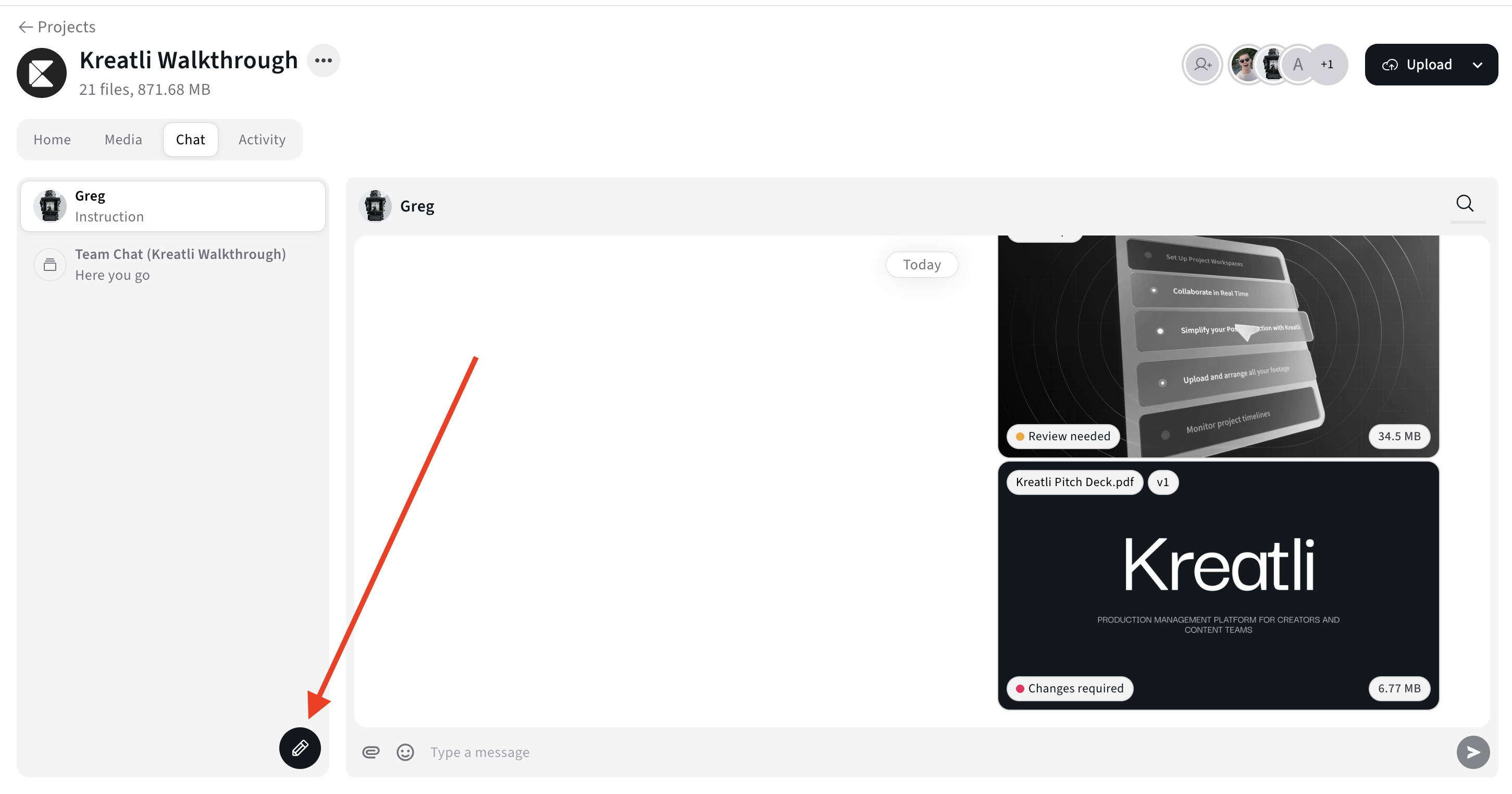
Use private 1:1 chats for:
Quick clarifications
Internal discussions
Sensitive feedback
All without leaving the platform.
Home Tab: Edit Project Description
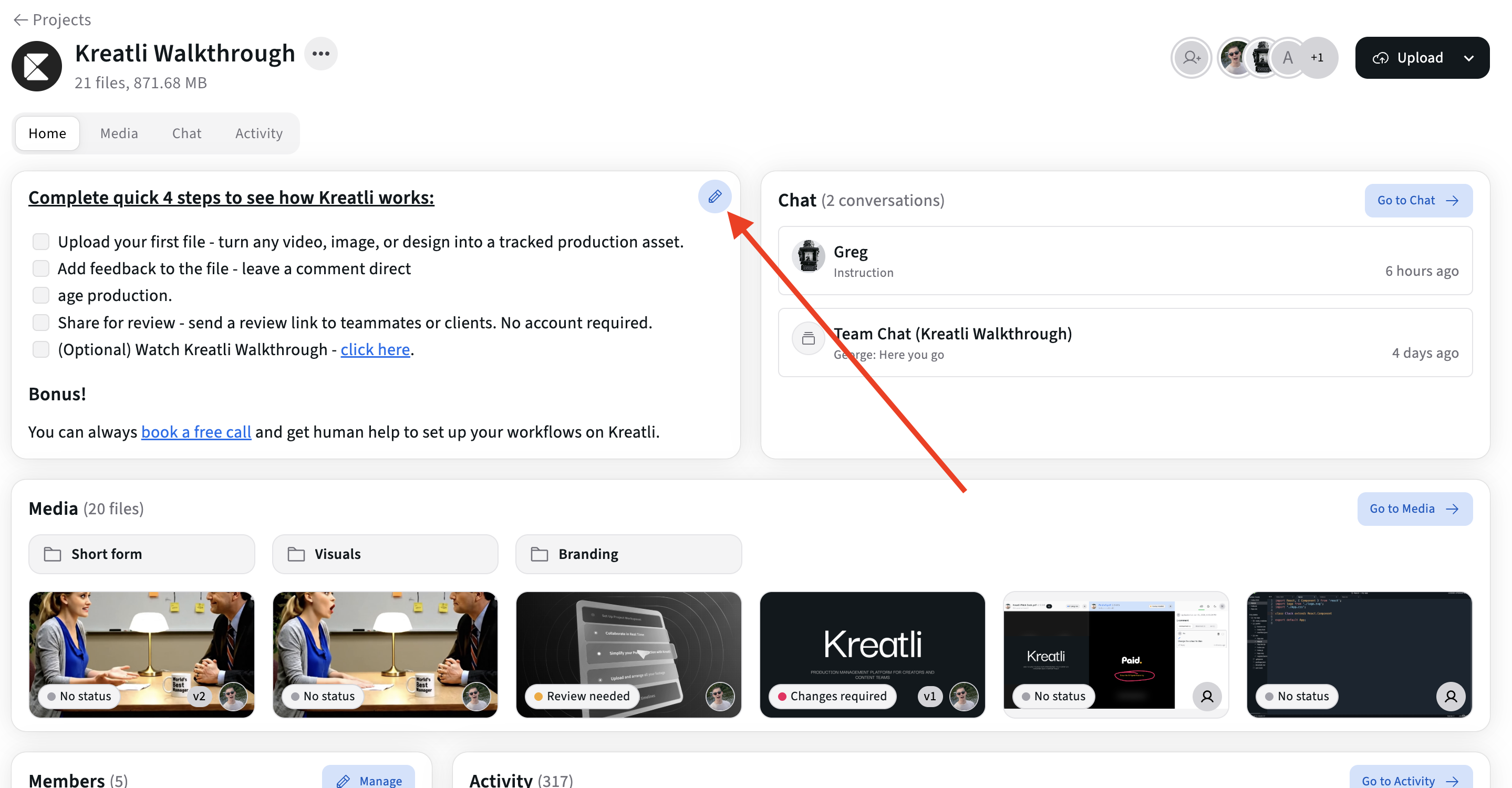
From the Home tab, you can:
Add or edit the project description
Document goals, scope, or context
This helps onboard new collaborators quickly and reduces repeated explanations.
Why This Workflow Works
Kreatli combines:
Video Collaboration & Review
Document annotation
Version control
Approvals
Production orchestration
Into one platform - eliminating the need to jump between tools.
Explore the full platform here:
https://kreatli.com/platform
Final Takeaway
Kreatli isn’t just a place to store files.
It’s a structured system that guides teams through:
upload → review → revise → approve → deliver
With clarity at every step.
Ready to see how it works?
Visit Kreatli to explore project templates, playback reviews, and file exchange views that streamline creative production.