How to Annotate a PDF Online (Full Guide 2026)
Learn how to annotate a PDF online using Kreatli. Add comments, highlights, drawings, and approvals without emailing files.
Article summary
Learn how to annotate a PDF online using Kreatli. Add comments, highlights, drawings, and approvals without emailing files.
Annotating a PDF is one of the most common review tasks — and one of the most poorly handled.
Most teams still rely on:
Email threads
Screenshot markups
Conflicting PDF versions
Unclear approval status
The result? Slower reviews, missed feedback, and version chaos.
In this guide, we’ll explain how to annotate a PDF properly, what tools work best, and how teams use Kreatli to turn annotations into a structured review and approval workflow.
What Does It Mean to Annotate a PDF?
Annotating a PDF means adding comments, highlights, drawings, or notes without changing the original content.
Annotations are used to:
Suggest changes
Ask questions
Highlight issues
Request approvals
They are especially useful when multiple reviewers are involved.
Why PDF Annotation Often Breaks Down
Even though annotation sounds simple, teams struggle because:
Feedback lives in multiple tools
Versions aren’t clearly tracked
Comments aren’t tied to decisions
Approvals happen verbally or via email
Annotation alone isn’t enough — it needs context, versioning, and ownership.
Common Use Cases for PDF Annotation
PDF annotation is used across teams and industries:
Creative teams: layouts, brand guidelines, storyboards
Marketing teams: decks, campaign assets
Production teams: scripts, schedules, shot lists
Operations: internal documentation, SOPs
In all cases, the goal is the same: clear, actionable feedback.
Why Drawing on a PDF Beats Text Comments
Text comments often create ambiguity:
“This part needs adjusting”
“Move this slightly left”
“Change this section”
Without visuals, reviewers guess - and revisions multiply.
Drawing on a PDF allows you to:
Circle problem areas
Draw arrows and callouts
Highlight exact sections
Leave contextual feedback
For creative and production teams, this removes interpretation entirely.
Common Use Cases for Drawing on PDFs
Teams use PDF drawing tools across many workflows:
Creative reviews: layouts, brand guidelines, storyboards
Marketing approvals: decks, campaign plans
Production planning: shot lists, schedules
Operations: internal documentation, SOPs
The key requirement in all of them: feedback must be precise and versioned.
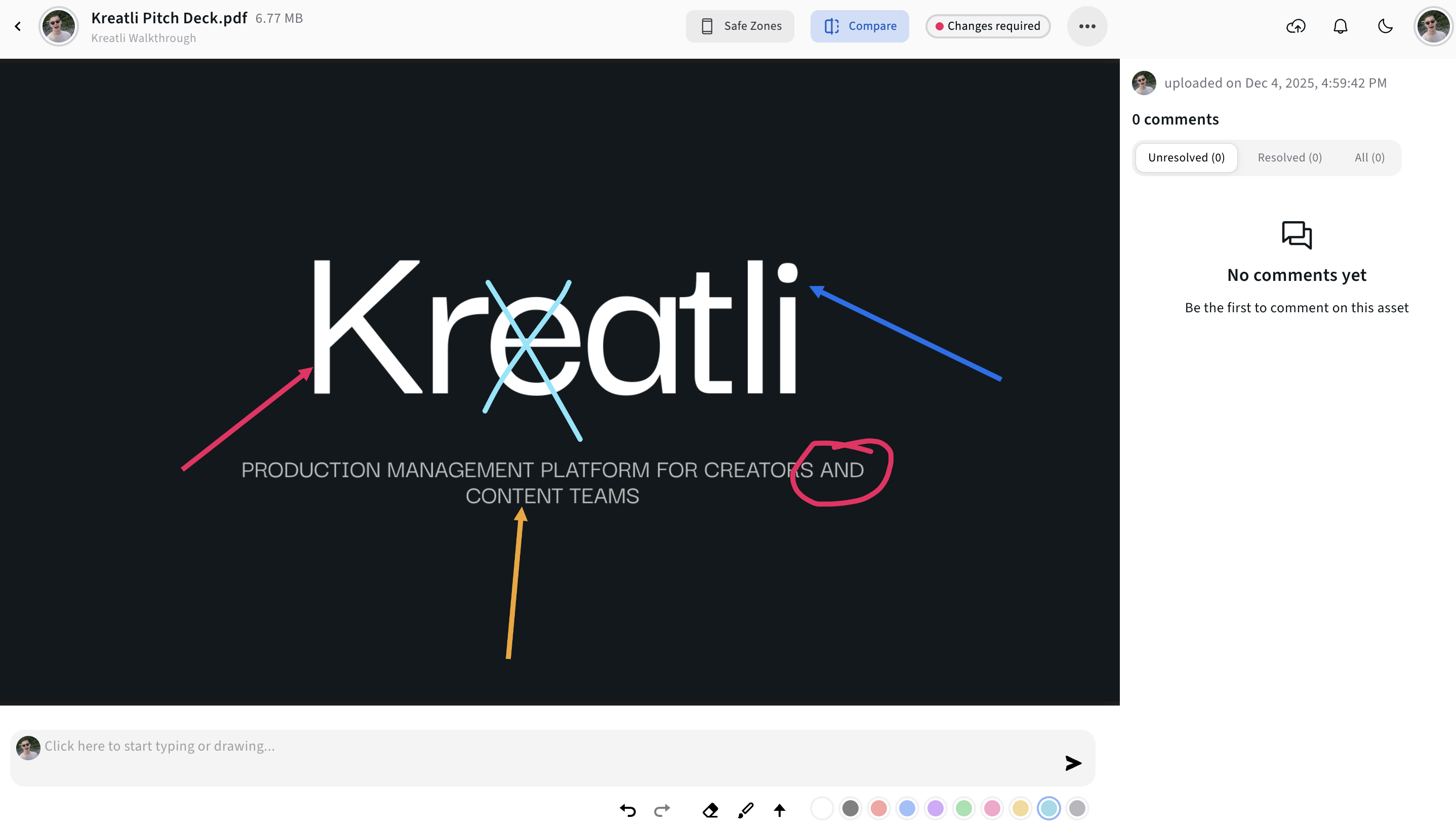
How to Annotate a PDF Using Kreatli (Step by Step)
Kreatli is a Video Collaboration & Review Platform that also supports document-based review — allowing teams to annotate, discuss, and approve PDFs in one centralized workspace.
Step 1: Create a New Project
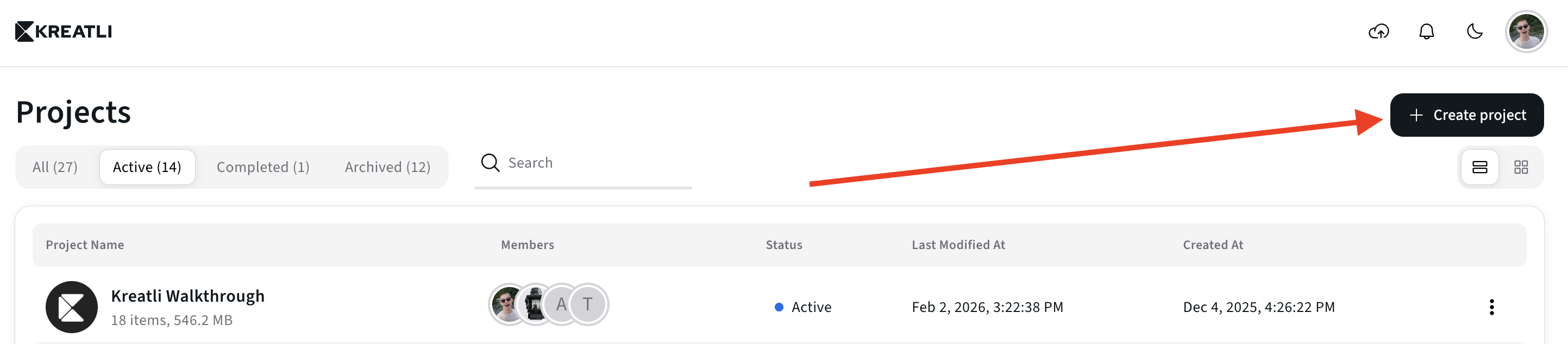
Before annotating your PDF, create a new project in Kreatli.
Projects act as a shared workspace where files, feedback, versions, and approvals stay organized in one place - so annotations never get lost or disconnected from context.
Step 2: Upload the PDF to Your Workspace
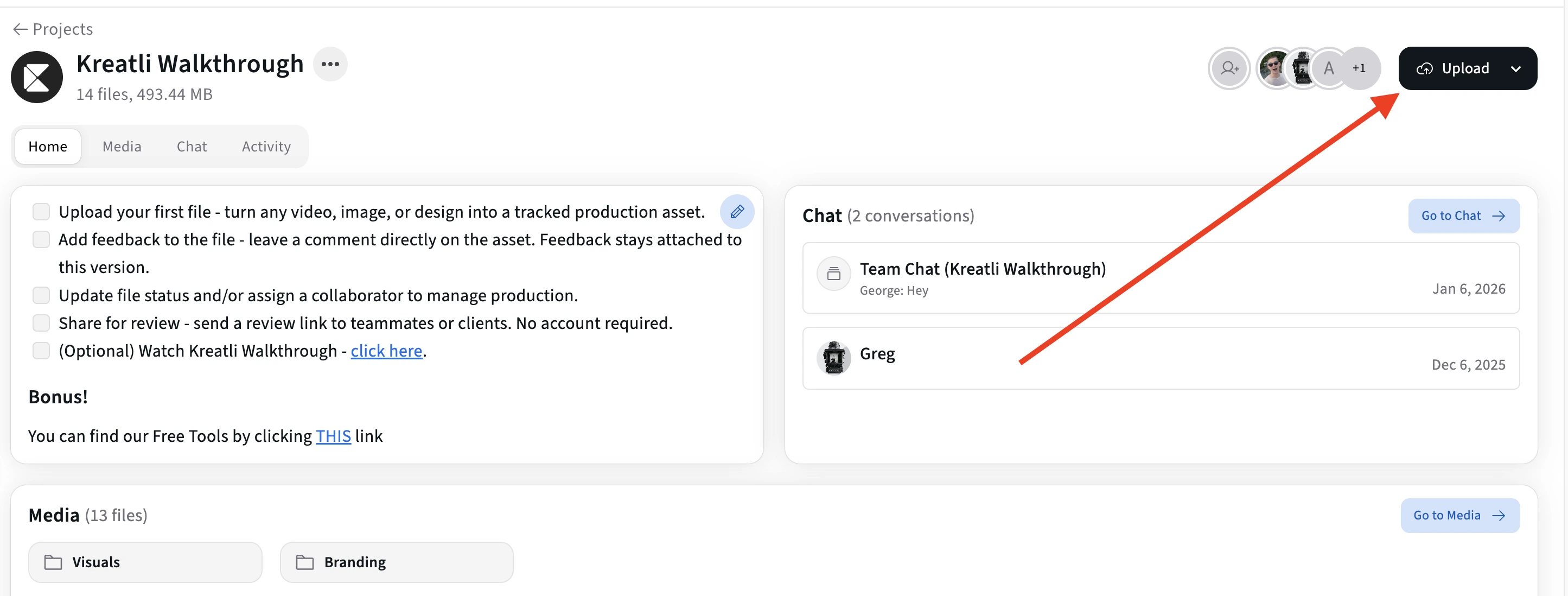
Upload your PDF into a Kreatli project.
This ensures:
Centralized access
Clear ownership
Automatic version history
Step 3: Open the PDF in Review Mode
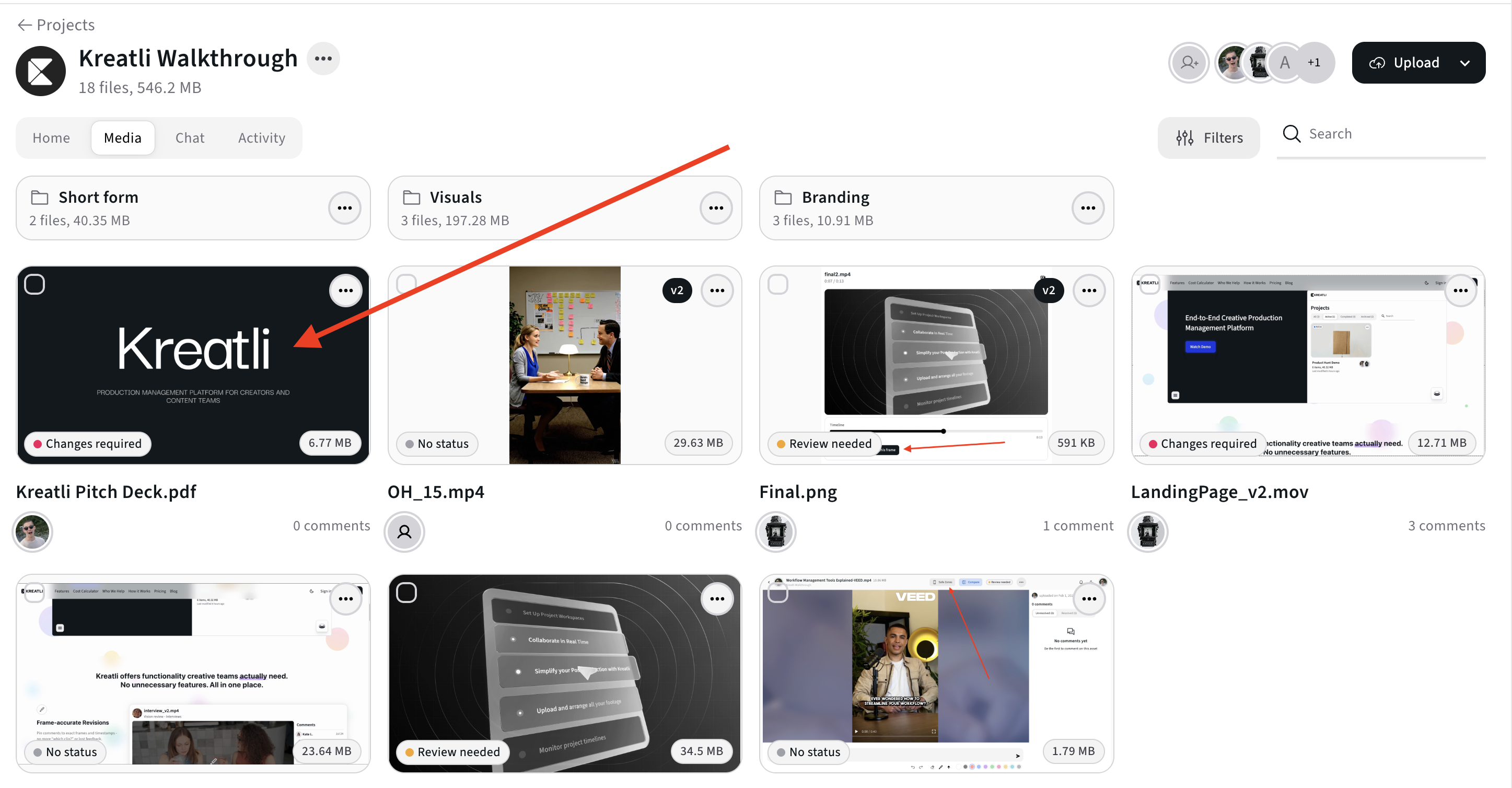
Click the file to open Kreatli’s review interface.
Here, reviewers can:
Add annotations
Reply to comments
Track discussion threads
No downloads or email attachments required.
Step 4: Add Annotations (Comments, Highlights, Drawings)
Use Kreatli’s visual feedback tools to annotate the PDF:
Pin comments to exact locations
Highlight text or sections
Draw arrows or freehand marks
Leave contextual notes
Each annotation is tied to a discussion, not just a mark.
Learn more here: https://kreatli.com/platform/annotate-pdf
Step 5: Keep Feedback Contextual
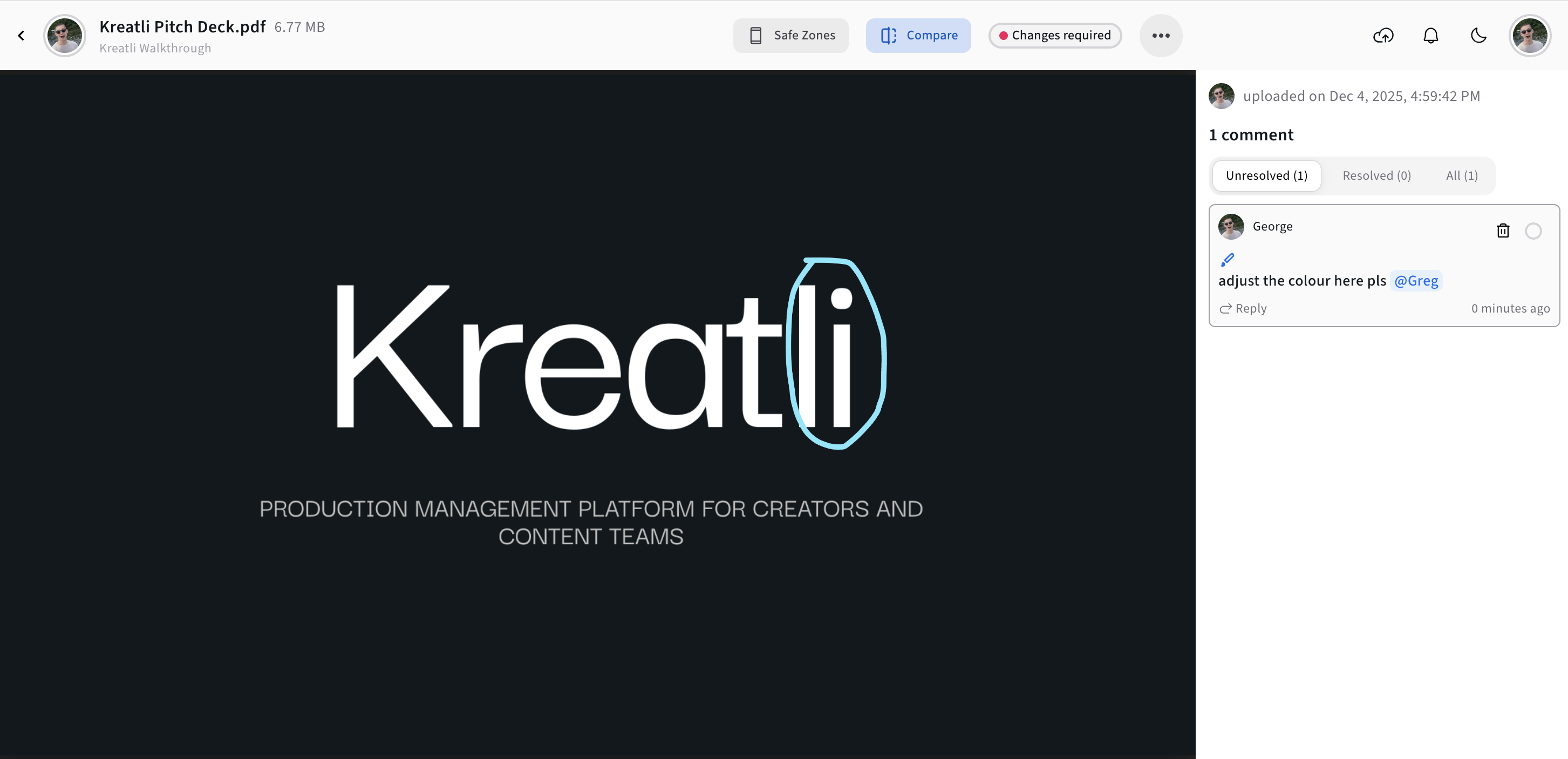
Annotations work best when they explain intent.
Instead of:
“Fix this”
Use:
“Update this section to match the revised brand guidelines.”
This reduces back-and-forth and speeds up revisions.
Step 6: Upload a Revised Version
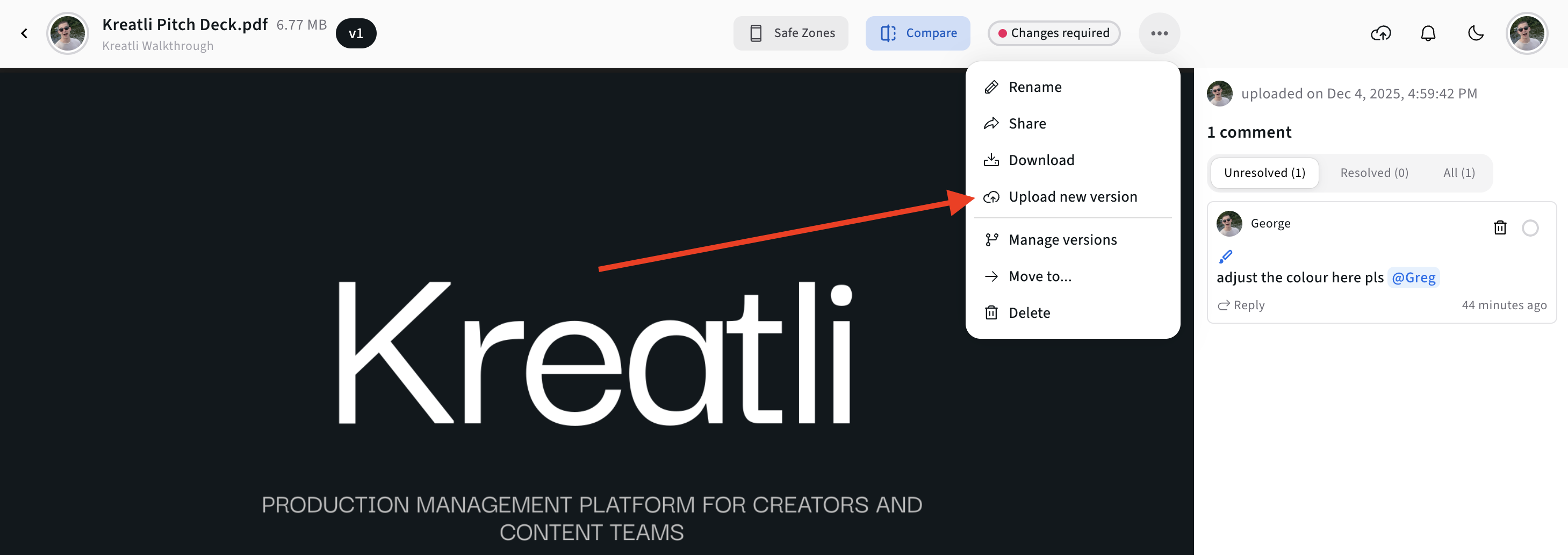
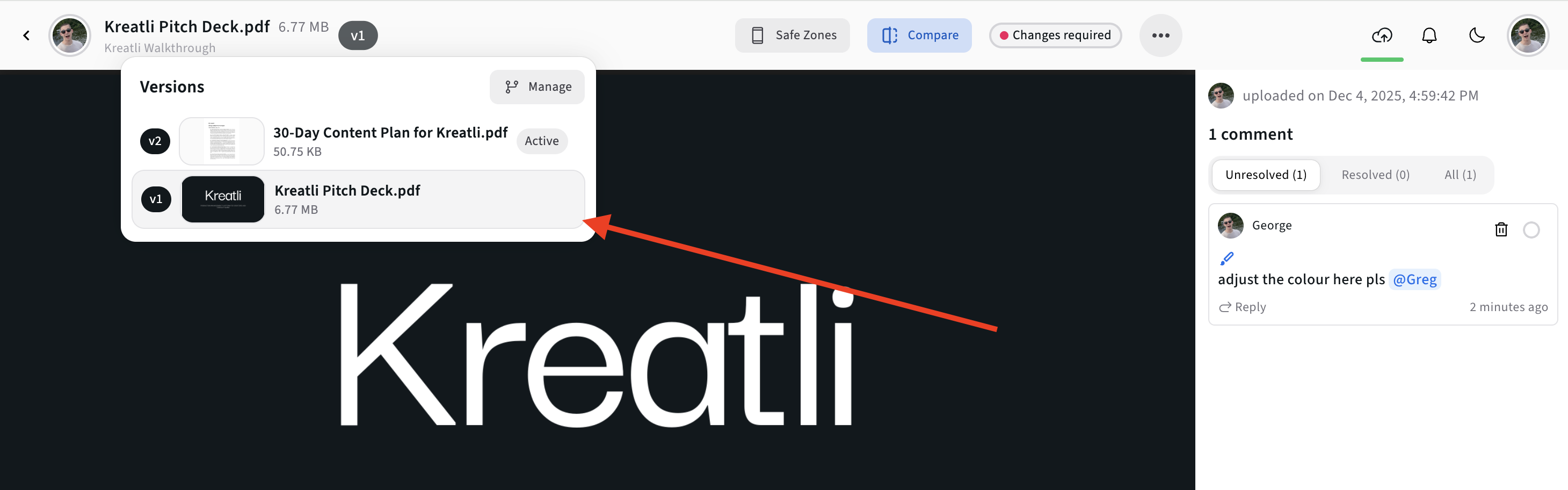
When a revised PDF is uploaded, Kreatli treats it as a new version - preserving all previous feedback.
This makes it easy to:
Compare iterations
Ensure feedback was addressed
Avoid approving the wrong file
Learn more here: Version Control in Kreatli
Why Teams Annotate PDFs in Kreatli (Not Just Editors)
Traditional PDF editors are built for editing.
Kreatli is built for reviewing and approving.
With Kreatli, teams get:
Centralized annotations
Clear version tracking
Structured approvals
Tasks created from comments
Explore the full workflow here:
Kreatli Platform Overview
Free Tools That Speed Up PDF & Review Workflows
Alongside full review and annotation workflows, Kreatli offers free tools teams use daily to reduce friction before feedback even starts.
1. Free Video Link Generator
https://kreatli.com/platform/free-video-link-generator
Create a shareable review link in seconds. Perfect for sending PDFs, videos, or visuals to clients and stakeholders without attachments or account setup.
2. Social Media Safe Zone Checker
https://kreatli.com/social-media-safe-zone-checker
Quickly check whether key content stays visible across platforms like TikTok, Instagram, and YouTube — especially useful when reviewing PDFs for layouts, captions, or overlays.
3. Video Frame Extractor
https://kreatli.com/free-tools/video-frame-extractor
Extract high-quality frames from videos for documentation, PDFs, or visual feedback — ideal when referencing exact moments inside review comments or annotations.
These free tools are often used as an entry point, then paired with Kreatli’s visual annotation, version control, and approval workflows once teams move into structured reviews.
PDF Annotation vs Email Feedback
Method | Clarity | Speed | Scalability |
|---|---|---|---|
Email comments | Low | Slow | Poor |
Screenshot markups | Medium | Slow | Poor |
PDF annotations | High | Fast | Medium |
Kreatli review workflow | Very high | Fast | High |
Annotation becomes far more powerful when it’s part of a structured workflow.
Best Practices for Annotating PDFs
Annotate Against the Latest Version
Never mark outdated files — version confusion kills trust.
Keep One Thread Per Issue
Avoid stacking multiple topics in one annotation.
Close the Loop With Approvals
Annotations should lead to decisions.
Learn more: Approvals & Sign-Offs
Turn Feedback Into Action
When changes are required, convert annotations into tasks.
Related: Tasks & Production Orchestration
How PDF Annotation Fits Into Multi-Asset Reviews
Most teams don’t review PDFs in isolation.
They also annotate:
Videos
Images
Motion drafts
That’s why Kreatli combines Video Collaboration & Review with project orchestration — using the same annotation logic across all asset types.
Related guides:
How to Draw on a PDF
How to Compare PDF Files
FAQ: Annotating PDFs
What is the best way to annotate a PDF online?
The best way is using a browser-based review platform like Kreatli that supports comments, drawings, and version tracking.
Can multiple people annotate the same PDF?
Yes. Kreatli allows multiple reviewers to annotate and reply in shared threads.
Do annotations change the original PDF?
No. Annotations sit on top of the file and don’t alter the original content.
Can I track whether annotations were addressed?
Yes. Kreatli’s version history helps teams verify whether feedback was resolved.
Is Kreatli only for video annotation?
No. While Kreatli is a Video Collaboration & Review Platform, it also supports document annotation as part of a full production workflow.
Final Takeaway
Annotating a PDF shouldn’t create more confusion than clarity.
If your team relies on email, scattered tools, or manual version tracking, annotation becomes a bottleneck instead of a solution.
With Kreatli, PDF annotation becomes part of a complete review workflow — combining visual feedback, version control, approvals, and production orchestration in one platform.
Explore Kreatli here: https://kreatli.com/
Ready to see how it works?
Visit Kreatli to explore project templates, playback reviews, and file exchange views that streamline creative production.