Video Frame Extractor — Extract Frames from Video Online
Your video-to-frame workflow in the browser: decoded stills from MP4, MOV, or WebM—not screen grabs—so thumbnails and QC grabs stay pixel-consistent. Capture PNG, JPG, or a ZIP of multiple frames. Sign up free to preview. Downloads need a one-time $4.99 lifetime unlock (or an active Kreatli plan).
What is a Video Frame Extractor?
A video frame extractor saves a still image from a specific moment in a clip—useful for thumbnails, reference grabs, or legal frames. Editors use it to pull exact frames without exporting a full sequence.
Extract frames from video — how it works
Extract still images from a video in minutes—perfect for thumbnails, storyboards, creative reviews, and documenting exact moments.
Upload a Video File (MP4, MOV, or WebM)
Choose a video from your device and load it in the tool. Everything happens in your browser, so your file stays on your machine while you work.
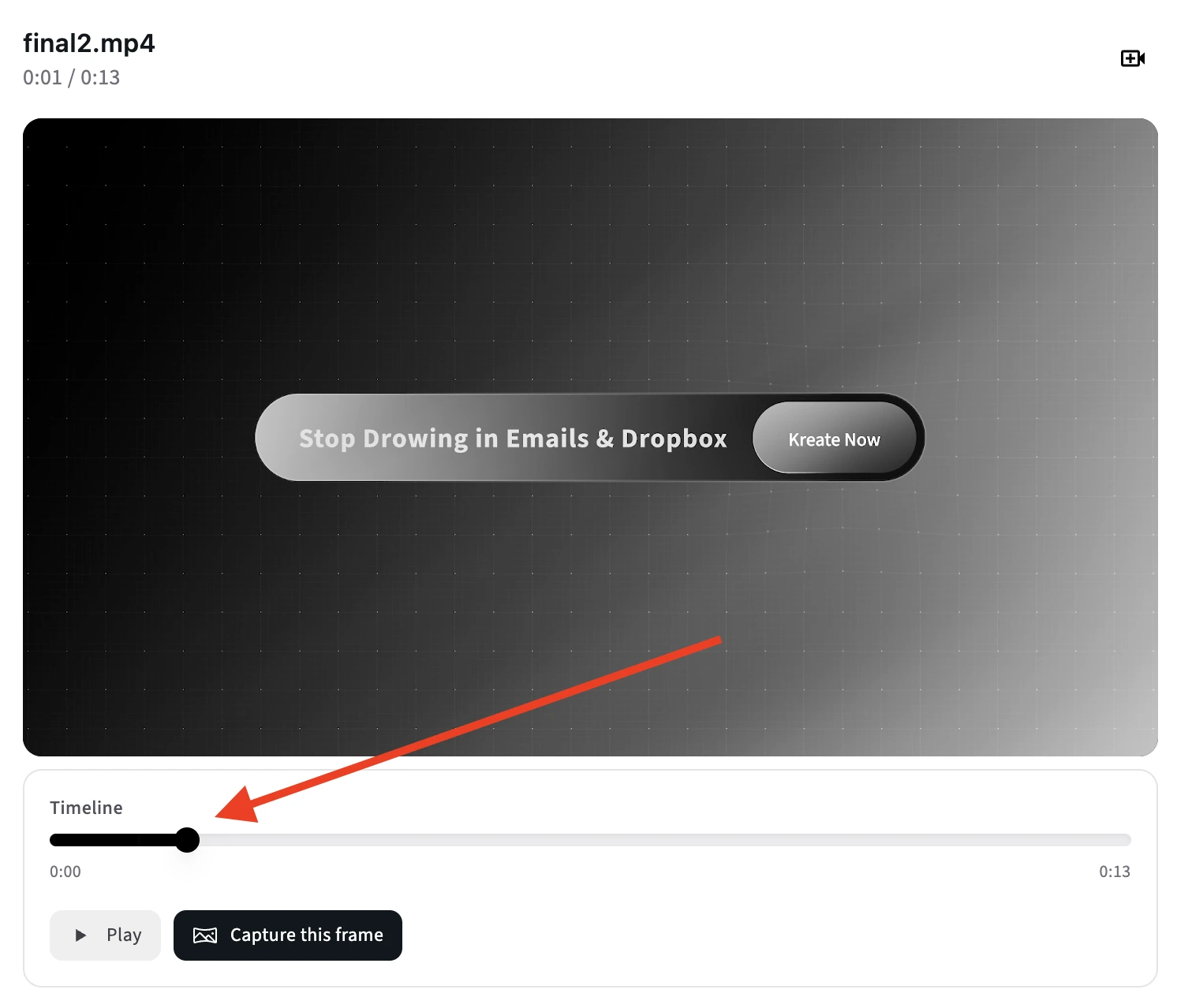
Scrub to the Exact Moment You Need
Use the timeline scrubber or play controls to find the frame you want—great for selecting clean thumbnail moments, design references, or specific scenes for review.
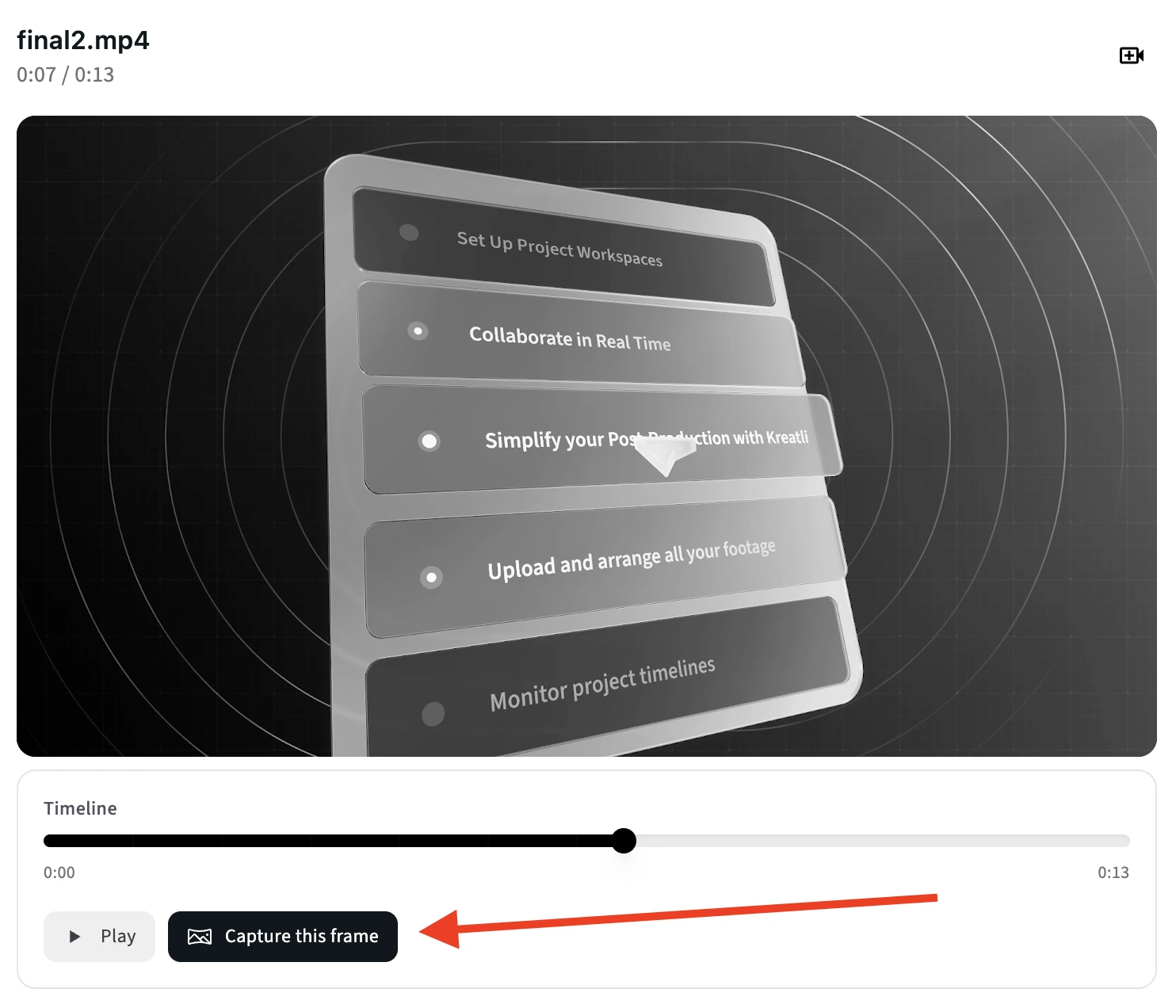
Capture One or Multiple Frames
When you see the right moment, click “Capture this frame”. Keep capturing to build a small gallery of options you can preview and refine.
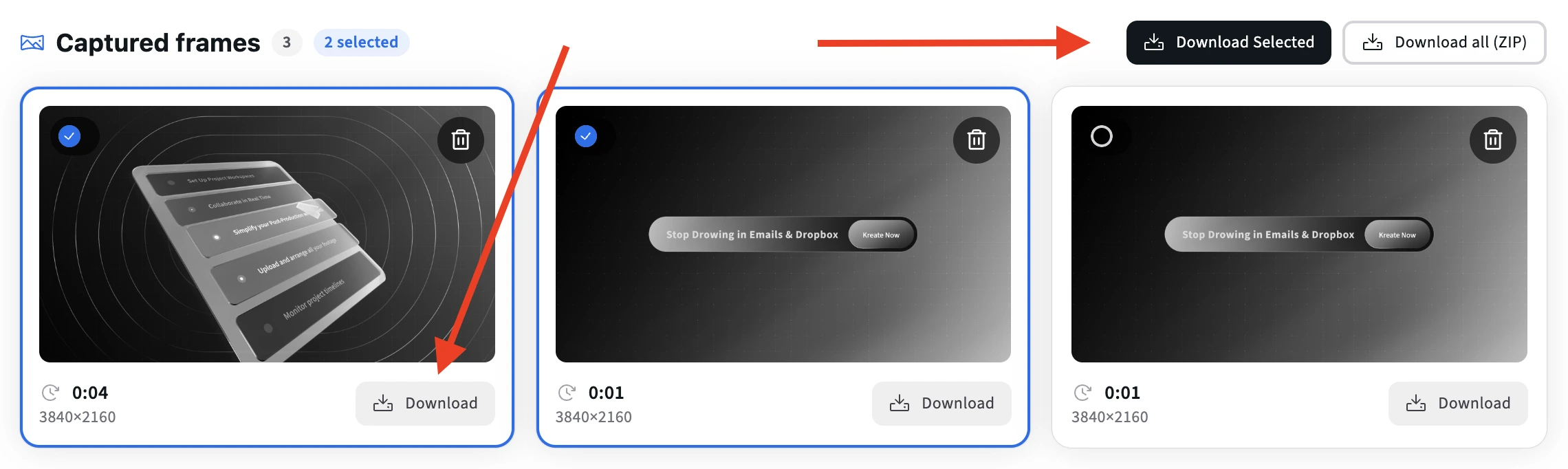
Export as PNG/JPG (Single or ZIP)
Download a single frame, or export multiple frames at once as a ZIP. Use PNG for best quality (recommended) or JPG for smaller file sizes.
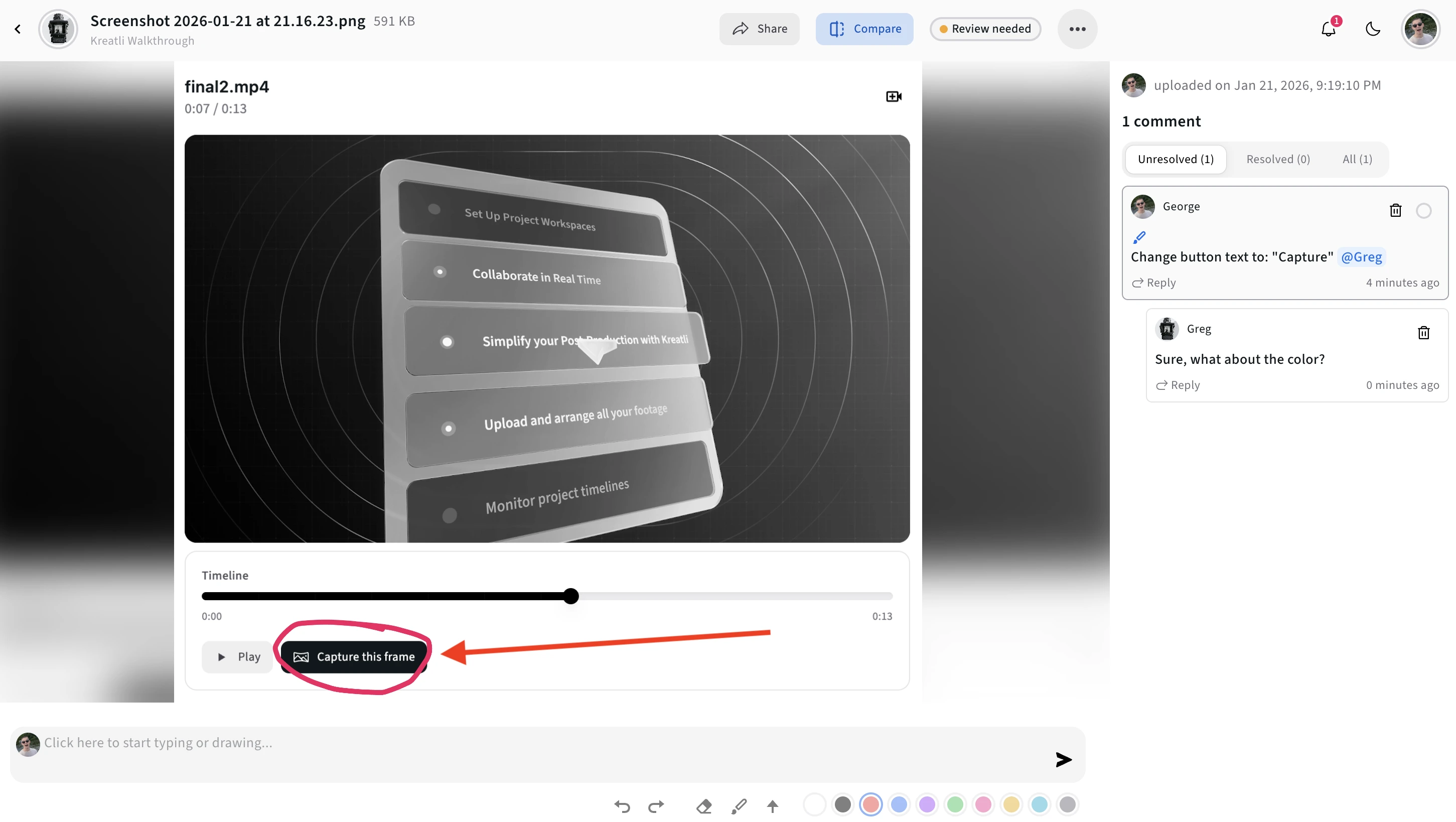
Share Frames for Feedback on Kreatli
If you’re collaborating, upload selected frames to Kreatli to collect comments, approvals, and decisions in one place—especially useful for picking the final thumbnail or key visual.
Video Frame Extraction Explained
A video frame extractor helps you turn a specific moment in a video into a still image you can download. Use it for thumbnails, keyframes, storyboards, or sharing a precise moment with teammates and clients.
Common Use Cases
- Thumbnails & posters: Find a crisp, readable moment.
- Storyboards: Capture key beats for a scene breakdown.
- Creative review: Share a specific frame for feedback.
- QA & bug reports: Document a glitch at an exact timecode.
PNG vs JPG
PNG is best when you want maximum quality and sharp text edges (recommended for thumbnails and UI captures).
JPG creates smaller files, which is helpful when you’re exporting lots of frames or sharing quickly.
Tips for Picking the Best Frame
- Pause on a frame with minimal motion blur (especially on fast cuts).
- Look for clear faces, readable text, and strong contrast.
- Capture a few nearby moments and export as a ZIP to compare options quickly.
Privacy & Security
The extractor runs locally in your browser. Your video isn’t uploaded to a server as part of the frame capture workflow.
For structured review, versioning, and secure sharing, explore secure asset storage in Kreatli.
Read Our Complete Guide
Learn best practices for choosing thumbnail frames, exporting stills for design, and sharing decisions with clients and stakeholders.
Read Complete GuideMore Tools for Video Teams
Sign up free — no credit card required — and try these tools in Exploration Mode. Start a 7-day free trial when you’re ready for unlimited access.
YouTube Thumbnail Resizer
Crop images to YouTube’s 1280×720 thumbnail size. Upload JPG/PNG/WebP, position the frame, and download PNG or JPG.
Video Annotator
Add timecoded comments, drawings, and markup to video. Pin feedback to exact timestamps and share with clients; recipients do not need a Kreatli account.
Video Reviewer
Review videos online with timecoded comments, visual annotations, and approval workflows. Share with clients; recipients do not need a Kreatli account.
Resize Video
Resize video online to custom or preset dimensions. Processing runs locally in your browser for quick previews and exports. Sign in to use the tool; start a trial or choose a plan if your subscription isn’t active.
Frequently Asked Questions
Common questions about extracting still frames from video, video-to-frame workflows, downloads, and privacy.
Still Have Questions?
If you didn’t find what you were looking for, contact us at support@kreatli.com.
More Resources
Learn more about video collaboration workflows, asset review and approvals, and team collaboration.
Review & Approval
Timecoded revisions and approvals for video content. Streamline your feedback workflow.
Creative Workspace
Unified workspace for creative production. Organize assets, manage projects, and collaborate with your team.
Project Orchestration
Board-driven tasks on customizable project stages. Link work to media, assign owners and contributors, and track progress by column.
Need feedback and approvals on video assets?
Kreatli is a Video Collaboration & Review Platform for video teams. Upload videos, collect frame-accurate feedback, keep discussions organized, and move projects forward.