Resize Video
Resize video online to custom or preset dimensions in minutes. Sign up free to preview. Downloads need a one-time $4.99 lifetime unlock (or an active Kreatli plan).
What is a Resize Video Tool?
A resize video tool adjusts dimensions or aspect ratio so exports meet platform specs—social, broadcast, or web—without reopening an edit suite. Use it when you need a quick deliverable size check before upload or handoff.
How to Use the Resize Video Tool
Resize video to preset or custom dimensions in minutes—ideal for social formats, web use, and re-exporting at a different resolution.
Upload a Video File
Drop a video from your device or click to browse. The tool accepts MP4, MOV, WebM and other common formats. Everything runs in your browser—your file stays on your machine.
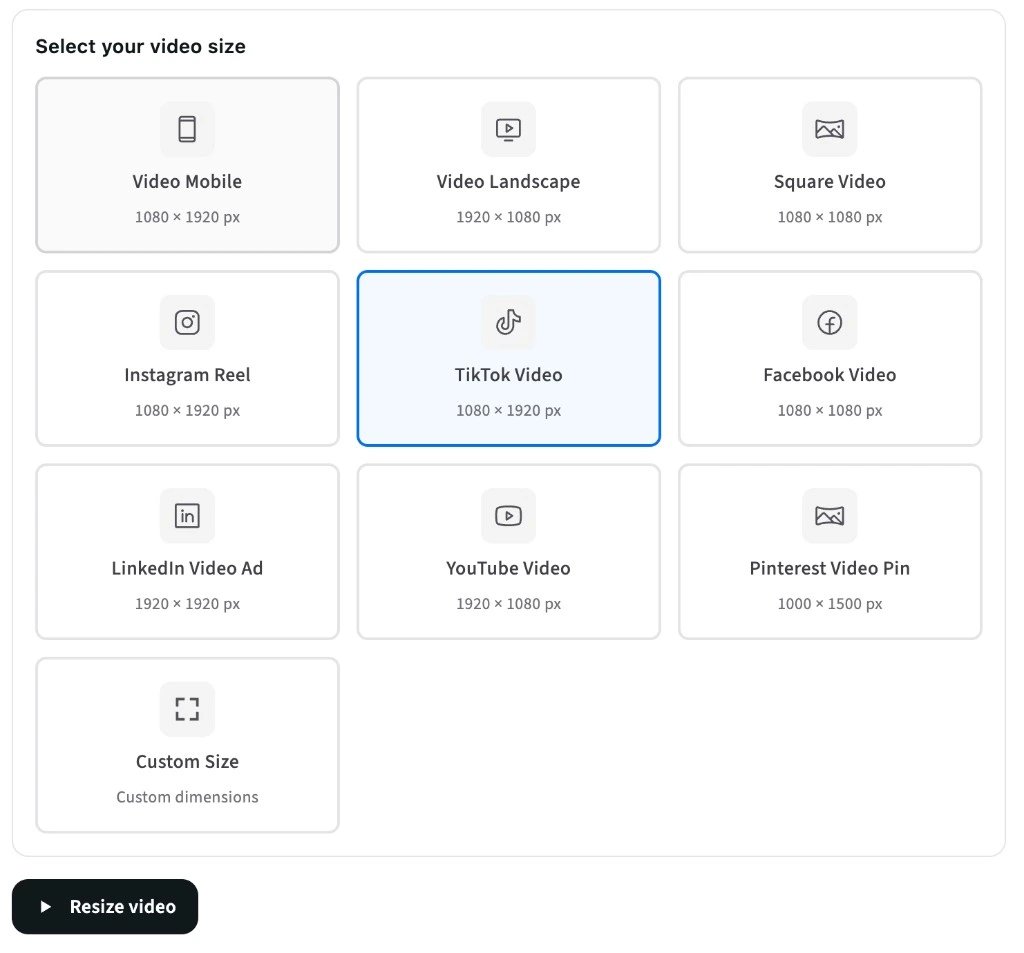
Choose a Preset or Custom Size
Pick a preset like Landscape (1920×1080), Square, Instagram Reel, TikTok, or YouTube, or choose Custom Size and enter width and height. You can lock aspect ratio to scale proportionally.
Adjust Dimensions and Export Format
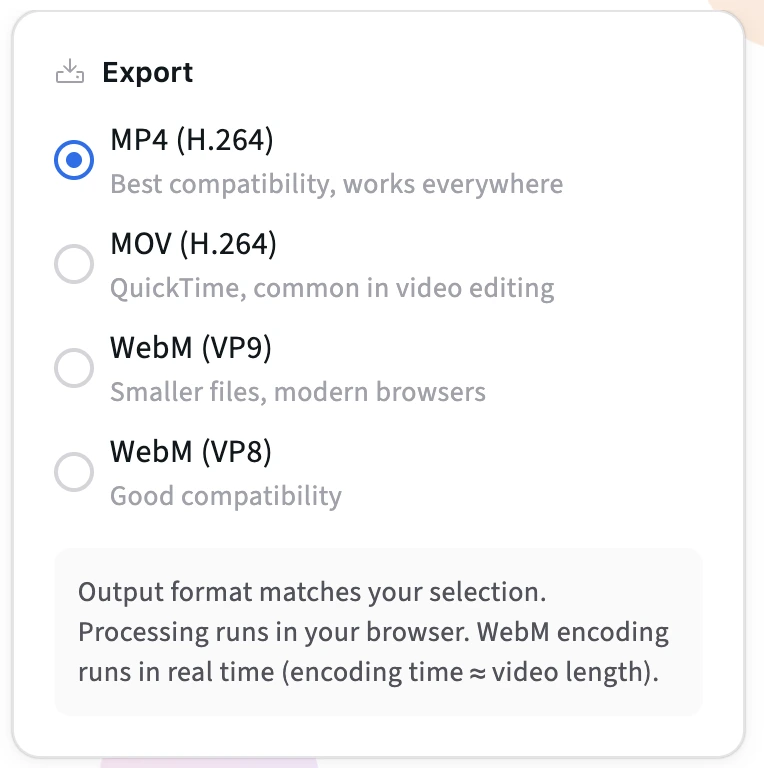
Set your target width and height, then choose export format: MP4 or MOV for best compatibility (via FFmpeg in-browser), or WebM (VP9/VP8) for faster processing and smaller files.
Resize and Download
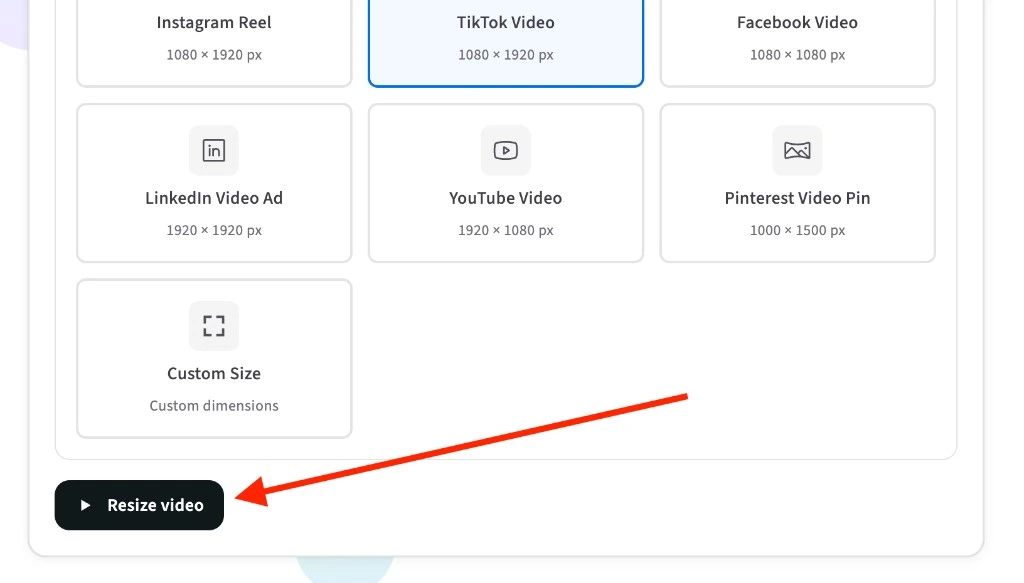
Click to resize. The tool resizes the video in your browser and then downloads the resized file. No uploads to a server—resizing is local and private.
Share for Review on Kreatli
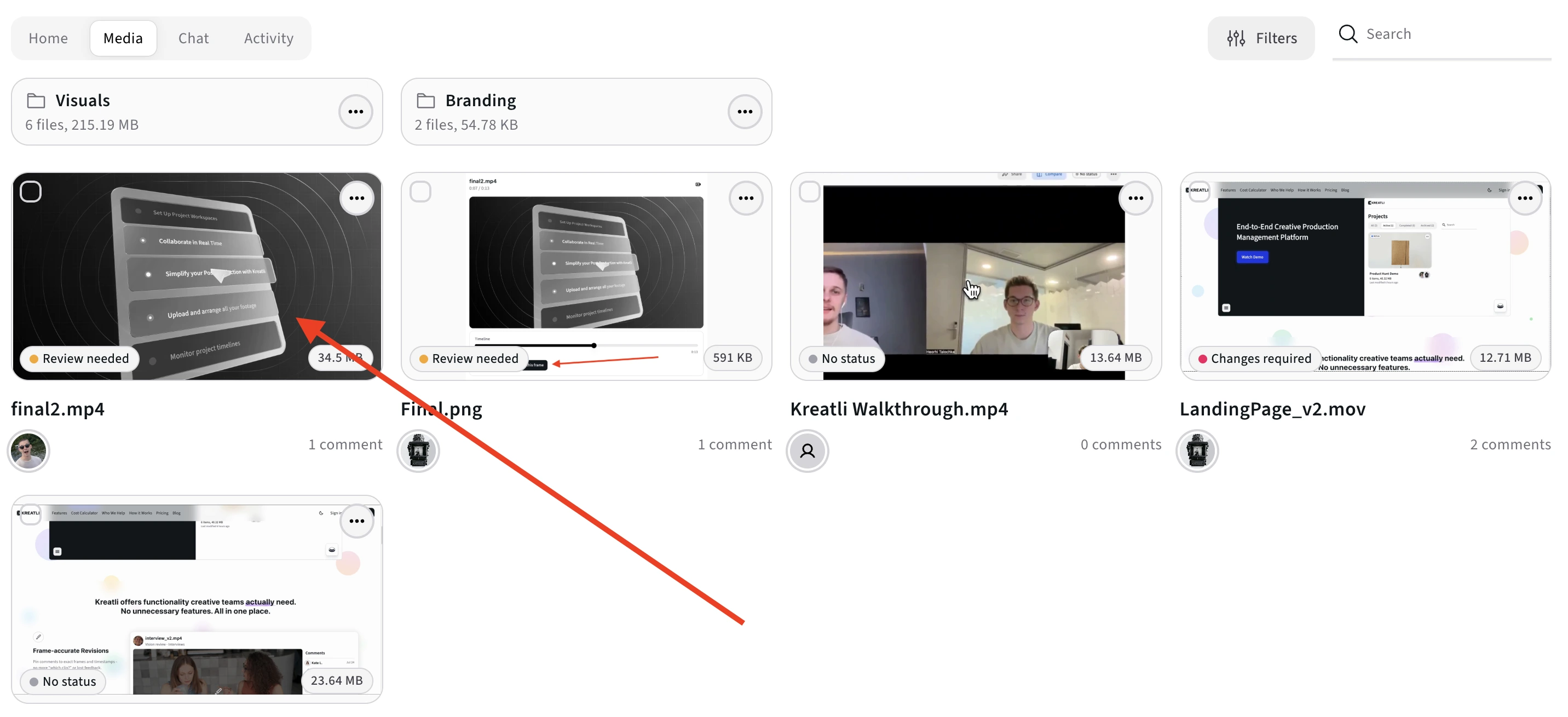
For team workflows, upload your resized video to Kreatli to collect frame-accurate feedback, approvals, and keep all versions and comments in one place.
Resize Video Explained
A video resizer changes the resolution (width and height) of a video. Use presets for social and web formats, or enter custom dimensions. Processing runs locally in your browser.
Presets & Custom
Presets cover common sizes: Landscape (1920×1080), Square (1080×1080), Instagram Reel, TikTok, YouTube, and more. Use Custom Size for any width and height; keep aspect ratio locked to avoid letterboxing.
Export Formats
MP4/MOV use in-browser FFmpeg for best compatibility. WebM (VP9/VP8) uses canvas recording—faster for large files and good for web and social. Max input size is 500 MB.
Privacy & Security
Resizing runs locally in your browser. Your video is not uploaded to a server. For secure cloud storage, versioning, and review workflows, use Kreatli secure asset storage.
Use Cases
- Adapt landscape footage for vertical Reels, TikTok, or Stories.
- Export at 1080p or 720p for web or email.
- Create square or custom aspect ratio for social and ads.
More Tools for Video Teams
Sign up free — no credit card required — and try these tools in Exploration Mode. Start a 7-day free trial when you’re ready for unlimited access.
Video Frame Extractor
Extract still frames from a video and download them as PNG/JPG. Processing runs locally in your browser for fast exports. Sign in to use the tool; start a trial or choose a plan if your subscription isn’t active.
Video Reviewer
Review videos online with frame-accurate comments, visual annotations, and approval workflows. Share with clients; recipients do not need a Kreatli account.
Video Feedback Tool
Give frame-accurate feedback on videos with comments, annotations, and markup. Share review links with clients; recipients do not need a Kreatli account.
YouTube Banner Resizer
Resize your YouTube channel art to the perfect dimensions. Preview safe areas for mobile, desktop, tablet, and TV devices.
Frequently Asked Questions
Common questions about resizing video, export formats, presets, and privacy.
Still Have Questions?
If you didn’t find what you were looking for, contact us at support@kreatli.com.
More Resources
Learn more about video collaboration workflows, asset review and approvals, and team collaboration.
Review & Approval
Frame-accurate revisions and approvals for video content. Streamline your feedback workflow.
Creative Workspace
Unified workspace for creative production. Organize assets, manage projects, and collaborate with your team.
Secure Asset Storage
Enterprise-grade storage for creative assets. Organize files, track versions, and protect your media with reliable infrastructure.
Need feedback and approvals on video assets?
Kreatli is a Video Collaboration & Review Platform for video teams. Upload videos, collect frame-accurate feedback, keep discussions organized, and move projects forward.