Add a Timestamp to Video
Adding a timestamp to video feedback means every note includes the exact timecode (time-stamped feedback). Kreatli pins comments to frames so “fix the audio” becomes “fix 01:14:08.” This is not a burned-in timecode overlay on the picture. Use this when reviewers still write times in email; the player does it automatically.
interview_v2.mp4
Vision review - Interviews
Upload a video or image to get started
Drag and drop a file here, or click the button below
Comments
Kate L.
Jul 24
00:07 Let's make sure we display QR code in the marked place.
Kate L.
Jul 25
00:14 We should probably blur this part.
What is a timestamped video comment?
Adding a timestamp to video feedback means every note includes the exact timecode (time-stamped feedback). Kreatli pins comments to frames so “fix the audio” becomes “fix 01:14:08.” This is not a burned-in timecode overlay on the picture. Use this when reviewers still write times in email; the player does it automatically.
Use this page when you searched for timestamped video comment. For comment on video, see comment on video. The cluster pillar is video review workflow. See Kreatli pricing or read how to comment on a video.
How to Add Timestamp to Video in Kreatli
Follow these steps to upload your video, add timestamped comments, and share a review link with your team or clients.
Step 1
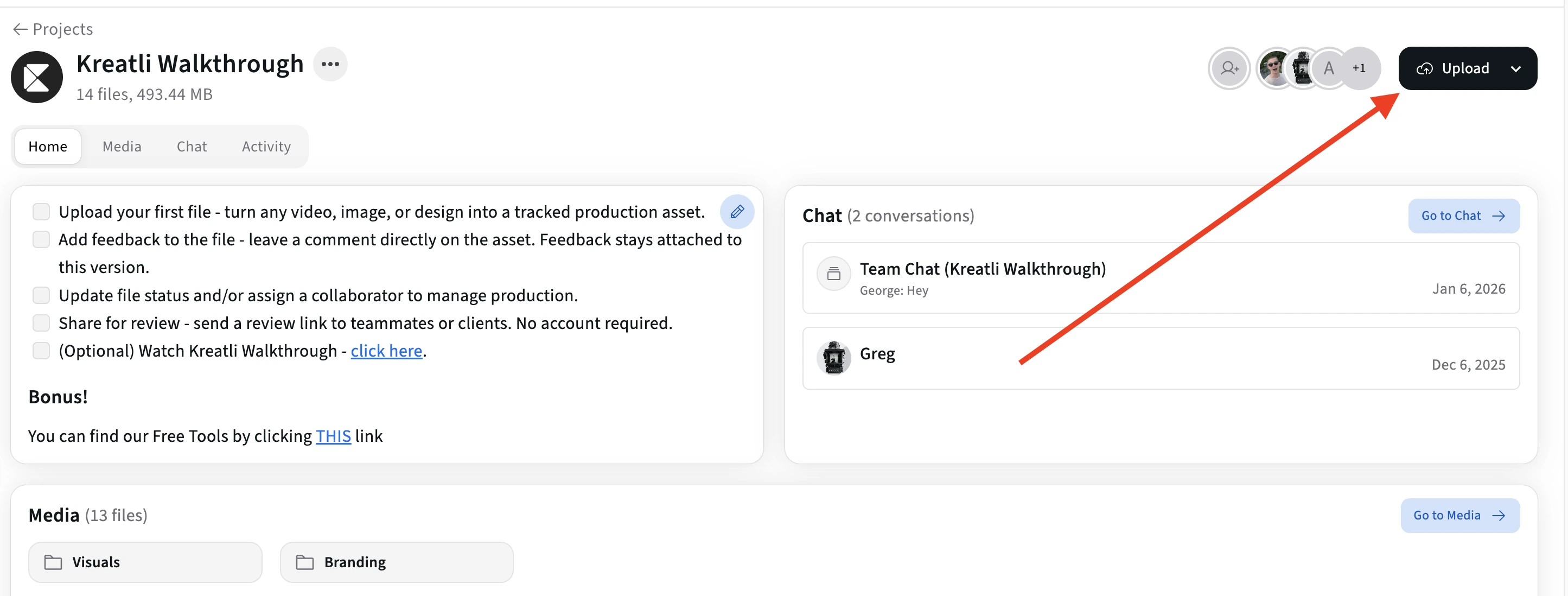
Upload your video in Kreatli
Sign in to Kreatli, open your project, and upload your video or add an existing asset. Your video is ready for frame-accurate comments inside the same workflow.
Step 2
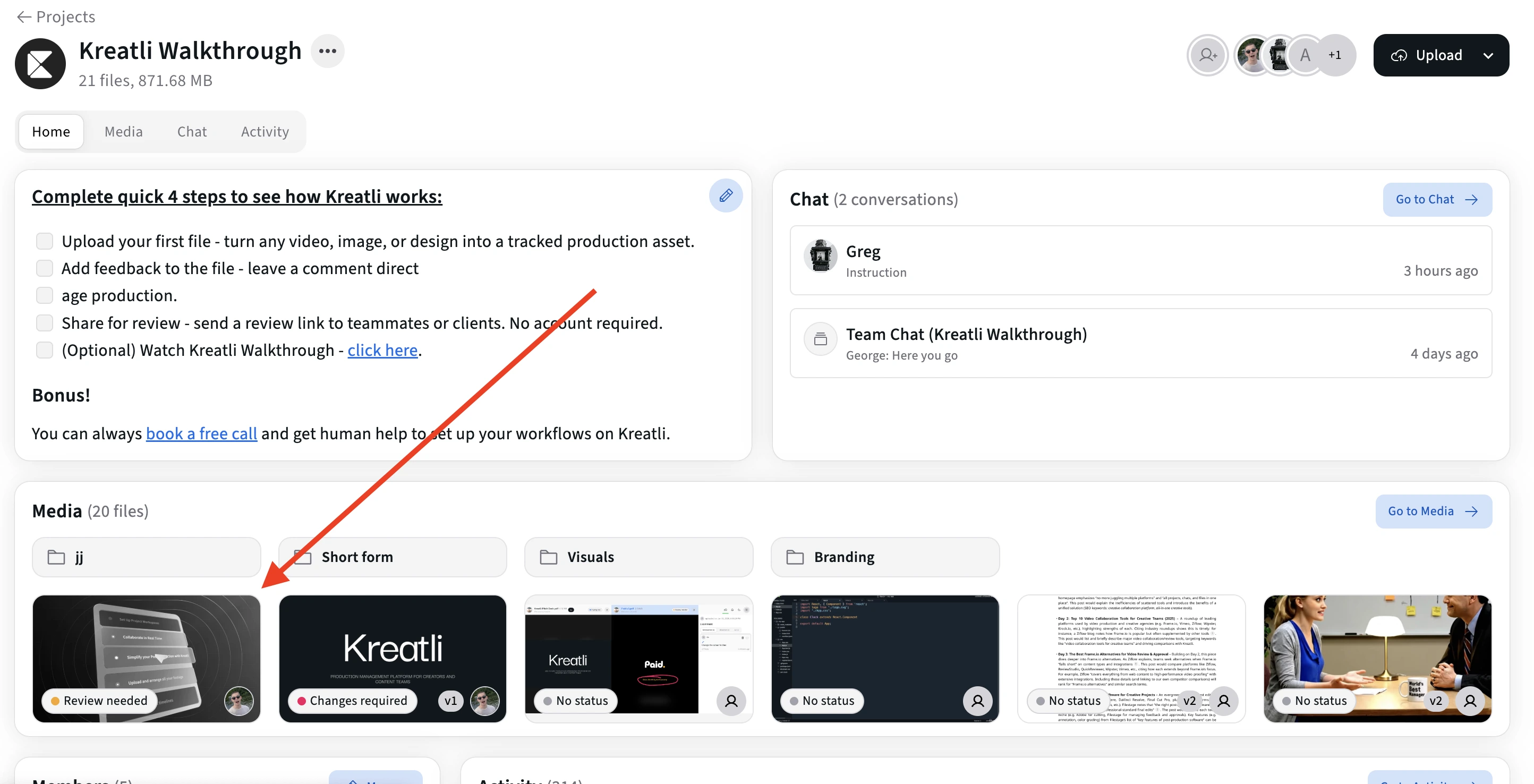
Open the video in the review player
Open the asset to enter the review player. Scrub or play to the moment where you want to leave feedback.
Step 3
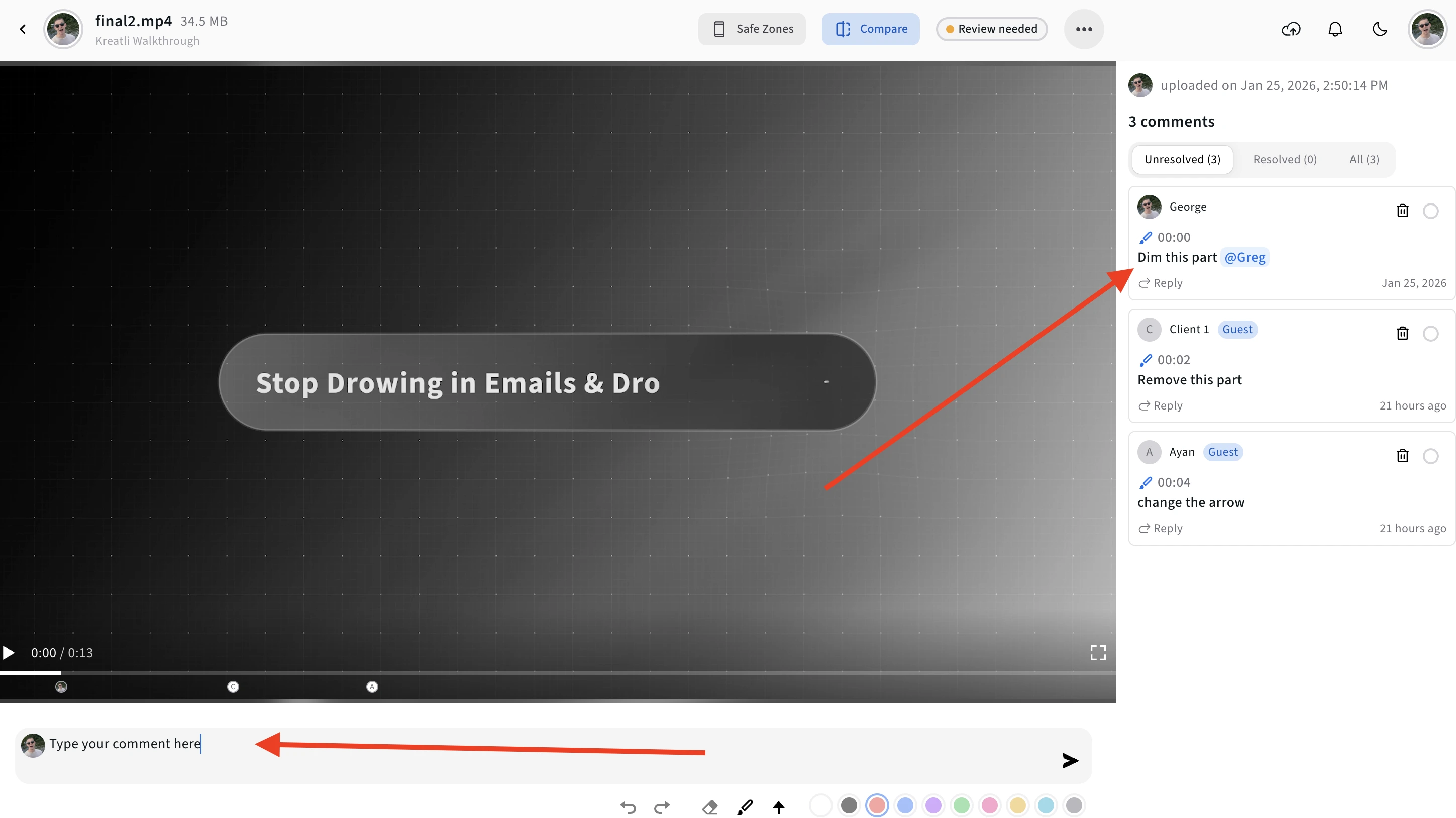
Add a comment at the frame
Click on the frame or scrub to the right moment, then add your comment. It’s pinned to that exact timestamp so editors know exactly what to change. Add replies and @mentions to keep the conversation in one place.
Step 4
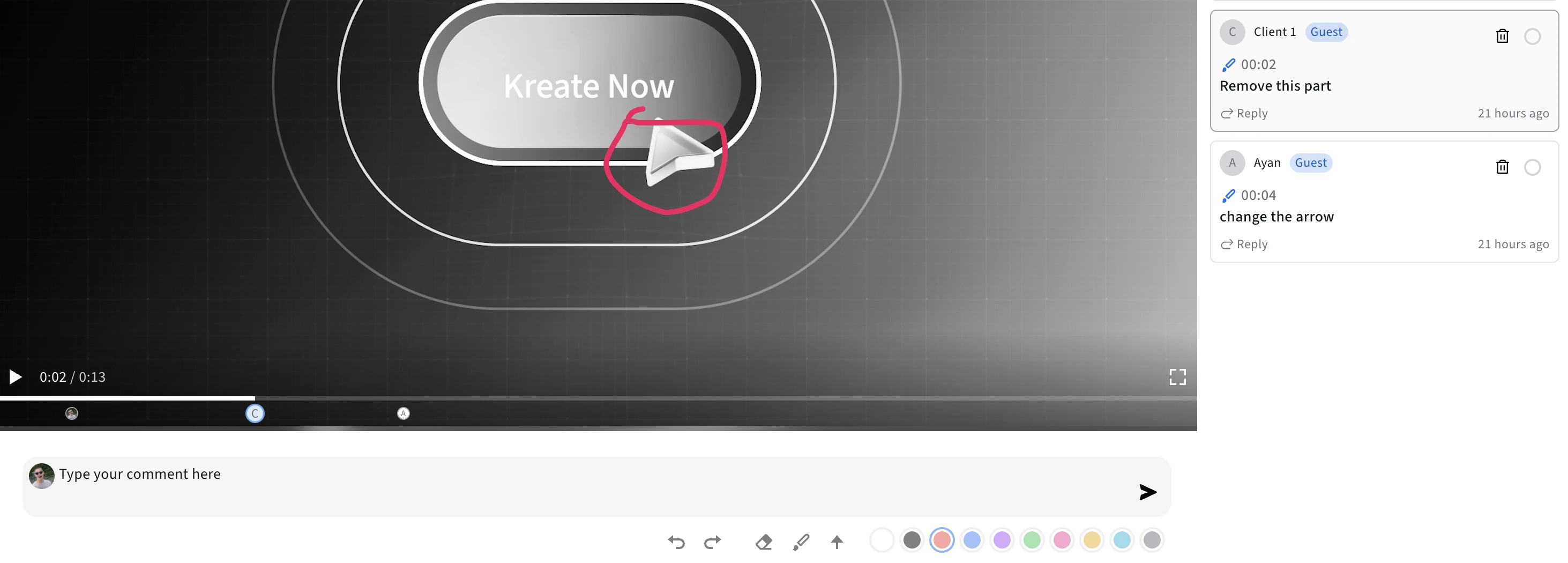
Use the timeline to review and jump to frames
See all comments on the timeline and jump to any frame to address feedback. Editors can navigate directly to the exact moment each comment refers to.
Step 5
Share for approval or track resolution
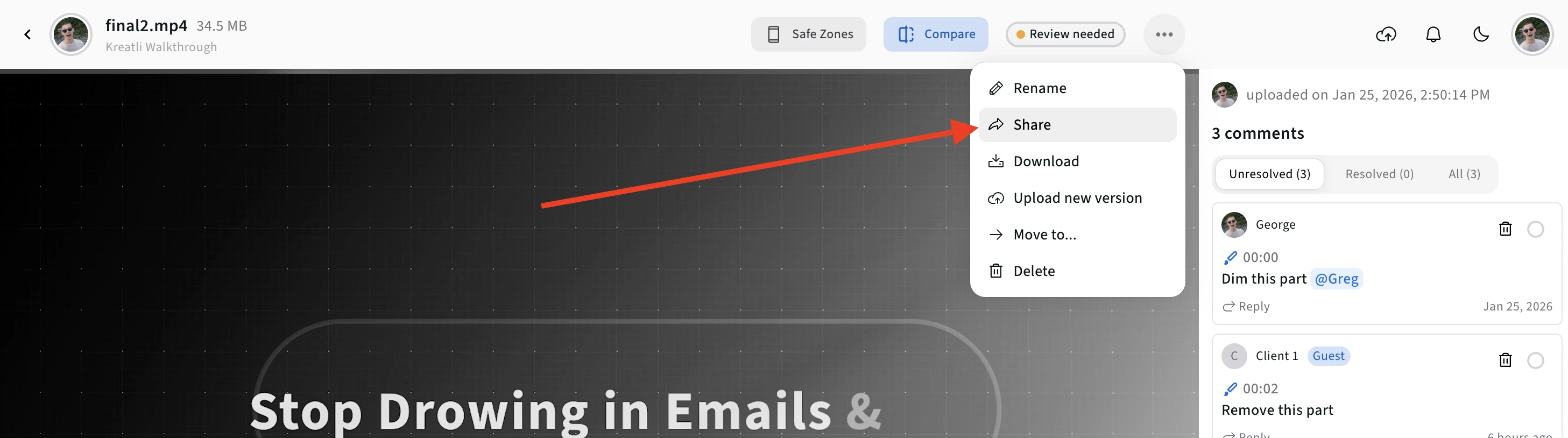
Share a link with reviewers so they can comment on the video without signing up. Mark comments as resolved as you address them, and keep everyone aligned on what’s done and what’s pending.
Read Our Complete Guide
Learn how to annotate video with frame-accurate comments, drawings, and markup for faster review cycles and approvals.
Read Complete GuideWays to Use Timestamped Video Comments
Use timestamped comments to capture precise feedback on edits, cuts, and scenes—without guesswork or long email threads.
Frame-Accurate Timestamps
Pin comments to exact frames and timestamps so editors know precisely which moment needs a trim, fix, or substitution.
Threaded Discussions at Each Timecode
Keep all back-and-forth about a moment in one place, directly on the timeline, instead of scattered across chats and emails.
Multi-Reviewer Feedback
Let producers, clients, and internal teams all add timestamped comments to the same video and see who said what at each timecode.
Free Tools for Video Teams
Explore free tools that complement timestamped video feedback—video reviewers, link generators, and more.
Video Feedback Tool
Give frame-accurate feedback on videos with comments, annotations, and markup. Share review links with clients; recipients do not need a Kreatli account.
Learn more
Video Reviewer
Review videos online with frame-accurate comments, visual annotations, and approval workflows. Share with clients; recipients do not need a Kreatli account.
Learn more
Video Annotator
Add frame-accurate comments, drawings, and markup to video. Pin feedback to exact timestamps and share with clients; recipients do not need a Kreatli account.
Learn more
Video Proofing Tool
Proof videos with frame-accurate comments, annotations, and approvals. Share proofing links; recipients do not need a Kreatli account.
Learn more
See How Teams Add Timestamps to Video in Practice
Explore guides and comparisons that show how creative teams use frame-accurate, timestamped comments to speed up review and approvals.
Choose the Perfect Plan for Your Creative Journey
Sign up free — no credit card required. Upgrade to any plan when you're ready for full access.
Creator
$14per user
per month
per month
Designed for solo creators and teams who want to organize projects, review work, and create faster.
- Up to 3 members
- 500GB Storage
- Unlimited projects & reviewers
- Frame-accurate video review
- Shared asset libraries
Best Cost/Value Ratio
Team
$29per user
per month
per month
Built for established teams running multiple projects with shared assets, structured reviews, and consistent workflows.
- Everything in Creator
- Up to 10 members
- 2TB Storage
- File organization and management
- Versioning and comparison
- Asset-linked conversations
- Guest review links
- Comment threads and annotations
Enterprise
Custom
Tailored for enterprise organizations that need advanced controls, custom workflows, and dedicated support.
- Everything in Team
- Custom members
- Custom storage
- Single Sign-On (SSO)
- Dedicated Account Manager
- Custom Integrations & Features
Frequently Asked Questions
Get detailed answers about adding timestamps to video in Kreatli and how it fits into your production and post-production workflows.
Still Have Questions?
If you did not find the answer you were looking for, reach out to our team at support@kreatli.com to learn how timestamped comments in Kreatli can support your specific workflow.
More Resources
Explore other Kreatli platform features that support precise, frame-accurate video review.
Review & Approval
Frame-accurate revisions and approvals for video content. Streamline your feedback workflow.
Learn more
Creative Workspace
Unified workspace for creative production. Organize assets, manage projects, and collaborate with your team.
Learn more
Video Annotation
Add frame-accurate annotations, drawings, and markup directly to video frames. Pin comments to exact timestamps and collaborate with precise visual feedback.
Learn more
Ready to Add Timestamped Feedback to Your Videos?
Use Kreatli to add frame-accurate, timestamped comments to video and keep every note, version, and approval in one place.