How to Annotate Video: A Complete Guide for Creative Teams
Learn how to annotate video effectively to speed up feedback, reduce revisions, and improve collaboration for modern creative teams.
Article summary
Learn how to annotate video effectively to speed up feedback, reduce revisions, and improve collaboration for modern creative teams.
Video annotation has become a critical capability for modern creative teams. As video volumes increase - especially with short-form, AI-generated, and UGC-style content - leaving clear, contextual feedback directly on video is no longer optional. It is essential for speed, clarity, and quality.
In this guide, we’ll break down what video annotation is, how to annotate video effectively, common mistakes to avoid, and how creative teams use video annotation at scale - with practical examples and workflow guidance.
What Does It Mean to Annotate Video?
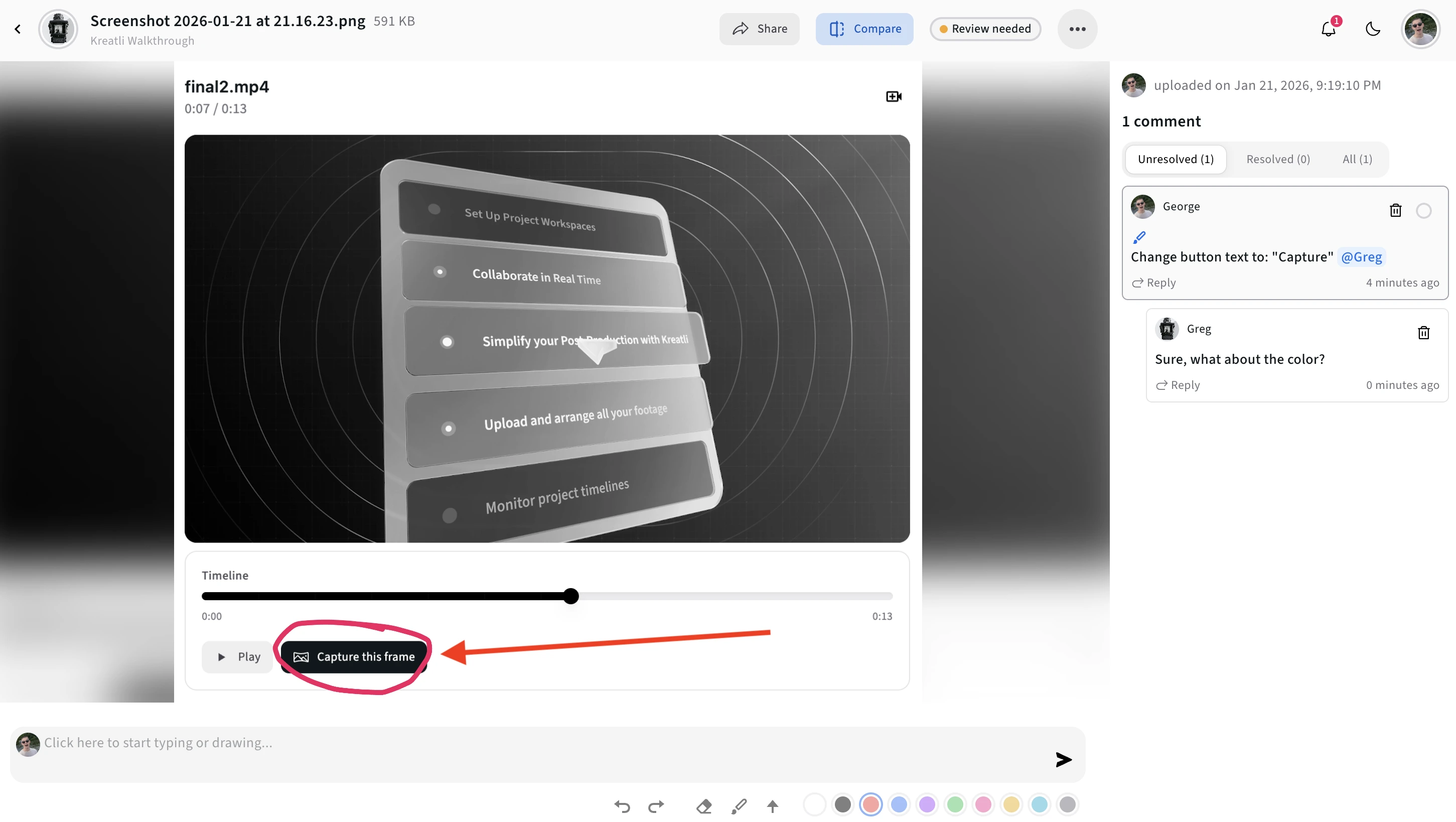
Video annotation refers to the process of adding contextual comments, notes, or visual markers directly onto a video timeline or specific frame. Unlike generic feedback in chat or email, annotations are:
Time- or frame-accurate
Visually anchored to what’s being discussed
Shared in a centralized collaboration space
This allows reviewers, editors, and stakeholders to communicate feedback without ambiguity.
Why Video Annotation Matters for Creative Teams
Creative teams typically face three recurring problems during review cycles:
Vague feedback (“This feels off”)
Fragmented communication (Slack, email, docs)
Slow approvals caused by misunderstandings
Video annotation solves these issues by placing feedback exactly where it belongs - on the video itself.
For agencies, in-house teams, and production studios, this leads to:
Faster review cycles
Fewer revision rounds
Clear accountability across stakeholders
This is why video annotation is now a core capability in leading Video Collaboration & Review Platforms like Kreatli, which combine annotation with structured production workflows.
How to Annotate Video: Step-by-Step
1. Upload or Share the Video
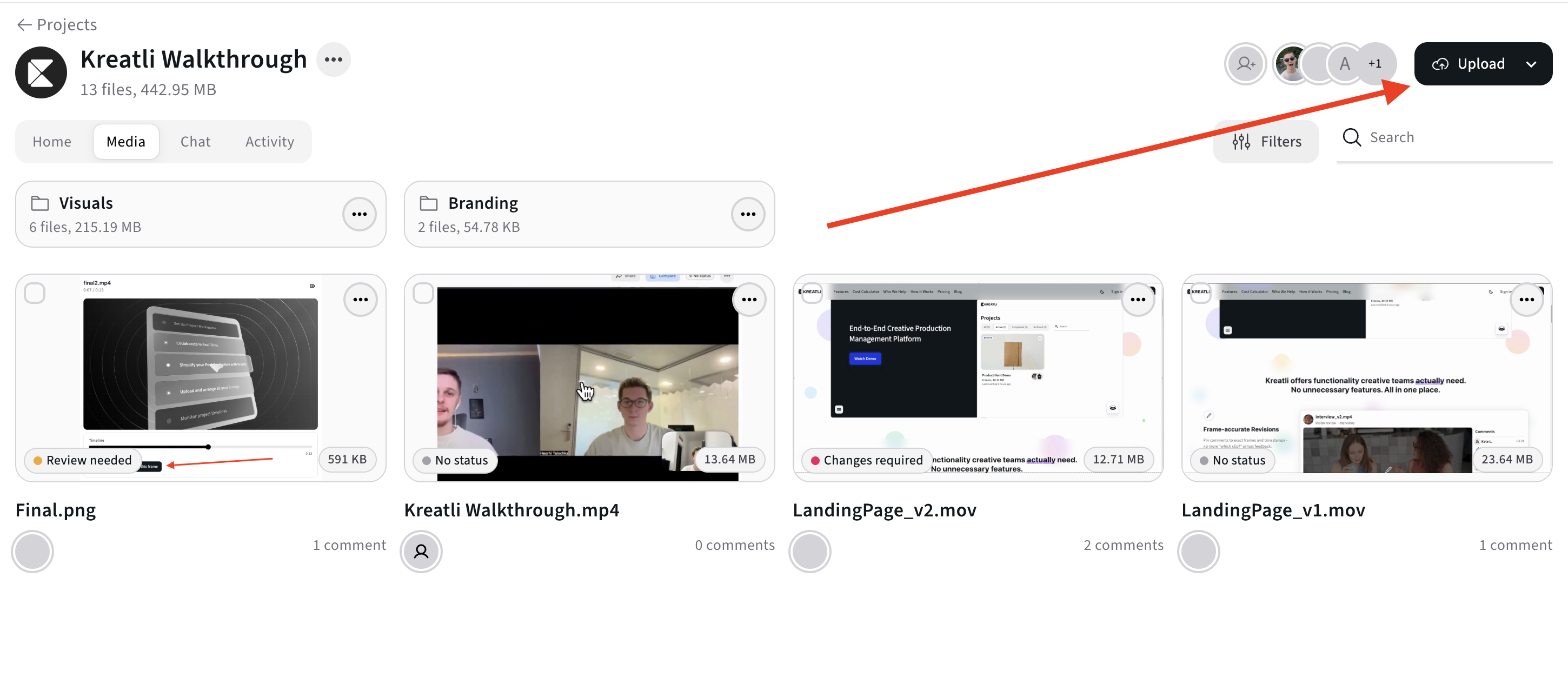
Start by uploading your video to a centralized review platform. This ensures all reviewers are working from the same version and eliminates duplicate feedback across files.
2. Play the Video and Pause at the Exact Moment
As the video plays, reviewers pause at the exact timestamp or frame where feedback is needed. Precision is critical - especially for motion, transitions, text overlays, or AI-generated sequences.
3. Add Frame-Accurate Annotations
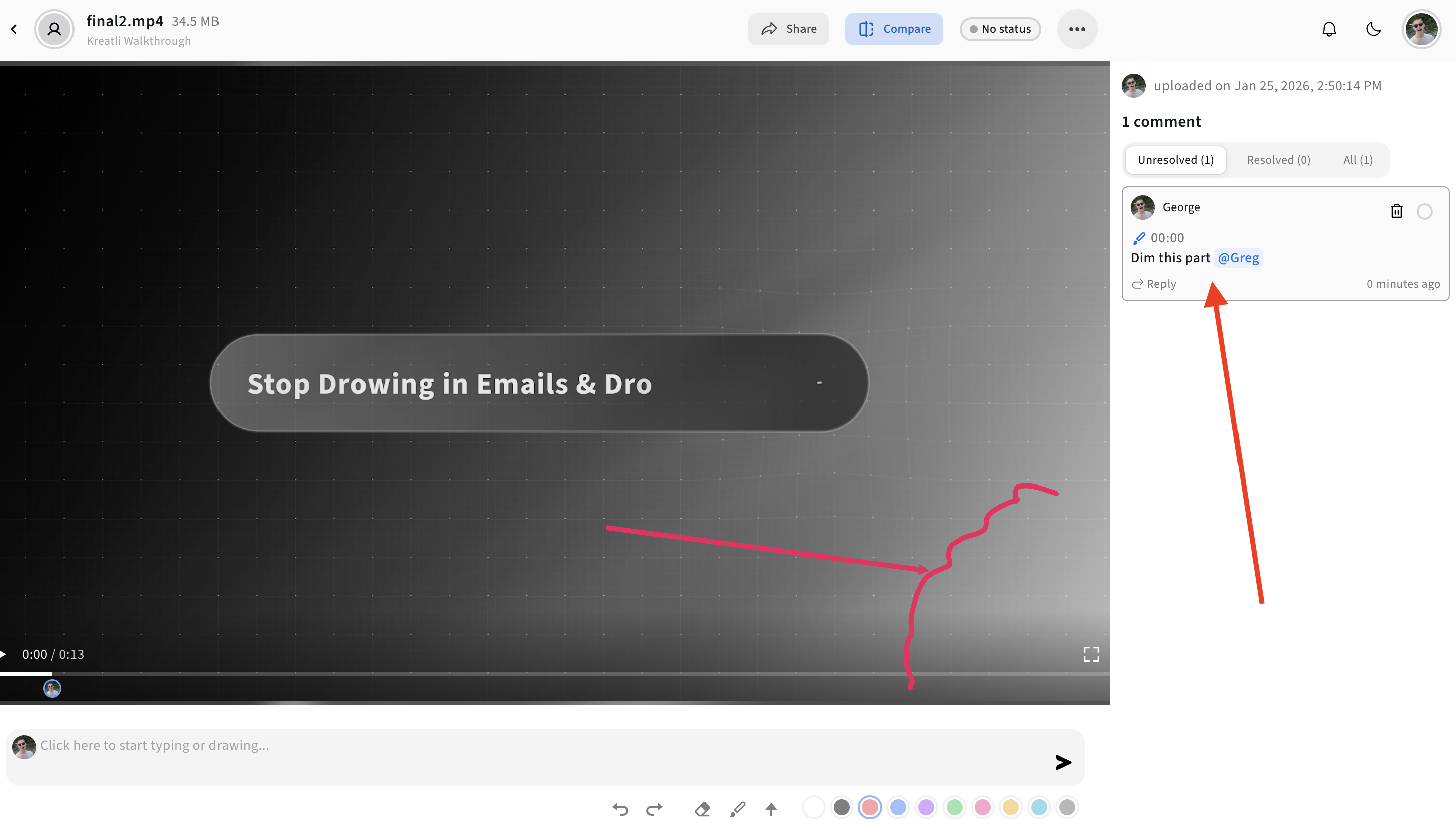
At the paused frame, add a comment that clearly describes:
What needs to change
Why it needs to change
(Optional) A suggestion or reference
Advanced tools allow annotations to be visually pinned to objects or areas within the frame, not just the timeline.
Related reading: https://kreatli.com/platform/video-annotation
4. Assign Ownership and Adjust Status
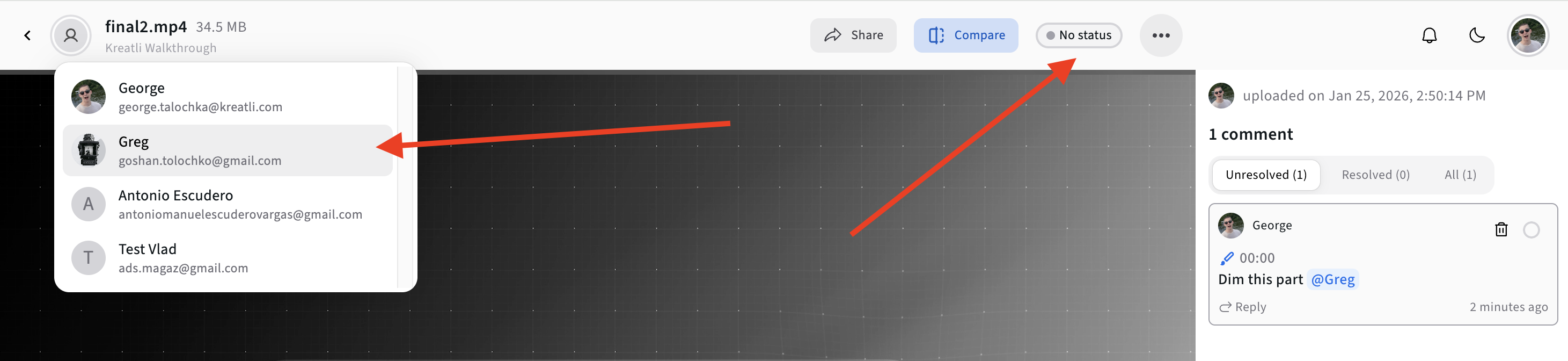
Annotation is most effective when feedback leads to action. The best workflows allow comments to be:
Assigned to a specific person
Linked to tasks or deliverables
Tracked until resolved
This is where Kreatli differentiates itself by combining Video Collaboration & Review with Project Orchestration, turning feedback into progress instead of noise.
5. Resolve, Iterate, and Approve
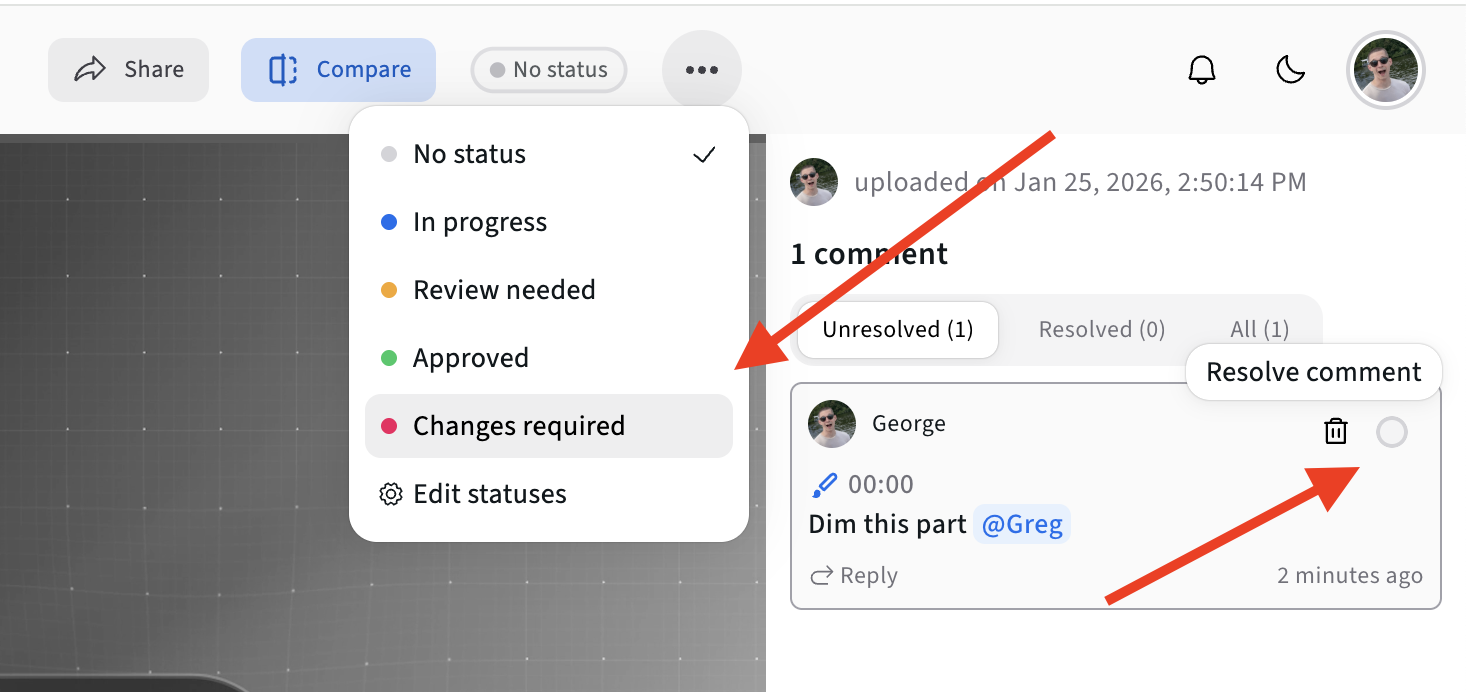
Once updates are made, reviewers can:
Reply directly within the annotation thread
Mark comments as resolved
Approve the version or request changes
This keeps the entire decision trail visible and auditable.
Free Tools for Video Teams
If your feedback relates to layouts, crops, or overlays, Kreatli also offers a growing collection of free tools designed to support video review and preparation:
Social Media Safe Zone Checker – Ensure captions, logos, and CTAs are not hidden by platform UI
https://kreatli.com/social-media-safe-zone-checkerVideo Frame Extractor – Instantly extract high-quality frames for thumbnails or review references
https://kreatli.com/free-tools/video-frame-extractorYouTube Banner Resizer – Resize and preview banners across all YouTube device formats
https://kreatli.com/free-tools/youtube-banner-resizer
These tools integrate naturally into review workflows and help teams avoid preventable revision cycles.
Common Video Annotation Mistakes to Avoid
1. Leaving Feedback Outside the Video
Comments in Slack or email lose context and often get ignored or misunderstood.
2. Overloading a Single Comment
Break feedback into smaller, actionable annotations instead of long, multi-topic messages.
3. Not Closing the Loop
Unresolved annotations lead to confusion. Always resolve or acknowledge comments once addressed.
Video Annotation vs Online Proofing Software
Traditional online proofing tools often focus on static assets or basic approval states. Video annotation goes further by enabling:
Frame-specific feedback
Real-time collaboration
Visual clarity for motion-based content
Production Management
When annotation is paired with task management and version control - as it is in Kreatli - it becomes a full production workflow, not just a review layer.
Continue reading:
Kreatli vs Vimeo → https://kreatli.com/comparisons/kreatli-vs-vimeo
Kreatli vs Krock → https://kreatli.com/comparisons/kreatli-vs-krockio
Who Benefits Most from Video Annotation?
Creative agencies managing multiple client approvals
In-house marketing teams producing high volumes of short-form video
Production & post-production teams handling complex revisions
AI video creators iterating rapidly on generated content
Final Thoughts
Knowing how to annotate video properly is no longer a “nice-to-have” skill. It is a foundational capability for any team producing video at scale.
By combining frame-accurate video annotation, collaborative review, and project orchestration, Kreatli enables creative teams to move faster, communicate clearly, and ship better work - without adding more tools to the stack.
FAQ: Video Annotation
What is video annotation?
Video annotation is the process of adding comments or notes directly to specific timestamps or frames within a video.
How is video annotation different from comments?
Annotations are context-aware and visually anchored, while comments are often detached and ambiguous.
Can I annotate videos online without downloading files?
Yes. Modern video annotation tools allow browser-based annotation with shared access.
Is video annotation useful for short-form and AI-generated content?
Absolutely. It is especially valuable for short-form, UGC, and AI video workflows where iteration speed matters.
Ready to see how it works?
Visit Kreatli to explore project templates, playback reviews, and file exchange views that streamline creative production.