How to Comment a Video
A practical guide for teams reviewing video: leave timestamped comments, keep context tied to the exact frame, and move approvals forward without hunting through email.
How to comment a video is less about writing a long message and more about leaving feedback at the exact moment it matters. The best workflow is timestamped comments (and optional frame drawings) so editors don’t have to guess which shot or second you meant.
Key takeaways
- Pin feedback to exact frames so editors can jump to the timecode without scrubbing.
- State what needs to change and why — specific direction beats vague impressions.
- Separate 'must-fix' notes from 'nice-to-have' suggestions so editors can prioritize.
- Review the latest version before commenting to avoid flagging issues that were already fixed.
What it means to “comment a video”
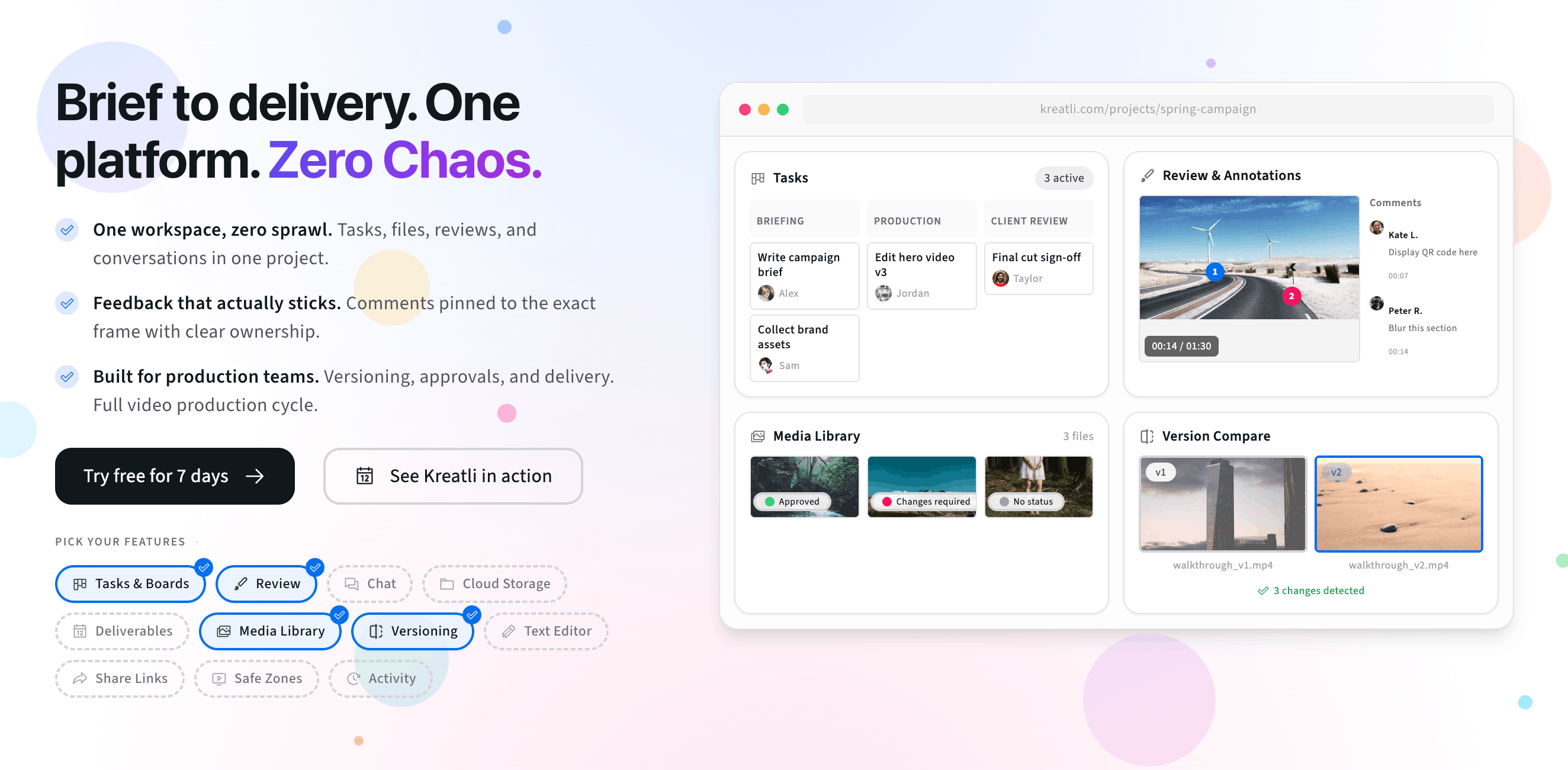
In review workflows, “commenting a video” means your note is anchored to a specific timecode (and often a specific frame). Reviewers can jump directly to each comment, and teams can track what’s resolved across rounds.
Timecode pin: the comment is tied to a moment (for example 00:18).
Context: what to change, why it matters, and what success looks like.
Version clarity: feedback stays tied to the cut it was made on.
Why timestamped comments beat generic notes
Generic notes like “the middle feels slow” create extra back-and-forth. Timestamped comments reduce that churn because the editor sees the exact moment and frame you mean.
Faster iteration: editors can jump to 00:32 and make the change immediately.
Less ambiguity: “trim 8 frames here” is clearer than “tighten this part.”
Better approvals: stakeholders can confirm the fix at the same timestamp.
How to comment a video (step-by-step)
Upload or open the video in your review workspace.
Play to the moment you want to address, then pause on the frame that best shows the issue.
Write the comment with clear action + intent (what to change and why).
(Optional) Draw on the frame with an arrow, box, or highlight to remove any doubt about “this part.”
Share a review link so everyone comments in one place, then track resolution and approvals.
For the product overview version, see comment on video. To try timestamped notes in the browser first, use a video feedback tool before you move the cut into a full workspace.
Best practices for clear video comments
One idea per comment: split notes so each one can be resolved independently.
Describe the outcome: “match pacing to the previous shot” is more useful than “feels weird.”
Call out constraints: brand rules, legal copy, safe zones, or platform requirements.
Use drawings when spatial: arrows and boxes are perfect for UI overlap, blur areas, or composition adjustments.
Try commenting on a video now
The interactive preview below mirrors a simple review flow: upload a clip, scrub to a moment, and leave a timestamped comment (plus optional drawings). When you are ready, sign up free or book a demo.
Upload a video or image to get started
Drag and drop a file here, or click the button below
Free tools, guides, and platform features
Below are free tools that pair with timestamped video comments, plus related guides and platform features to explore next.
Free tools for video feedback
Try tools that complement timestamped comments, visual markup, and approval workflows.
Video Feedback Tool — Give frame-accurate feedback on videos with comments, annotations, and markup. Share review links with clients; recipients do not need a Kreatli account.
Video Reviewer — Review videos online with frame-accurate comments, visual annotations, and approval workflows. Share with clients; recipients do not need a Kreatli account.
Video Annotator — Add frame-accurate comments, drawings, and markup to video. Pin feedback to exact timestamps and share with clients; recipients do not need a Kreatli account.
Video Proofing Tool — Proof videos with frame-accurate comments, annotations, and approvals. Share proofing links; recipients do not need a Kreatli account.
More guides and examples
Read more about review, approvals, and frame-accurate annotation workflows.
More resources
Capabilities that support commenting, annotation, approvals, and secure storage.
Comment on Video — Comment on video with frame-accurate, timestamp-pinned feedback. Threaded discussions tied to exact frames.
Review & Approval — Frame-accurate revisions and approvals for video content. Streamline your feedback workflow.
Video Annotation — Add frame-accurate annotations, drawings, and markup directly to video frames. Pin comments to exact timestamps and collaborate with precise visual feedback.
FAQ: Comment a video
What is a timestamped video comment?
A timestamped comment is feedback pinned to a specific moment in the video (for example, 00:32). When reviewers play or scrub, the comment stays tied to the exact frame/time so editors know precisely where the change applies.
Should I leave one comment per issue or group multiple notes together?
Prefer one issue per comment. It makes feedback easier to resolve, track, and confirm. If you bundle multiple unrelated changes into one message, it’s harder to know what’s done and what’s still pending.
Can I draw on a video frame while commenting?
Yes. For visual issues (composition, UI overlap, blur/privacy, brand details), combining a timestamped comment with a quick frame drawing (arrow, box, highlight) removes ambiguity.
How do I handle new cuts or versions of a video during review?
Use version-aware review. Keep comments and approvals attached to the specific version they were made on, so you can compare cuts, see what’s been addressed, and avoid applying old feedback to the wrong file.
Can clients comment without creating an account?
Yes—when you share a guest-friendly review link, clients can watch and leave timestamped comments without signing up. This reduces friction while keeping all feedback in one place.
Still have questions?
Reach us at support@kreatli.com and we will help you set up a video review flow that fits your team.
Ready for clear, timestamped feedback?