Video Frame Extractor: How to Capture Frames (2026)
Learn how to use the free Video Frame Extractor tool to capture specific frames from video files for thumbnails, proofs, or edits effortlessly. No signup required.
Article summary
Learn how to use the free Video Frame Extractor tool to capture specific frames from video files for thumbnails, proofs, or edits effortlessly. No signup required.
Video Frame Extractor - Free Tool
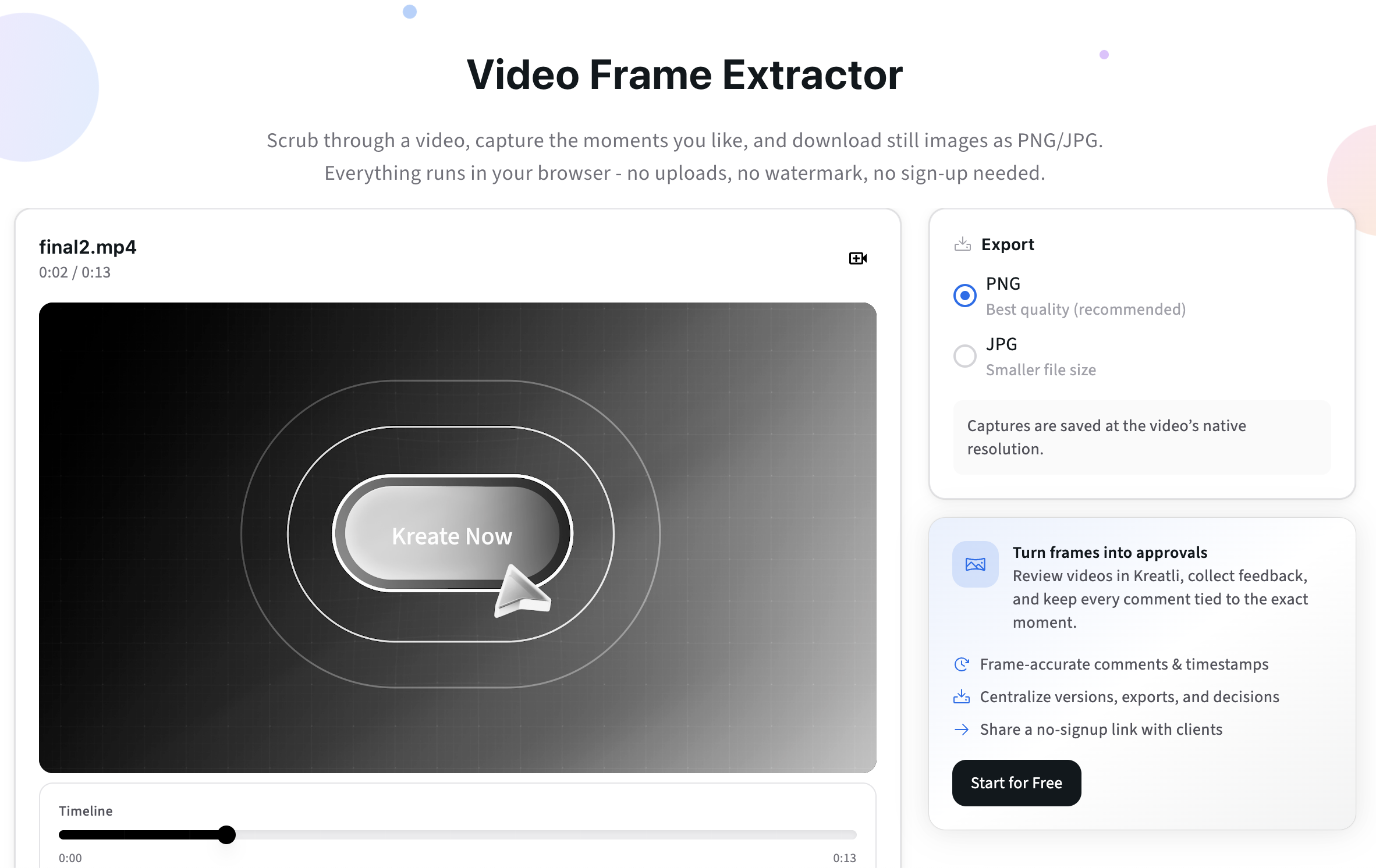
Getting the perfect frame from a video used to be a manual, time-consuming task - requiring downloaded players, training wheels, or software licenses. Now that short-form clips drive social engagement and long-form content still depends on key visuals, teams need a simple, accurate way to extract still frames from video.
To help creative teams with this common need, Kreatli is offering a free Video Frame Extractor: a browser-based tool that lets you instantly extract high-quality images from any video file - no sign-up required.
Try the Video Frame Extractor
https://kreatli.com/free-tools/video-frame-extractor
This guide explains:
What a video frame extractor is
Why teams use it
Step-by-step instructions
Smart use cases across creative workflows
How this ties into broader video collaboration and production workflows
How to Use the Video Frame Extractor (Step by Step)
Using the Video Frame Extractor is fast, intuitive, and runs entirely in your browser - your video never leaves your device, and no sign-up is required.
Step 1: Upload a Video File
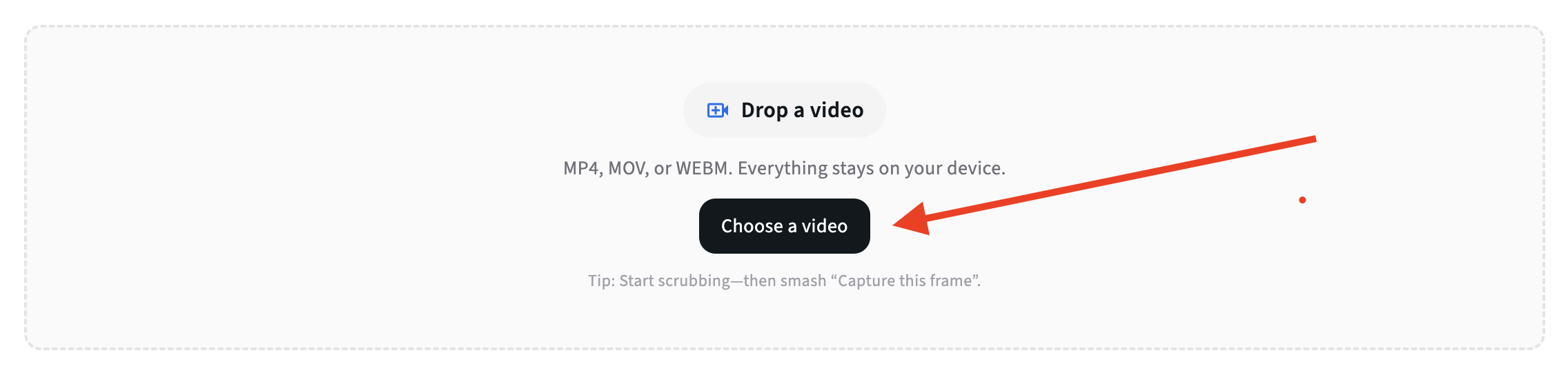
Choose a video from your device by dragging and dropping it into the tool or clicking “Choose a video.”
Supported formats include MP4, MOV, and WEBM. All processing happens locally in your browser, so your video stays private and secure.
Step 2: Scrub to the Exact Moment You Need

Use the timeline scrubber or play controls to locate the precise frame you want to extract.
This lets you capture clean stills for thumbnails, storyboards, or specific scenes you want to reference.
Step 3: Capture One or Multiple Frames
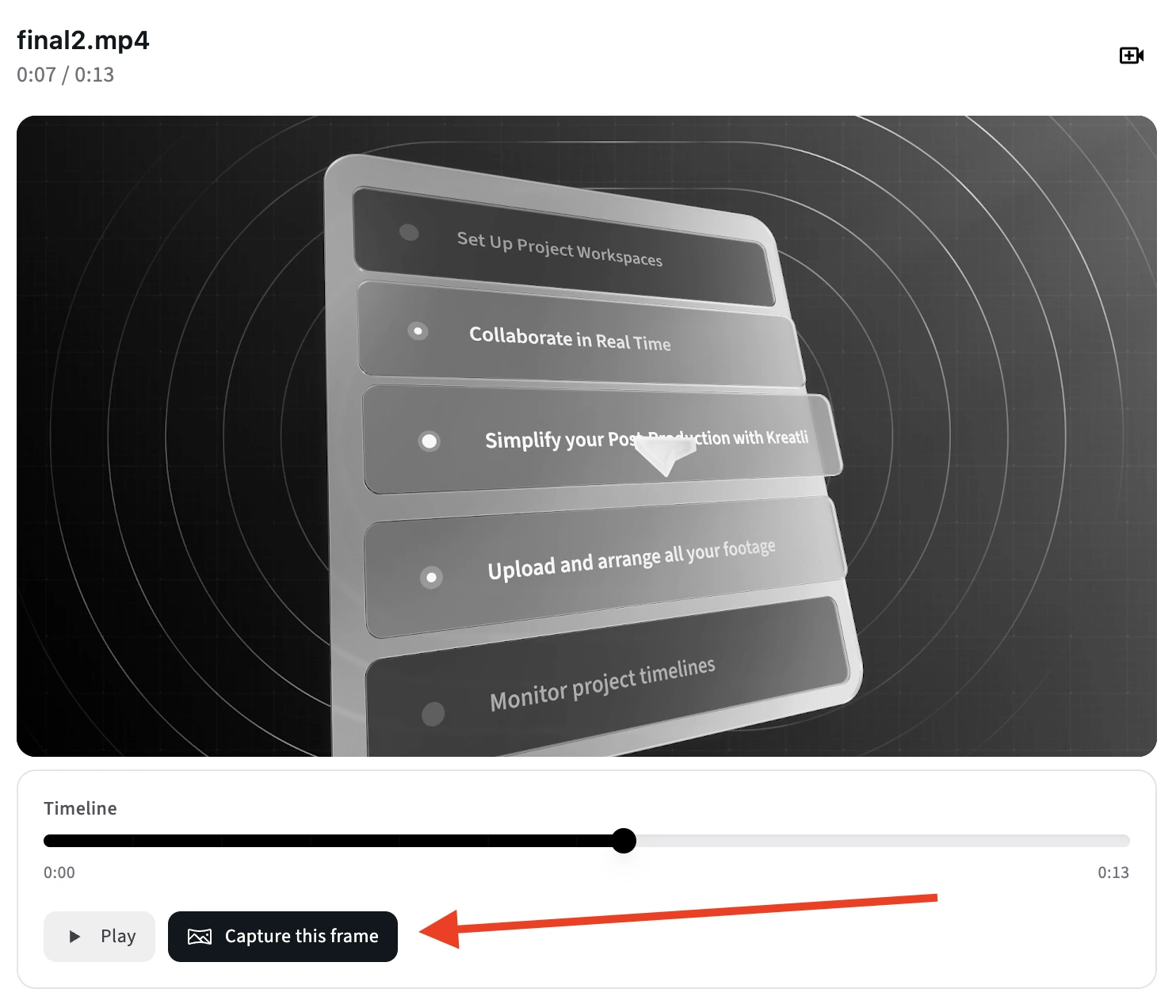
Click “Capture this frame” when you see the exact moment you want.
Continue capturing additional frames to build a small selection of options you can preview.
Step 4: Export as PNG or JPG
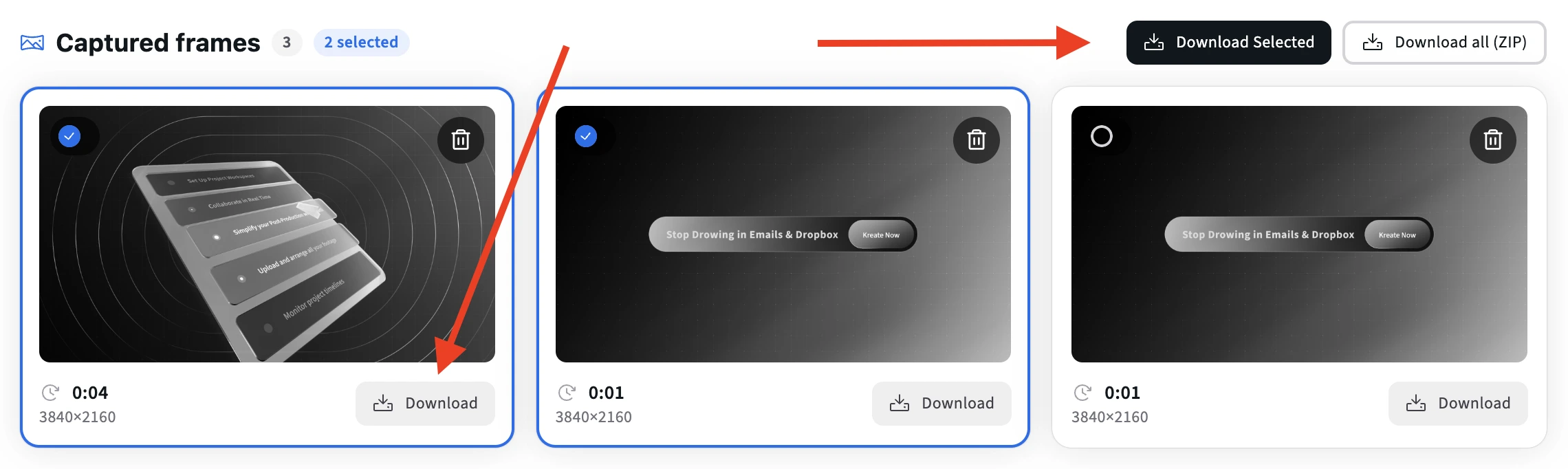
Once you’ve selected the frames you want, download them as individual images (PNG or JPG) or export multiple frames at once as a ZIP file.
PNG format is recommended for maximum quality, while JPG produces smaller file sizes for easier sharing.
Step 5: Share Frames for Feedback on Kreatli
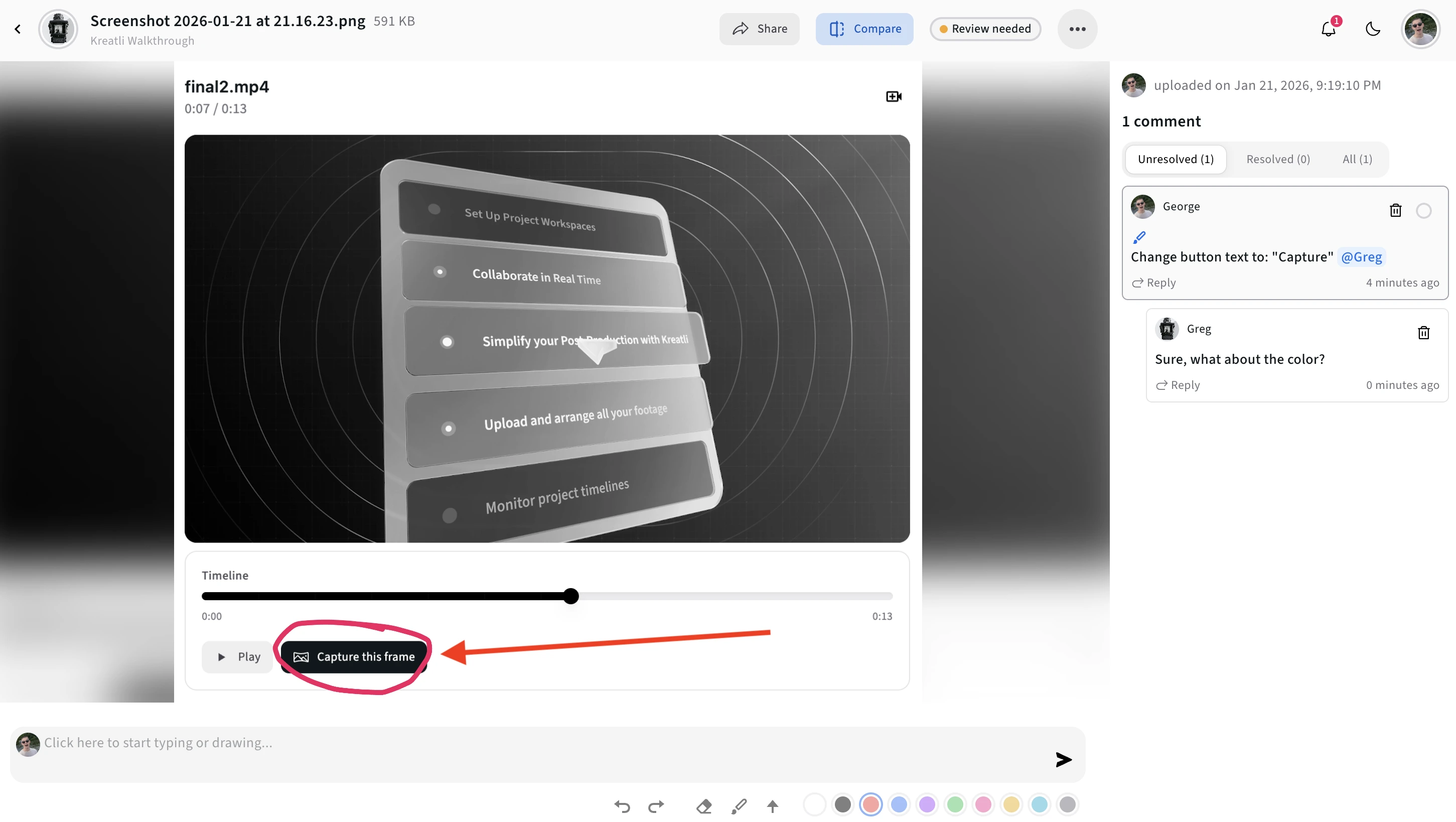
If you’re collaborating with teammates or clients, upload your extracted stills to Kreatli to gather comments, approvals, and decisions in one centralized place - ideal when selecting a final thumbnail or key visual for your video.
What Is a Video Frame Extractor?
A Video Frame Extractor is a utility that lets you take a still image (a frame) from any point in a video. Instead of screenshots that lose quality, frame extraction produces a crisp still exactly from the video source.
This is essential when you need:
Thumbnail images for video players
Reference stills for feedback and review
Marketing visuals from key moments
Proof images for client sign-off
Why Extract Frames From Video?
High-quality frame extraction is valuable because:
Precision Matters
Screenshots often produce blurry, compressed stills. Frame extraction gives you the exact pixel output used in the original video.
Speed Matters
Manually scrubbing in Figma, Photoshop, or video editors adds time. A dedicated extractor cuts this time to seconds.
Consistency Matters
When multiple editors or reviewers need the same frame, a frame extractor ensures everyone uses the same reference image.
How Video Teams Use Frames
Here are common use cases where teams pull video frames:
Thumbnails for YouTube or LMS pages
Brand stills for social posts
Proof images for client comments
Key visual grabs for pitch decks or case studies
Localization reference for multi-language edits
A crisp frame extracted at the right moment can often say more than 1,000 words of description.
Free Tools
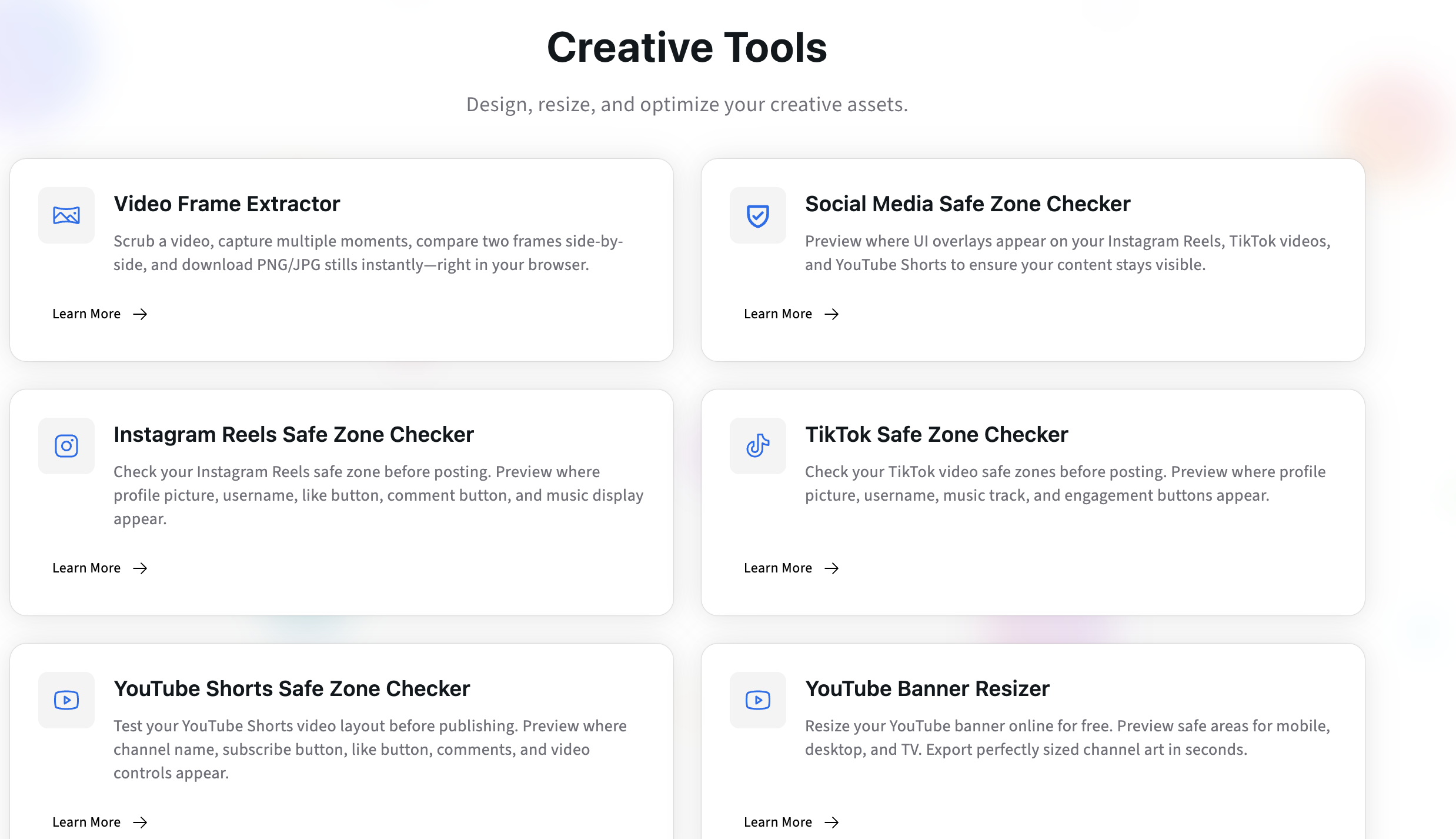
Before assets even reach review, many avoidable issues slow teams down - like incorrect sizing, UI overlays, or inefficient edits.
To help teams catch these early, Kreatli offers several free creative tools:
Instagram Reels, TikTok & YouTube Shorts Safe Zone Checkers
Validate where captions and visuals will appear across vertical formats.
https://kreatli.com/safe-zone-checkerYouTube Banner Resizer
Resize and preview channel banners across devices.
https://kreatli.com/free-tools/youtube-banner-resizerData Transfer Calculator
Estimate upload/download times for large files.
https://kreatli.com/free-tools/data-transfer-calculator
These utilities help you avoid common technical revisions before assets enter structured review cycles.
Explore all free tools: https://kreatli.com/free-tools
Practical Tips for Using Extracted Frames
Use Frames for Client Review
Instead of linking a long video when gathering feedback on specific moments, use an extracted frame so reviewers are referencing the exact point.
Combine Frames With Versioned Review
Attach the extracted still to a review ticket so feedback is bound to the precise moment it originated.
Create Thumbnails That Drive Click-Through
Sites like YouTube or learning platforms reward thumbnails that are crisp and on-point. Extracting your own frames gives you better content than canned options.
Where This Fits in Your Workflow
Extracted frames often precede review and collaboration. They help teams align on what needs attention before you jump into deeper feedback cycles.
Once frames are shared and discussed, tools like Kreatli ensure feedback, versions, and approvals are tracked in one place.
This end-to-end continuity avoids scattered threads across email, chat, or isolated tools.
Common Questions About Frame Extraction
What’s the difference between a screenshot and a frame extract?
A screenshot is a pixel grab from your display and often suffers from compression or interface artifacts. A frame extract comes directly from the video file and preserves original quality.
Can I use this tool on any video format?
Yes - the Video Frame Extractor supports common video file types without needing external software.
Do I need an account?
No. The tool is free and works without signup.
Is the extracted frame high resolution?
Yes. Frames are extracted at the original video resolution.
Can I extract multiple frames from the same video?
Yes - just navigate and extract each frame as needed.
Final Takeaway
Extracting frames from video should be quick, precise, and predictable - not another manual step in an already complex workflow.
Whether you’re preparing thumbnails, gathering precise feedback references, or pulling visuals for marketing content, the Video Frame Extractor helps you get the exact image you need in seconds.
Best of all, it’s free and browser-based - making it an easy, early step before structured review cycles begin.
Try the Video Frame Extractor now:
https://kreatli.com/free-tools/video-frame-extractor
Can Kreatli become your Production Management Platform?
Book a 30-minute workflow audit and we will map your current processes to the Kreatli production template.