YouTube channel banner dimensions (2026)
Searching for banner safe area and size? Those specs belong on channel art—this table matches high-intent queries like channel banner size dimensions 2026 and safe area without losing clicks to thin snippets.
Looking for a transparent overlay for safe zone marking on vertical video? Use the platform checkers below, or build a 1080×1920 PNG guide in your editor—this hub ties dimensions, guides, and preview tools together.
Reference values for YouTube channel banner size dimensions 2026, recommended size and safe area, and file requirements—aligned with common Studio uploads. Always confirm current requirements in YouTube Studio before publishing.
| Recommended size | 2560 × 1440 px |
|---|---|
| Safe zone (text & logos) | 1546 × 423 px |
| Minimum size | 2048 × 1152 px |
| Max file size | 6 MB |
| Accepted formats | JPG, PNG, GIF, BMP |
Resize with Kreatli’s banner tool to preview safe zones on desktop, mobile, tablet, and TV.
Platform guides: TikTok safe zone, Instagram Reels, YouTube Shorts.
Interactive checkers (transparent overlay / UI preview): TikTok checker, Instagram Reels checker, YouTube Shorts checker.
Quick answers
Short answers to common searches—see the full guide below for depth, templates, and workflows.
Safe Zone Guide for Instagram Reels, YouTube Shorts & TikTok - Overlays, Templates & Best Practices
Learn what safe zones are, why they matter on Reels, Shorts, and TikTok, and download ready-to-use safe zone checker templates. Ensure your titles, logos, and CTAs stay visible across devices and UI overlays.

Article summary
Learn what safe zones are, why they matter on Reels, Shorts, and TikTok, and upload your videos to our safe zone checker. Ensure your videos stay visible.
Safe Zone Checker Tool
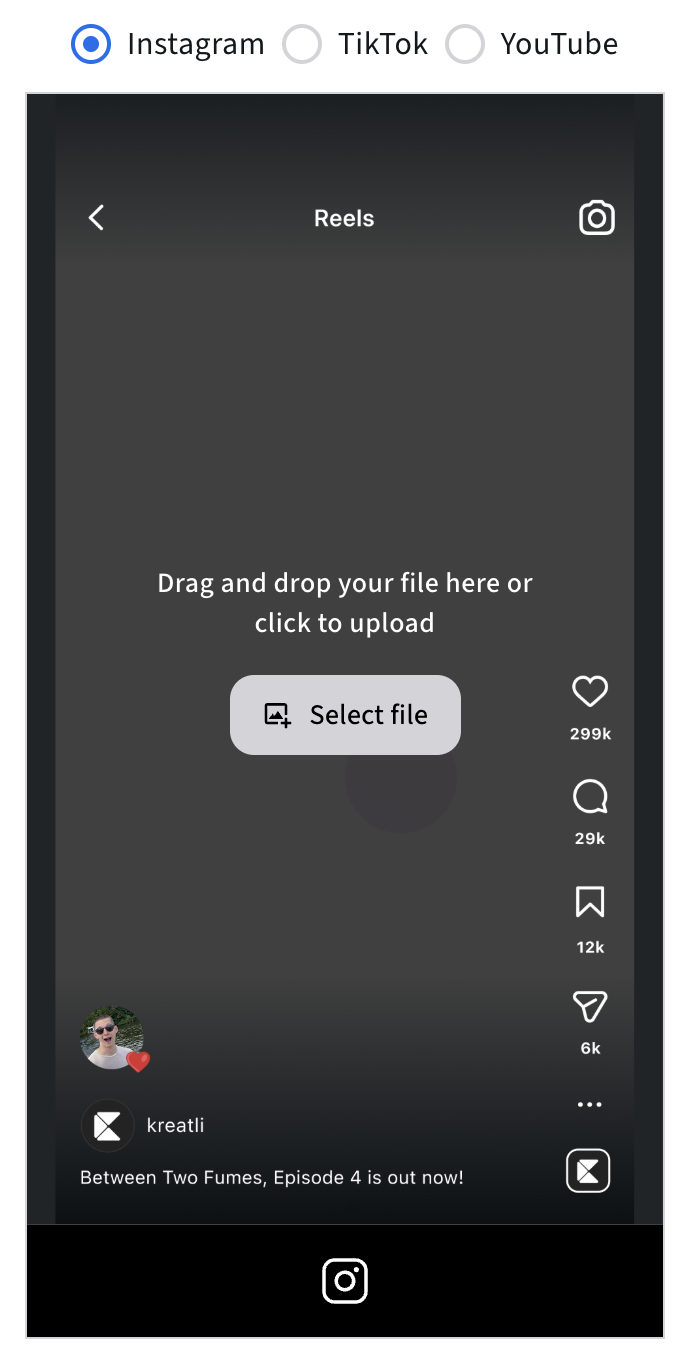
If you want to make sure your captions, logos, and key visuals are never hidden behind UI elements again, try our free Safe Zone Checker Tool. It instantly overlays platform-accurate templates.
Upload your video or thumbnail, apply the safe zone guides, and export confidently for any vertical platform. No sign-up needed.
Social Media Safe Zone Checker:
https://kreatli.com/social-media-safe-zone-checker
How to Use Safe-Zone Checker in Your Workflow
Step-by-step guide:
Step 1. Upload Your Video in Kreatli
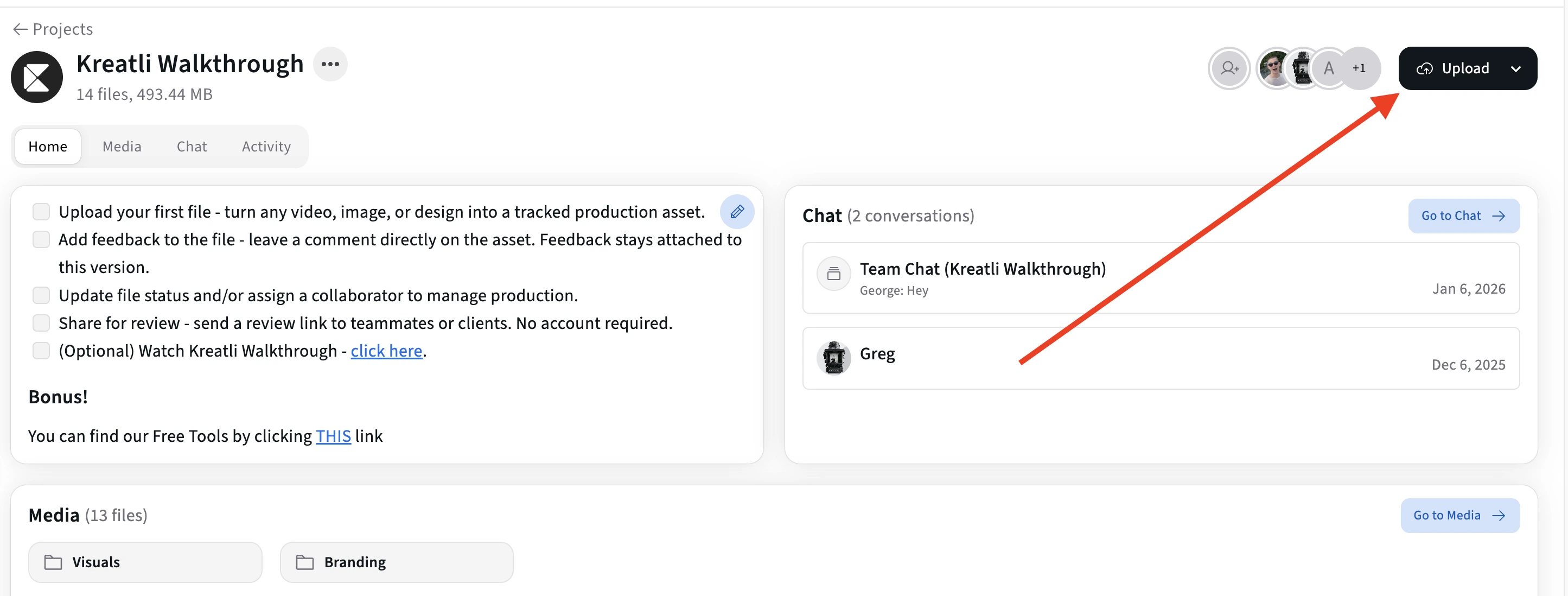
Drag and drop your file to see safe zone overlays showing where UI elements appear on your content.
You can use the Safe Zone Checker with any type of creative asset, not just finished videos. This includes:
Videos
Static images
Thumbnails
Storyboards or design drafts
Early-stage mockups
While we recommend a 1080 × 1920 (9:16) canvas size because it aligns with most vertical social platforms, Kreatli does not restrict you to this format. The tool is intentionally flexible so you can validate layouts at any stage of production and with any dimensions that fit your workflow.
Step 2. Open It and Turn On the Safe Zone Overlay
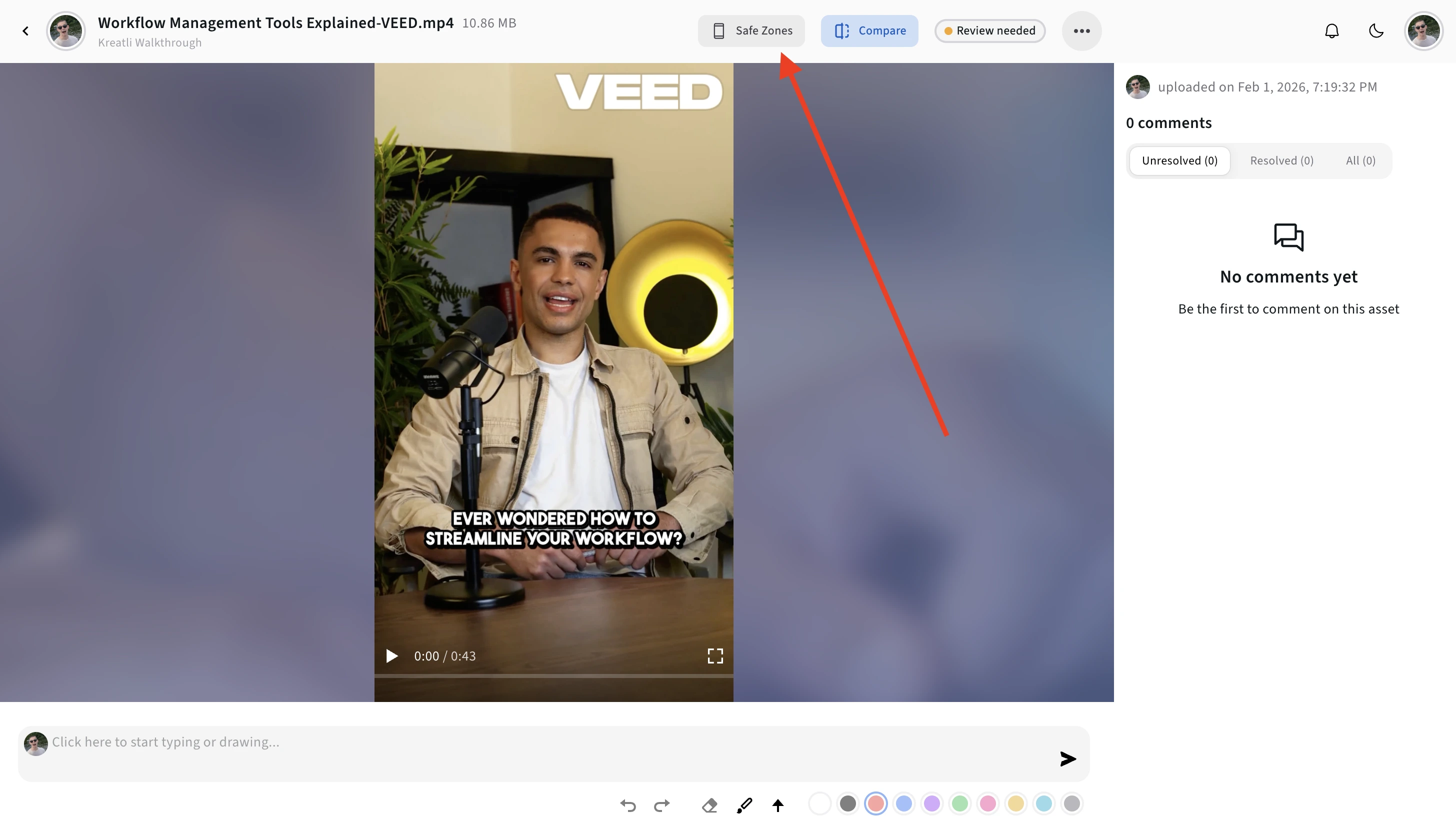
Open the video in the player, then activate the safe zone overlay to see where each platform's UI elements (buttons, captions, profile bars) will appear on your content.
This helps you keep important text, logos, and CTAs in the visible area.
Step 3. Choose Your Platform and Toggle Overlays
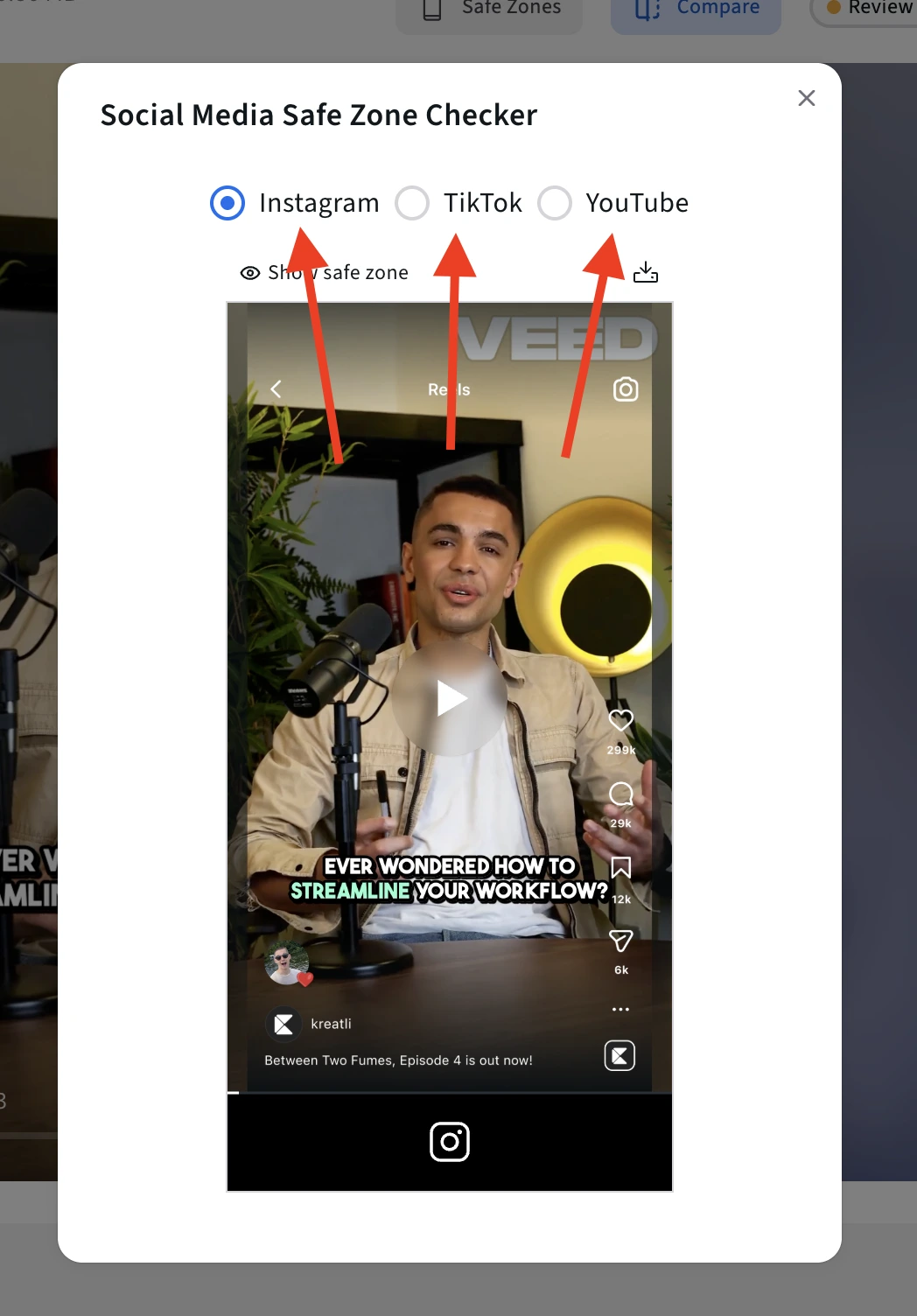
Use the platform selector to switch between:
TikTok
Instagram Reels
YouTube Shorts
Each overlay reflects where key UI elements typically appear, allowing you to quickly spot differences between platforms and ensure your layout works everywhere you plan to publish.
Step 4. Turn the Platform Overlay On or Off as Needed
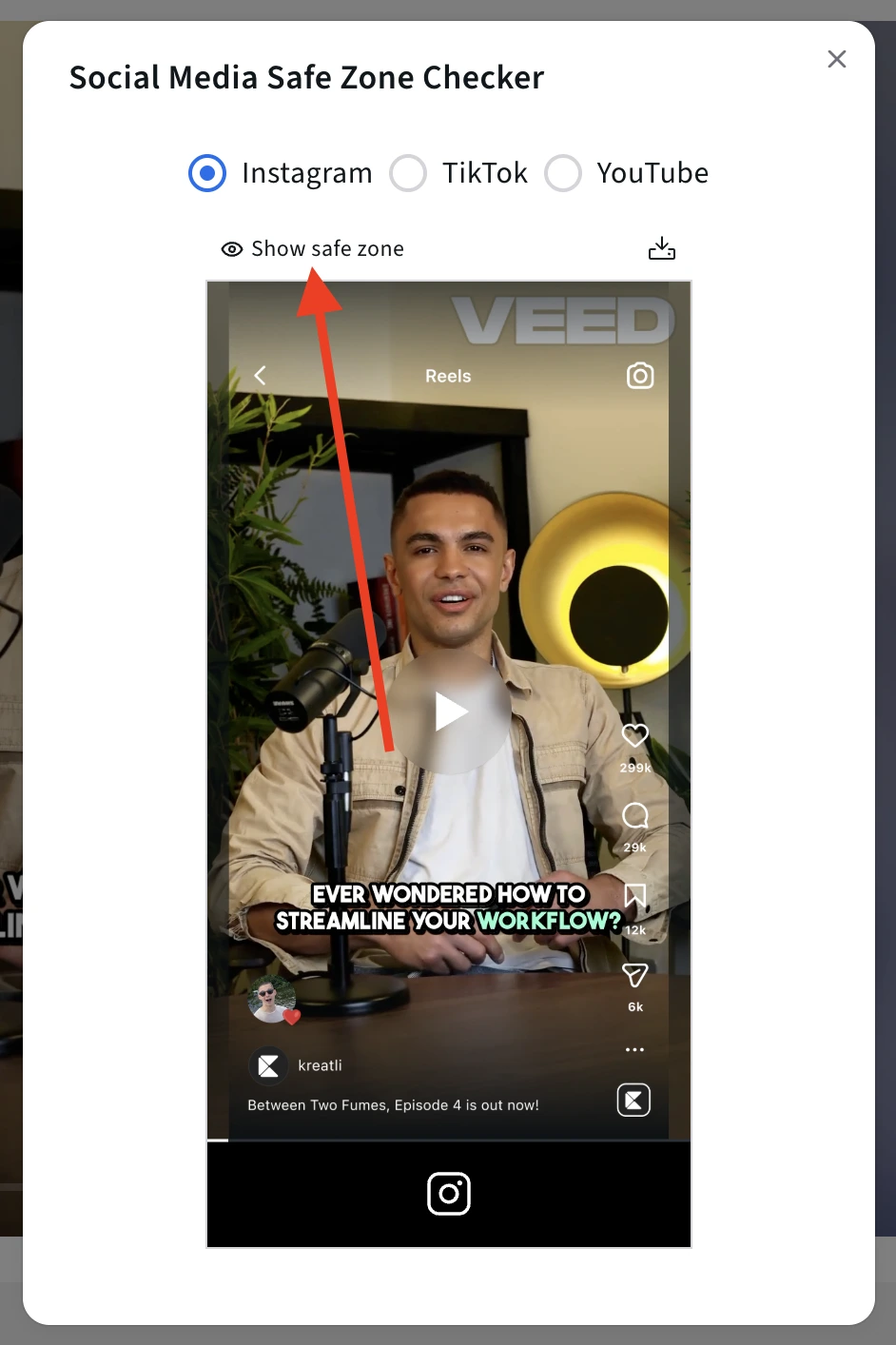
Once you are satisfied with how your content looks across all platform overlays, you can export it directly from the Safe Zone Checker.
Download the asset with the safe zone overlays applied, so everyone involved clearly understands which areas are safe and which are at risk.
Use this exported version to:
Share with stakeholders for final sign-off
Align editors, designers, and social managers on layout constraints
Document safe zone guidelines for future iterations
This exported file acts as a single source of truth for your team, ensuring that when the final version is published, all critical elements remain visible and compliant with platform UI requirements.
Step 5. Review, Get Feedback, Share for Approval, or Download
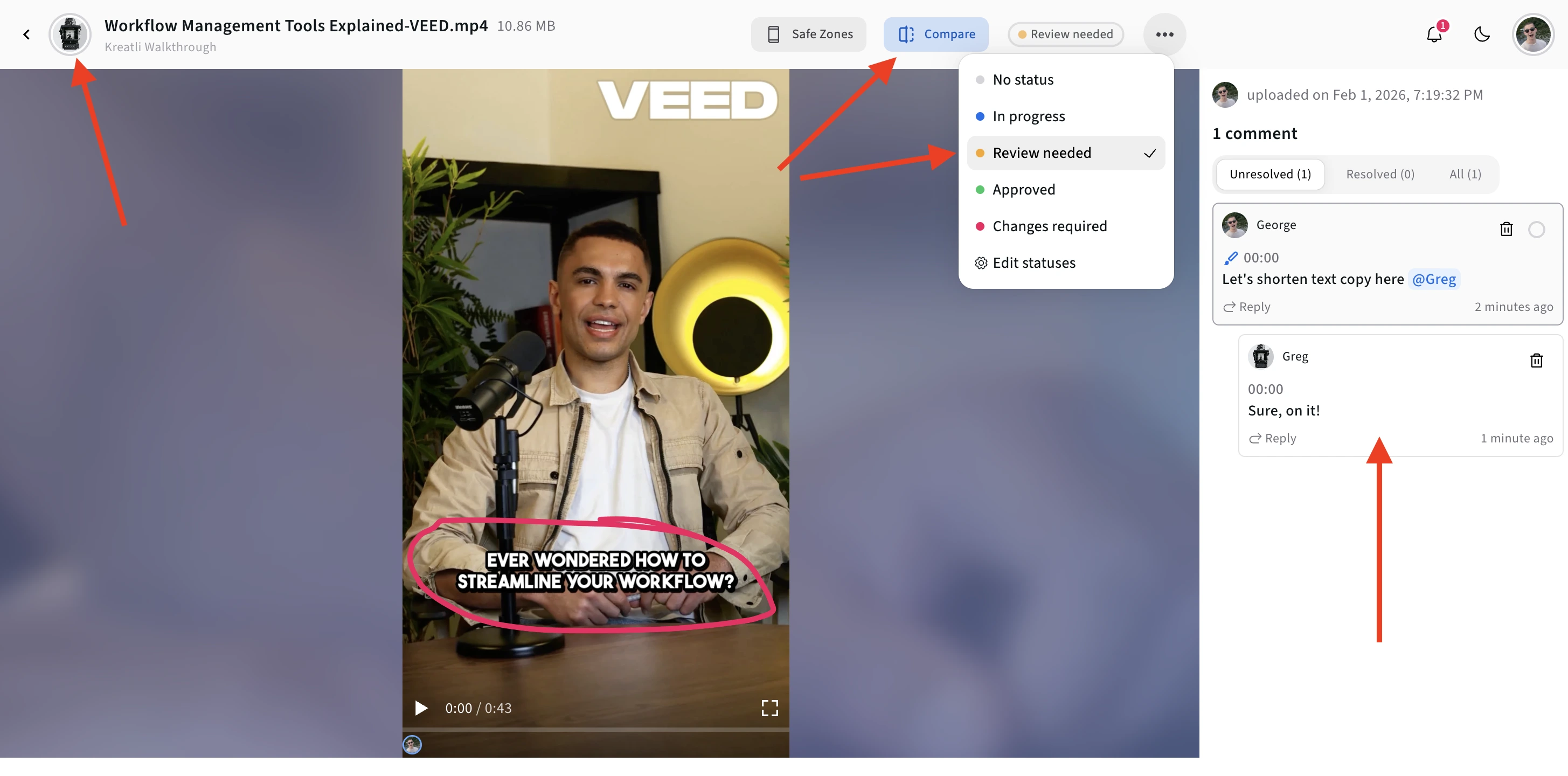
This is where Kreatli goes beyond a simple checker. You can use Kreatli as a production management platform to review this asset with your team, share feedback, and align on changes before publishing.
Instead of passing screenshots around or relying on external messages, teams can review the same visual context and make decisions faster and more clearly.
Start here: https://kreatli.com/
Other Free Tools
Designing for vertical video doesn’t stop at safe zones.
Creative teams also need to make sure assets are correctly sized, transferable, and ready for review before publishing or client approval
In addition to our Free Safe Zone Checkers for:
Instagram Reels
TikTok
YouTube Shorts
we offer complementary tools like the YouTube Banner Resizer for properly formatting channel banner and a Data Transfer Calculator to estimate upload and download times for large video files.
All tools are free to use and help reduce avoidable revisions before assets enter review.
What are Safe Zones and Why They Matter
Safe zones are buffer areas inside your video canvas where important visual elements - text overlays, logos, CTAs - are guaranteed to remain visible, regardless of device differences or UI overlays (captions, buttons, progress bars).
Because apps like TikTok, Instagram, and YouTube put playback controls, profile bars, comment buttons, captions, and overlays on top of your video, placing critical content too close to the edges risks accidental cropping or hiding. That undermines readability, branding clarity, and engagement.
In practice, treating safe zones as a built-in editing discipline means fewer layout surprises, fewer reworks, and fewer delivery delays.
Platform-Specific Safe Zone Recommendations
Here are recommended safe zone margins for vertical video (1080 × 1920 canvas), and why you should use them - treat them as a safe-zone checker reference for Reels, Shorts, and TikTok.
Platform | Recommended Safe Zone Margins | Why It Matters |
|---|---|---|
Instagram Reels | Keep critical elements ~108 px from top, ~320 px from bottom; ~60 px side padding | Ensures text/logos avoid feed/profile crop, and UI overlays (captions, comments) won’t cover CTAs |
YouTube Shorts | Keep main visuals inside central 4:5 area (≈1080 × 1440 px); avoid placing text in bottom 10–15% | Prevents overlay from captions, progress bar, and ensures clear thumbnail visibility |
TikTok | Leave ~130 px at top, ~250 px at bottom, and ~60 px side padding | Avoids overlap with caption box and action icons; ensures clarity on different device sizes |
Because each platform may crop or overlay content differently depending on view (feed, profile, preview, embed), these margins are conservative - designed to maximize legibility across contexts.
Validation Checklist Before Export
Before marking a video “final,” run this quick checklist:
All critical text, logos, and CTAs lie inside the safe-zone overlay margins
Thumbnails / cover frames are visible and show key elements centrally
Layout tested on both mobile view and embedded preview (if relevant)
For ads or branded videos: overlay safe-zone rules applied, and UI overlays not overlapping key content
Text and branding outside safe zones leads to missed CTAs, unclear messages, and avoidable rework - especially on small screens or when platforms render differently.
Integrating Safe-Zone Checks into Production Workflow
For teams producing multiple vertical videos (content series, social campaigns, branded edits), turn safe-zone validation into a production stage.
Here’s a sample workflow:
Template stage: safe-zone overlays loaded
Rough cut stage: creative composition done, but UI elements not locked
Safe-zone review stage: producer or editor checks against overlay, makes necessary adjustments
Client review stage: deliver proxy for feedback
Final delivery stage: export with high-quality master and final layout
If you run this in a production management platform like Kreatli, you can enforce safe-zone review as a gate before approval - reducing rework and avoiding layout mishaps. Consistency increases and deliverables become more predictable.
Read more on that here: Video Sharing Tools: How to Present Drafts That Get Fast Approvals.
Why This Matters More Than Ever
With vertical video reaching everywhere - stories, shorts, social feeds, ads - inconsistent visibility can silently erode audience engagement. Missed captions, hidden logos, or obscured CTAs don’t surface as technical failures - they lower effective deliverables and weaken brand clarity.
By embedding safe-zone discipline early and standardizing across projects via templates and project workflows, you protect creative intent, reduce errors, and deliver polished content no matter where it lands.
Frequently Asked Questions (FAQ)
What is a “safe zone” in social media content?
A safe zone refers to the area within your creative where important elements (text, logos, CTAs, faces) remain visible after platform UI elements (buttons, captions, profile bars) are applied. Anything outside these zones risks being obscured by platform overlays.
Why do different platforms have different safe zones?
Each platform (TikTok, Instagram Reels, YouTube Shorts) has a unique interface and UI layout, so the areas where elements might be covered differ. The safe zone overlays you see in the checker reflect these platform-specific UI differences.
What file types and sizes can I upload?
You can upload almost any content format, including videos, still images, thumbnails, or design mockups. While we recommend using a 1080 × 1920 (9:16) canvas because it matches standard vertical formats, Kreatli does not restrict uploads to that size. The tool remains flexible to fit your workflow.
Do I need to sign up to use the Safe Zone Checker?
No. The Safe Zone Checker is available for anyone to use without signup. You can upload and preview your content immediately.
Can I use the same creative for multiple platforms?
Yes. The tool lets you toggle between different platform overlays after uploading, so you can see how the same creative behaves across TikTok, Instagram Reels, and YouTube Shorts and adjust accordingly.
How should I use the exported version from the checker?
After you download your asset with safe zone overlays applied, use it to:
Share with your team or stakeholders for review.
Align on placement of text and branding elements.
Document layout decisions in production workflows.
It becomes a reference that ensures everyone understands where key visuals are safe, avoiding layout mishaps before final export.
Does the tool help with collaboration?
Yes. Because you can review and share the safe-zone annotated export, Kreatli encourages collaboration across editors, designers, and reviewers, making it easier to unify feedback and reduce miscommunication.
Will my content be uploaded to a server or shared publicly?
The Safe Zone Checker processes your upload in the browser and does not publish your content publicly. Your file is used only to generate the preview and overlays. Visitors should always check the tool’s terms for the most current privacy practices.
Does the Safe Zone Checker change or edit my original file?
No. The tool does not modify your original asset. When you export, the safe zone overlays are added only to the downloaded reference version, leaving your original file untouched.
Should subtitles always stay inside the safe zone?
Yes. Subtitles, captions, and on-screen text should always be placed well within the safe zone, as captions are among the most commonly obscured elements by platform UI and dynamic overlays.
Can I use this tool during early production, not just before publishing?
Absolutely. The Safe Zone Checker is intentionally useful during concepting, storyboarding, and design review, not only at the final export stage. Using it early helps prevent layout rework later in the process.
Is this tool meant for individual creators or teams?
Both. Solo creators can quickly validate layouts before posting, while teams can use the exported safe-zone version to review, approve, and align across editors, designers, social managers, and stakeholders.
Does Kreatli offer other tools for managing social video production?
Yes. Beyond the Safe Zone Checker, Kreatli is a production management platform designed to help creative teams plan, review, and coordinate content across the full production lifecycle, not just at the publishing stage.
Can Kreatli become your Production Management Platform?
Book a 30-minute workflow audit and we will map your current processes to the Kreatli production template.