How to Draw on a Video: A Complete Guide for Creative Teams
Learn how to draw on a video for clearer feedback, faster reviews, and fewer revisions. A complete guide for creative teams and agencies.
Article summary
Learn how to draw on a video for clearer feedback, faster reviews, and fewer revisions. A complete guide for creative teams and agencies.
Why Drawing on Video Matters More Than Ever
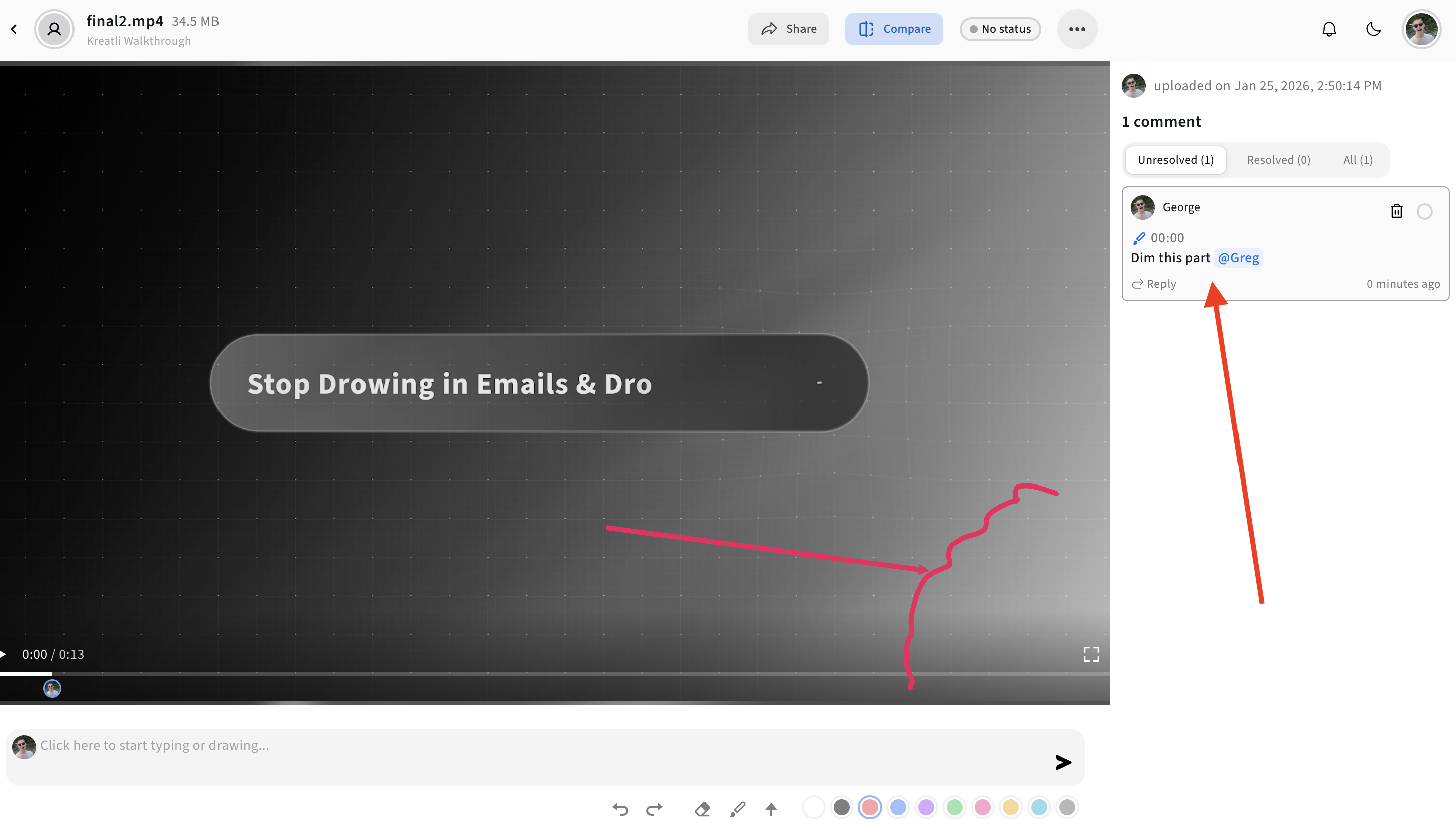
Drawing directly on video has become a core capability for modern creative teams. Whether you’re reviewing edits, giving frame-accurate feedback, storyboarding ideas, or marking up visual changes, the ability to annotate video visually saves time, removes ambiguity, and reduces endless revision cycles.
Instead of writing long comments like “the logo here feels off”, teams can now draw arrows, circles, highlights, and notes directly on the frame—making feedback instantly clear and actionable.
This guide explains:
What “drawing on a video” really means today
When and why creative teams need it
Different ways to draw on video (and their limitations)
How to draw on video the right way using a Video Collaboration & Review Platform like Kreatli
What Does “Drawing on a Video” Actually Mean?
Drawing on a video refers to adding visual markup on top of video frames, such as:
Freehand drawings
Arrows and lines
Circles and highlights
Text callouts or notes
In professional workflows, these drawings are usually:
Frame-specific or time-coded
Shared with teammates or clients
Used for feedback, approvals, or revisions
Stored alongside versions of the video
This is very different from “burning” drawings into the video permanently (e.g. in an editor like After Effects). Most teams want non-destructive annotations for collaboration and review.
Common Use Cases for Drawing on Video
Drawing on video is used across many creative workflows:
1. Video Review & Feedback
Editors, producers, and clients draw directly on frames to point out:
Framing issues
Motion errors
Text placement
Color or lighting problems
Related: How to Annotate Video: A Complete Guide for Creative Teams
2. Animation & Motion Design
Animation studios use drawings to:
Adjust character poses
Fix transitions
Highlight timing issues frame-by-frame
Related: Kreatli for Animation Studios
3. Marketing & Social Video
Marketing teams draw safe zones, CTA placements, or overlay guidance for:
Instagram Reels
TikTok
YouTube Shorts
Related: Safe Zone Guide
Ways to Draw on a Video (and Their Limitations)
Method 1: Drawing Inside Video Editing Software
Tools like Premiere Pro or After Effects allow drawing, but:
Drawings are permanent
Not collaborative
Not suitable for feedback or approvals
Best for final creative effects, not review.
Method 2: Screenshot → Draw → Send
A common workaround:
Pause the video
Take a screenshot
Draw in another tool
Send via email or chat
Which results in:
Loses context
Not time-coded
Easy to misinterpret
Method 3: Online Video Annotation Tools (Best Practice)
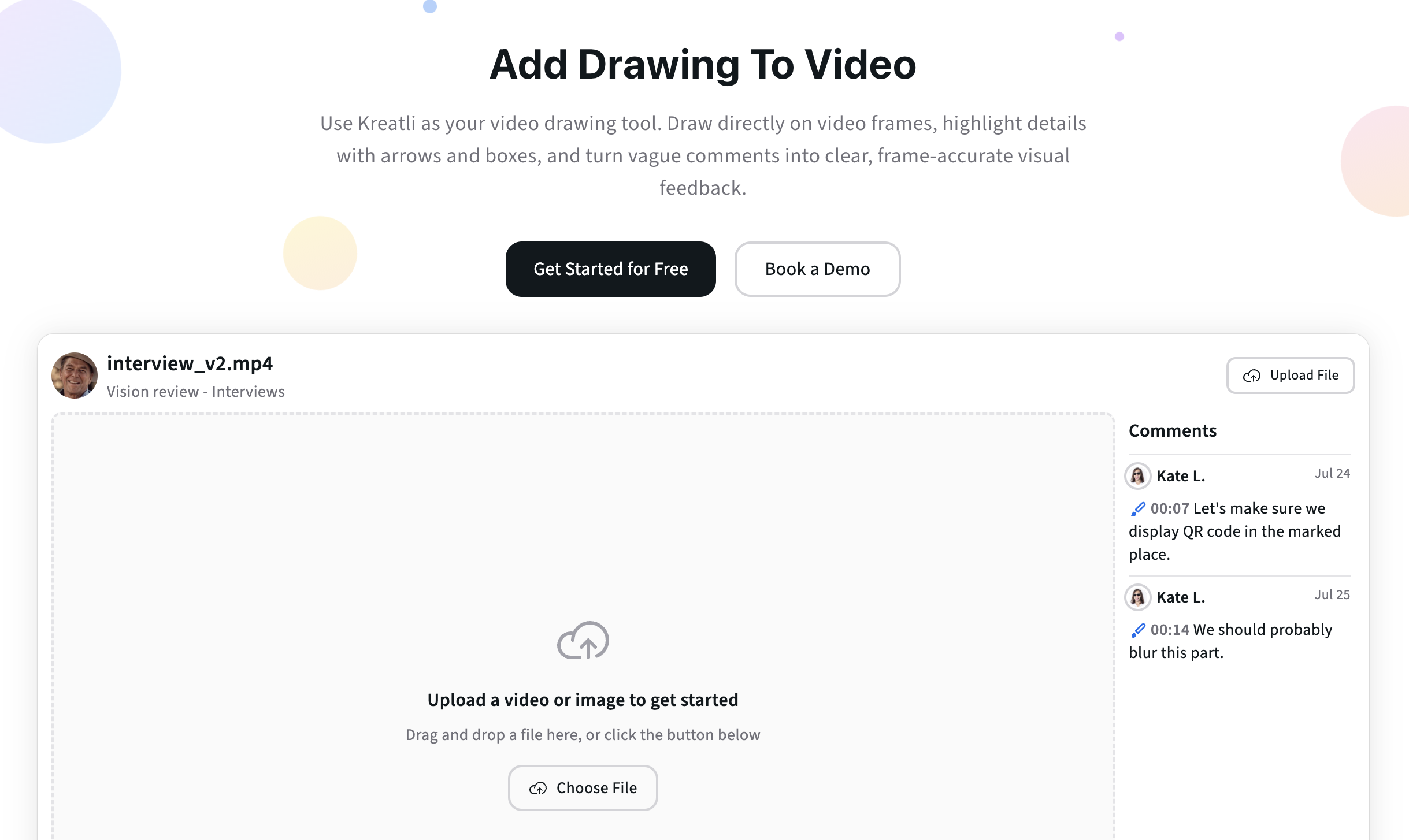
Modern creative teams use Video Collaboration & Review Platforms that support:
Frame-accurate drawing
Time-stamped comments
Shared feedback threads
Version tracking
This is where Kreatli stands out.
How to Draw on a Video Using Kreatli (Step-by-Step)
Kreatli is a Video Collaboration & Review Platform that combines video annotation with project orchestration, giving teams an end-to-end production workflow in one place.
Step 1: Upload or Share Your Video
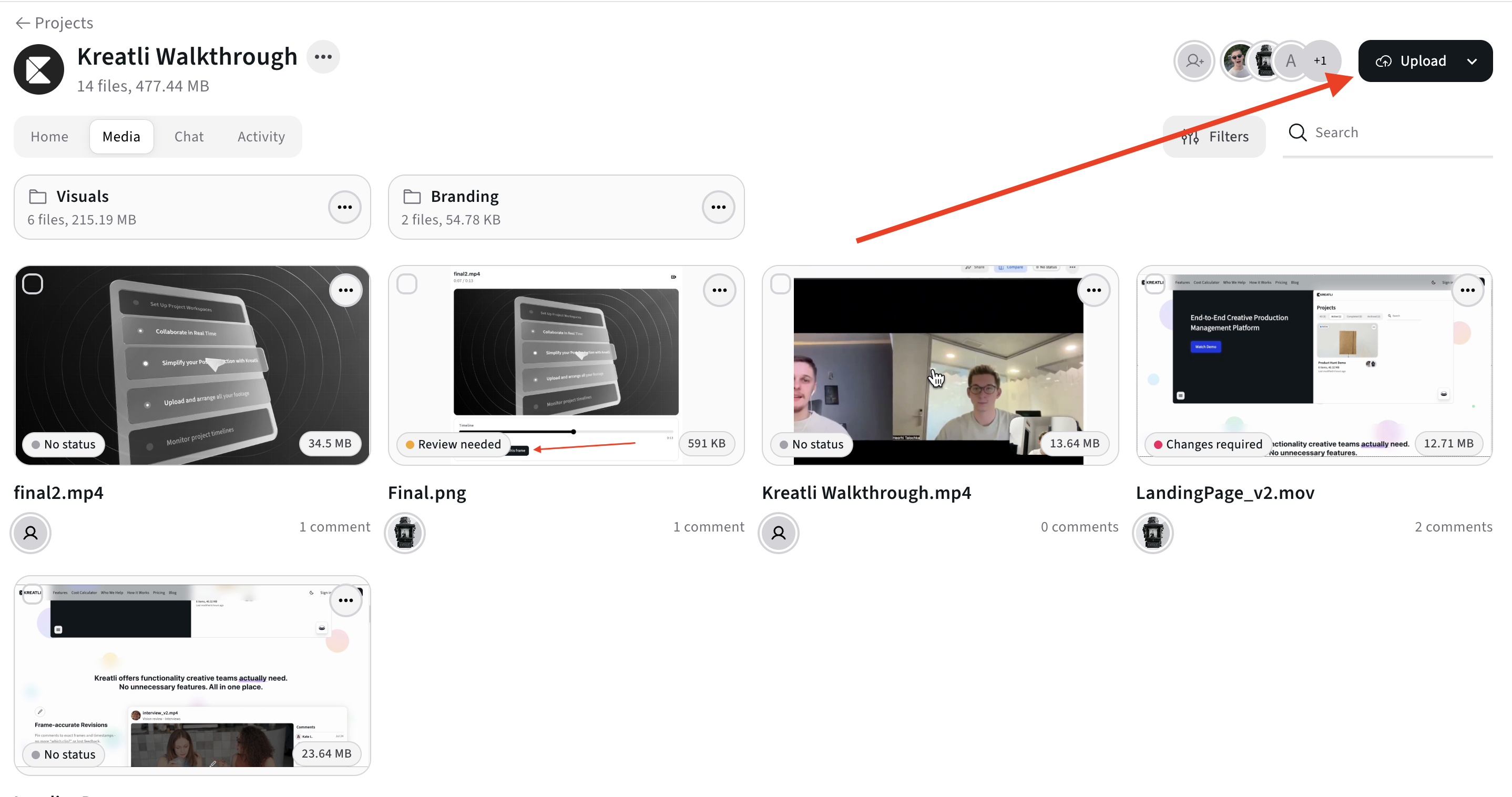
Upload your video file or share it via a secure link.
Step 2: Open the Video Annotation Mode
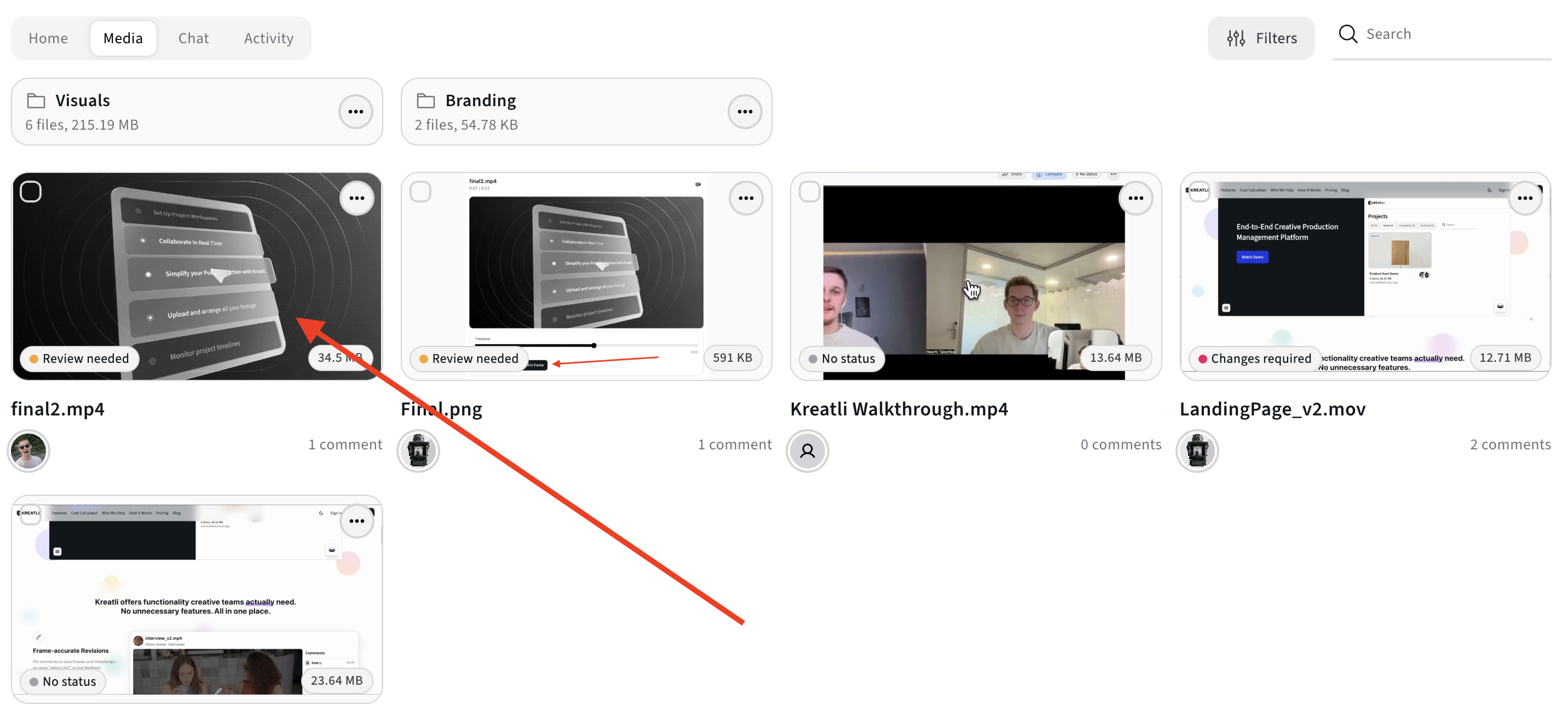
Play the video and pause on the exact frame where feedback is needed.
Step 3: Draw Directly on the Frame
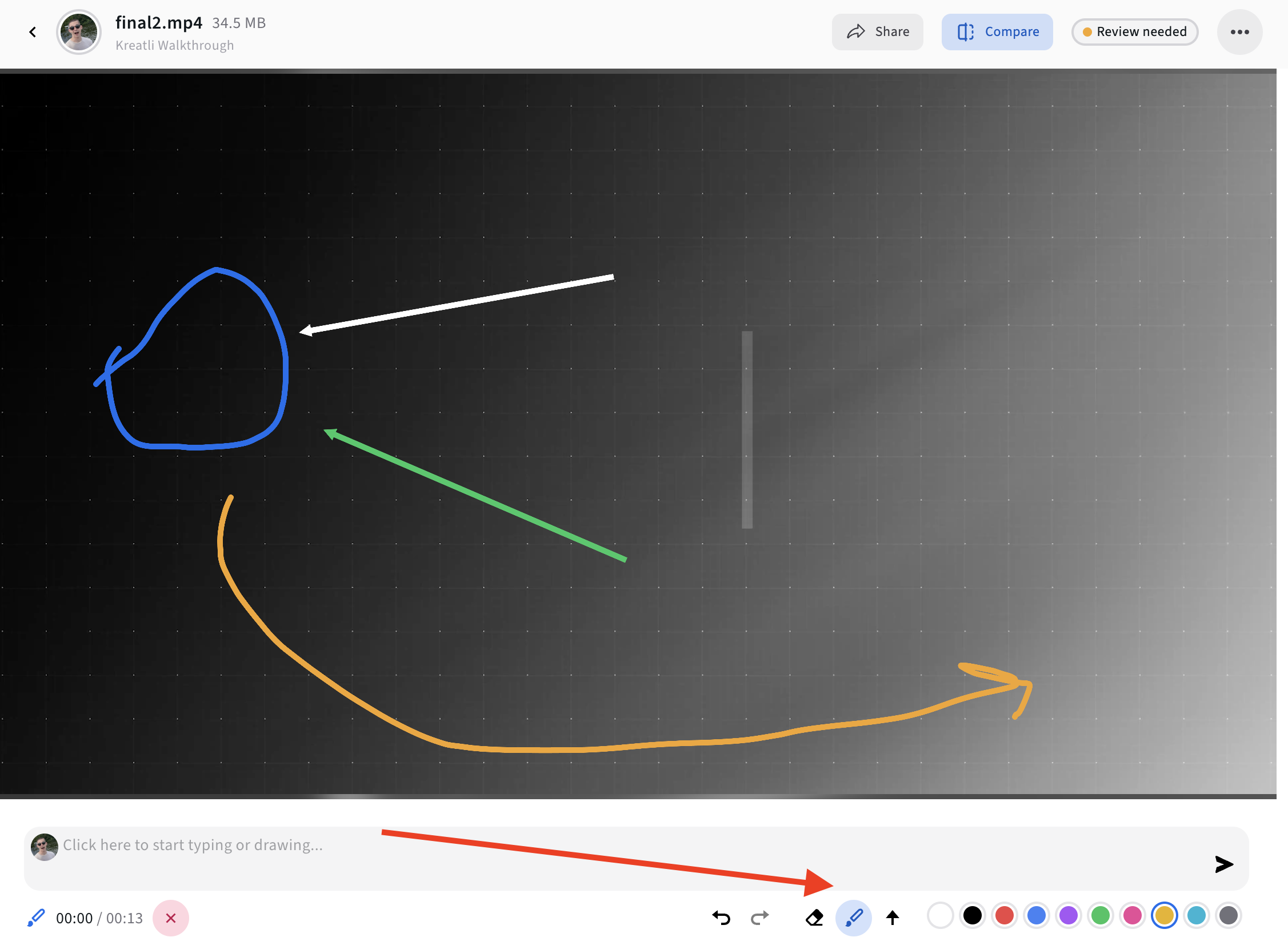
Use drawing tools to:
Draw arrows or circles
Highlight areas
Sketch changes visually
All drawings are frame-specific and non-destructive.
Step 4: Add Context with Comments
Attach written comments to your drawings so collaborators understand:
What needs to change
Why it matters
Who is responsible
Related: Video Annotation Feature
Step 5: Collaborate, Resolve, and Track Changes
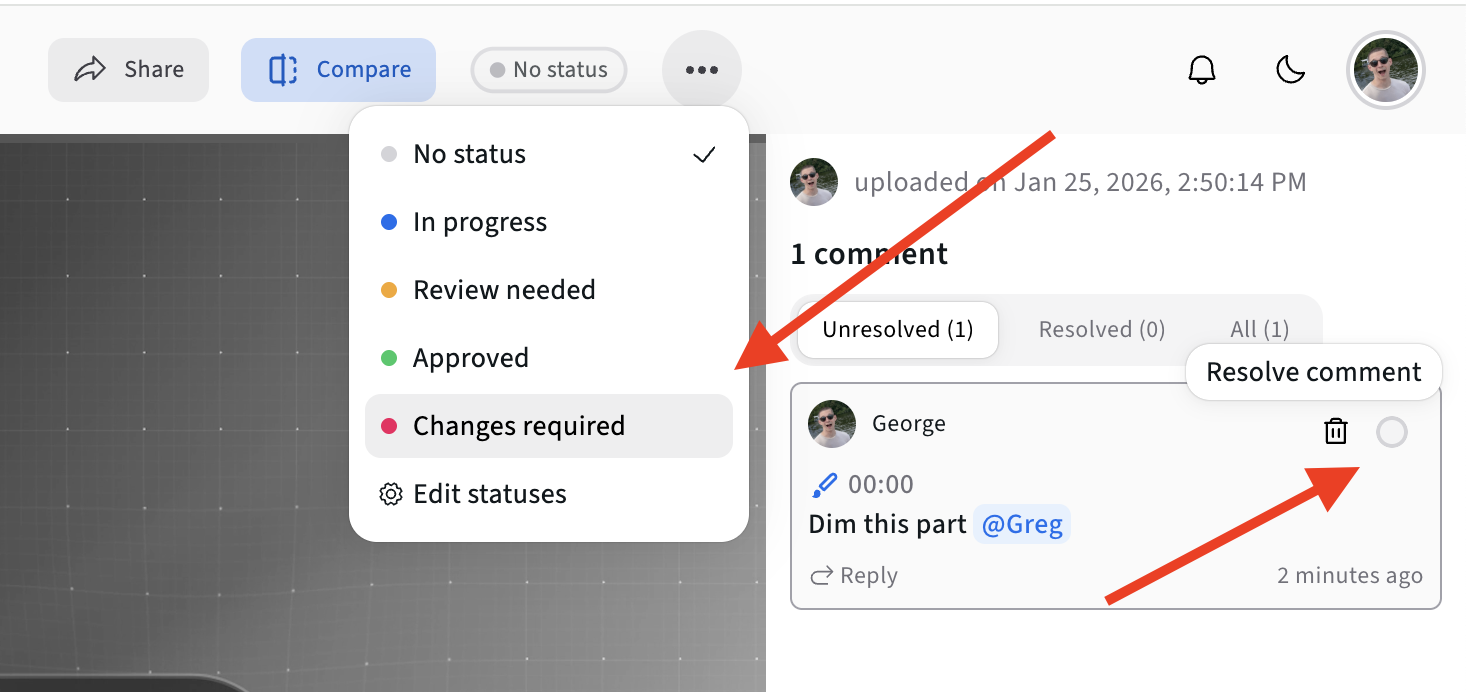
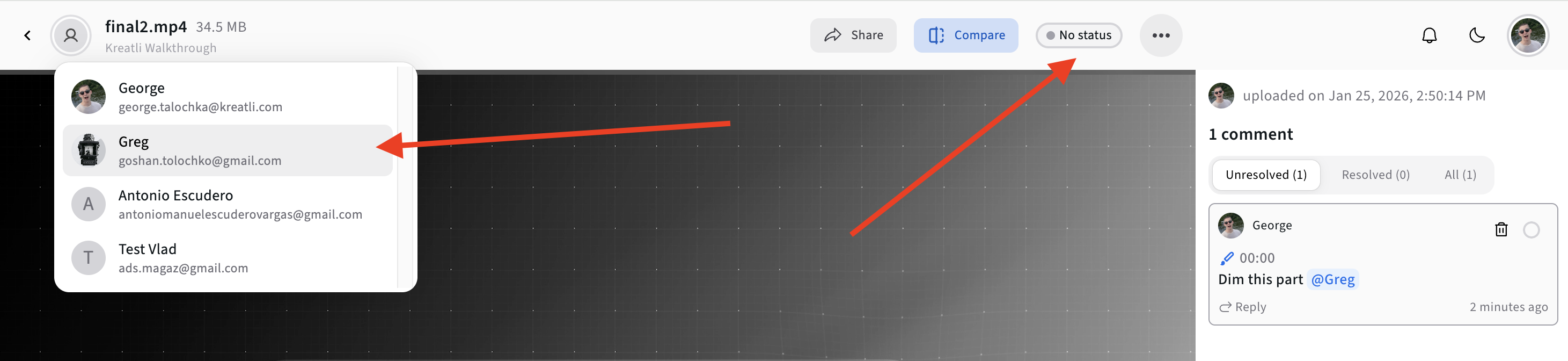
Teammates can:
Reply to annotations
Resolve comments
Upload new versions
Kreatli keeps everything organized across versions and projects.
Related: Creative Production Management
Free Tools for Video Teams
If you’re working with video regularly, Kreatli also offers free tools that support your workflow before and after annotation:
Social Media Safe Zone Checker – Ensure drawings, captions, and CTAs stay visible
Video Frame Extractor – Pull still frames for thumbnails or review
YouTube Banner Resizer – Resize your YouTube channel banner in the perfect dimensions
Why Drawing on Video Works Better Than Written Feedback
Drawing on video:
Removes interpretation errors
Speeds up approvals
Reduces revision cycles
Keeps feedback contextual and visual
For remote and async teams, it’s often the difference between chaos and clarity.
Related: Asynchronous Collaboration Tools
Drawing on Video vs Video Annotation (What’s the Difference?)
Drawing on video = visual markup (arrows, sketches, highlights)
Video annotation = drawings + comments + timestamps + collaboration
Kreatli combines both, plus project orchestration, so feedback doesn’t live in isolation.
Who Should Be Drawing on Video?
Video production companies
Animation studios
Advertising & marketing agencies
In-house creative and content teams
Related: Production Platform for Creative Teams
Final Thoughts

If you’re still relying on screenshots, emails, or vague comments, drawing directly on video is one of the fastest workflow upgrades you can make.
With a Video Collaboration & Review Platform like Kreatli, teams can:
Draw on videos frame-by-frame
Collaborate asynchronously
Track feedback across versions
Manage production end-to-end in one place
FAQ: Drawing on Video
Can I draw on a video without editing it?
Yes. Tools like Kreatli allow non-destructive drawings that don’t alter the original file.
Is drawing on video useful for clients?
Absolutely. Visual feedback is easier for non-technical stakeholders to understand.
Can multiple people draw on the same video?
Yes. Kreatli supports collaborative, time-coded annotations from multiple reviewers.
Do I need special software to draw on video?
No. Online video annotation platforms work directly in the browser.
Ready to see how it works?
Visit Kreatli to explore project templates, playback reviews, and file exchange views that streamline creative production.