How to Organize Your Files
A practical guide to file organization for creative teams: structure work by project, keep versions auditable, and share one link instead of scattering copies.
How do you organize your files when every campaign mixes video, images, PDFs, and work-in-progress exports? The answer is not more nested folders—it is a system where assets, feedback, and approvals connect to the same project story.
Key takeaways
- Organize files by project first, then by deliverable or asset type within each project.
- Use clear, consistent naming conventions — include version numbers and dates.
- Keep one source of truth per file to avoid 'which version is final?' confusion.
- Archive completed projects rather than deleting them so history remains accessible.
What good file organization looks like
Good organization means anyone can answer three questions quickly: which file is current, where feedback lives, and who approved it. That requires structure, naming discipline, and a workspace that supports versions.
Project context: files sit next to the brief and delivery milestones.
Version clarity: each round is identifiable and comparable.
Single share path: one link replaces dozens of forwarded attachments.
Why “folder chaos” slows creative teams down
Chaos shows up as duplicated filenames, missing finals, and feedback trapped in email. Teams burn time reconciling versions instead of shipping work.
Search cost: creatives and producers ask “which link is real?”
Review risk: stakeholders comment on outdated exports by accident.
Handoff drag: new teammates cannot onboard without a tour of mystery folders.
For platform context, see File Cloud Storage.
How to organize your files (step-by-step)
Define the unit of work (project, campaign, or deliverable) and create a home for it.
Move active files into that space and remove obvious duplicates from circulation.
Agree on naming for versions, dates, and client-facing vs internal labels.
Route feedback through review links tied to the file, not scattered threads.
Archive completed rounds so search surfaces what is live today.
Best practices for naming, versions, and access
Human-readable names: include project code + asset type + version.
One “approved” moment: record who signed off and on which version.
Least privilege: clients see review links; internals see work in progress.
Regular housekeeping: monthly pass to retire dead links and empty temp folders.
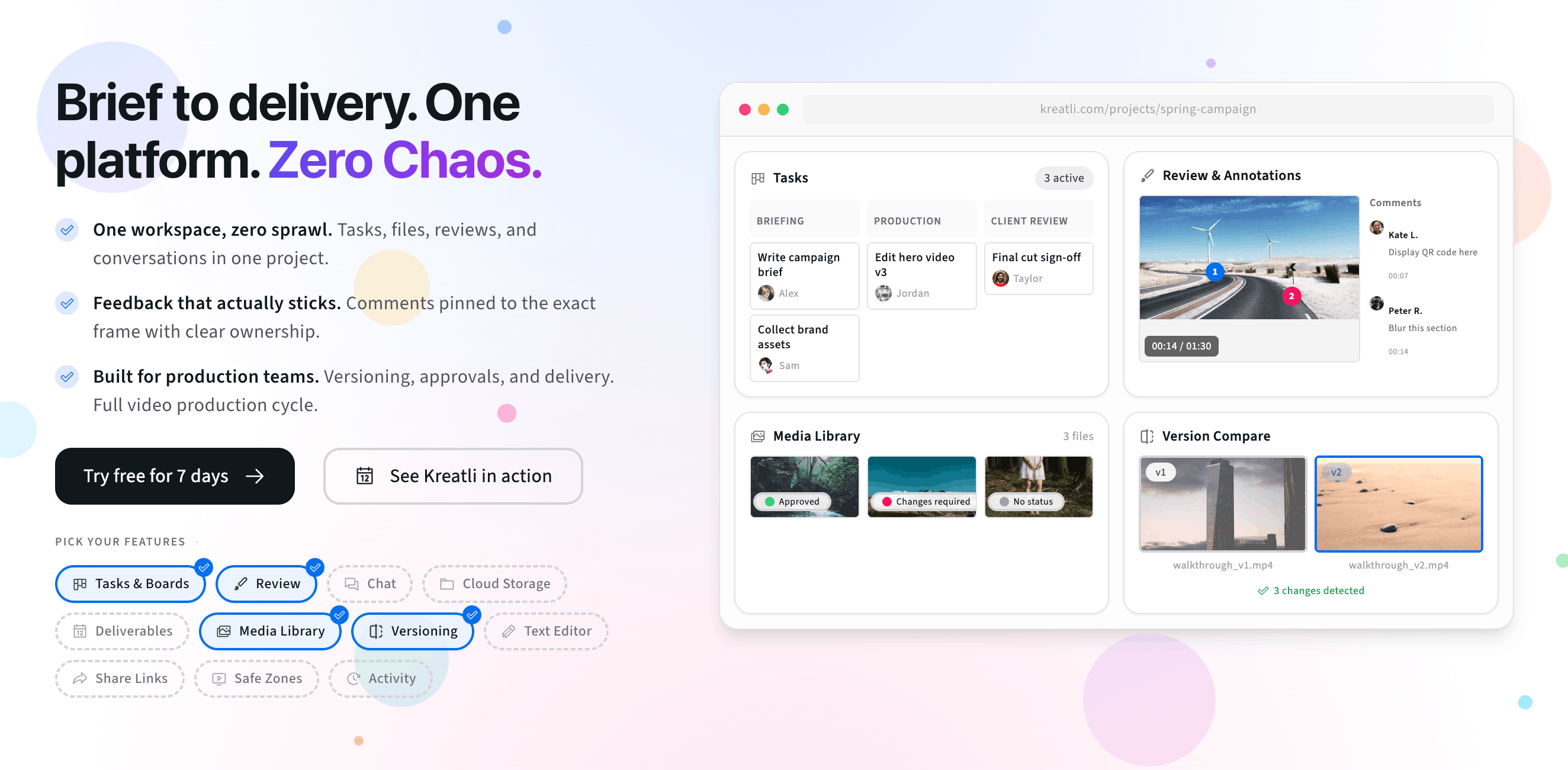
Try the centralized project dashboard (interactive preview)
Strong file organization pairs with a single place to see the project: overview, media, and activity together—so nothing lives in a silo. The interactive preview below is the same Centralized Project Dashboard pattern from the product home: tabs for project context, thumbnails with status, and quick actions without jumping tools. See how it fits your workflow on Creative Workspace.
When you are ready, sign up free or book a demo.
Free tools, guides, and platform features
Below are free tools that pair with file organization and cloud storage, plus related guides and platform features to explore next.
Free tools for file organization
Try tools that complement storage, transfer estimates, and review workflows.
Video Manager — Organize, store, and track video assets with version control and client share links. Manage feedback and approvals in one workspace.
Data Transfer Calculator — Calculate how long it takes to upload or download large files. Perfect for video editors and post-production teams.
PDF Reviewer — Review PDFs online with location-pinned comments, annotations, and approvals. Share with clients; recipients do not need a Kreatli account.
Image Reviewer — Review images online with location-pinned comments, annotations, and approvals. Share with clients; recipients do not need a Kreatli account.
More guides and examples
Read more about storage, workspaces, and keeping assets under control.
How Marketing and Creative Teams Use File Cloud Storage in Kreatli
Kreatli vs Asana: Why Production Teams Need More Than File Cloud Storage
Why Creative Teams Are Moving Beyond Basic File Cloud Storage
More resources
Capabilities that support secure storage, projects, and structured approvals.
Secure Asset Storage — Enterprise-grade storage for creative assets. Organize files, track versions, and protect your media with reliable infrastructure.
Creative Workspace — Unified workspace for creative production. Organize assets, manage projects, and collaborate with your team.
Project Orchestration — Board-driven tasks on customizable project stages. Link work to media, assign owners and contributors, and track progress by column.
FAQ: Organize your files
How do you organize your files as a creative team?
Anchor files to the work they support—project, campaign, or deliverable—then use consistent naming, clear version rules, and a single workspace everyone can access. The goal is that any teammate can find the latest approved asset without asking in chat.
Should I organize by file type or by project?
Prefer project-first structure. Type-based folders (all PDFs together) break down fast across clients. Project-first keeps briefs, exports, and review rounds collocated.
How do I keep versions from turning into “final_v7_really_final”?
Use a simple version rule (v1, v2, round A/B) and store each upload as a new version in your workspace. Pair that with resolved comments and approvals so “latest” is obvious.
How do permissions fit into organization?
Organize access the same way you organize folders: client-facing links for review, internal-only spaces for work in progress, and tight controls for sensitive deliverables.
What is the fastest win if my files are messy today?
Pick one active project, migrate its current “source of truth” files into a dedicated space, agree on a naming prefix, and retire duplicate links in email. Repeat project by project instead of boiling the ocean.
Still have questions?
Reach us at support@kreatli.com and we will help you design a file structure that fits your team.
Ready to keep creative files under control?