How to Share Documents Online
A practical guide to sharing documents through the browser: one link, clear permissions, and a single place for feedback instead of attachment sprawl.
How to share documents online comes down to trust and clarity. You want recipients to open the correct revision, understand what they are allowed to do (view, comment, download), and leave feedback where the document lives—not in a parallel email chain with six conflicting attachments.
Key takeaways
- Share a link instead of an email attachment to avoid version confusion and file-size limits.
- Set permissions (view, comment, download) before sharing to control what recipients can do.
- Use a review-ready link when you need threaded feedback and approvals tied to the document.
- Keep one canonical link per document so all stakeholders see the same version.
What it means to share documents online
Online sharing means the file is stored in a workspace or cloud layer, and you distribute a URL. Permissions, activity, and comments stay attached to that asset so teams can audit who saw what and when.
Single source of truth: fewer “final v7” copies floating in inboxes.
Revocable access: update or expire a link without resending binaries.
Review-ready option: comments and approvals stay pinned to the page.
Why links beat email attachments for document review
Attachments break on size limits, split feedback across threads, and make version history ambiguous. A link keeps delivery predictable and makes it obvious which file is current—especially for client approvals and cross-team proofing.
Reliable delivery: no bounced sends on large decks.
Centralized discussion: one thread tied to the document.
Cleaner security story: access is explicit instead of “anyone forwarded this file.”
How to share documents online (step-by-step)
Upload the document to a workspace that supports share links and review.
Set permissions for view, download, and comment as needed.
Copy the share URL and include one clear instruction in your message.
Validate as a guest in a private window to confirm the experience.
Iterate in place—upload new versions and retire outdated links when rounds change.
For PDF-specific link sharing, see PDF to Link.
Best practices for secure document sharing
Label the round: “Legal review — do not distribute” beats a naked URL.
Time-box sensitive decks: use expiration on campaign or financial materials.
Separate internal vs client links when permission levels should differ.
Archive decisions: export or snapshot approvals when contracts require a record.
Try sharing a document online now
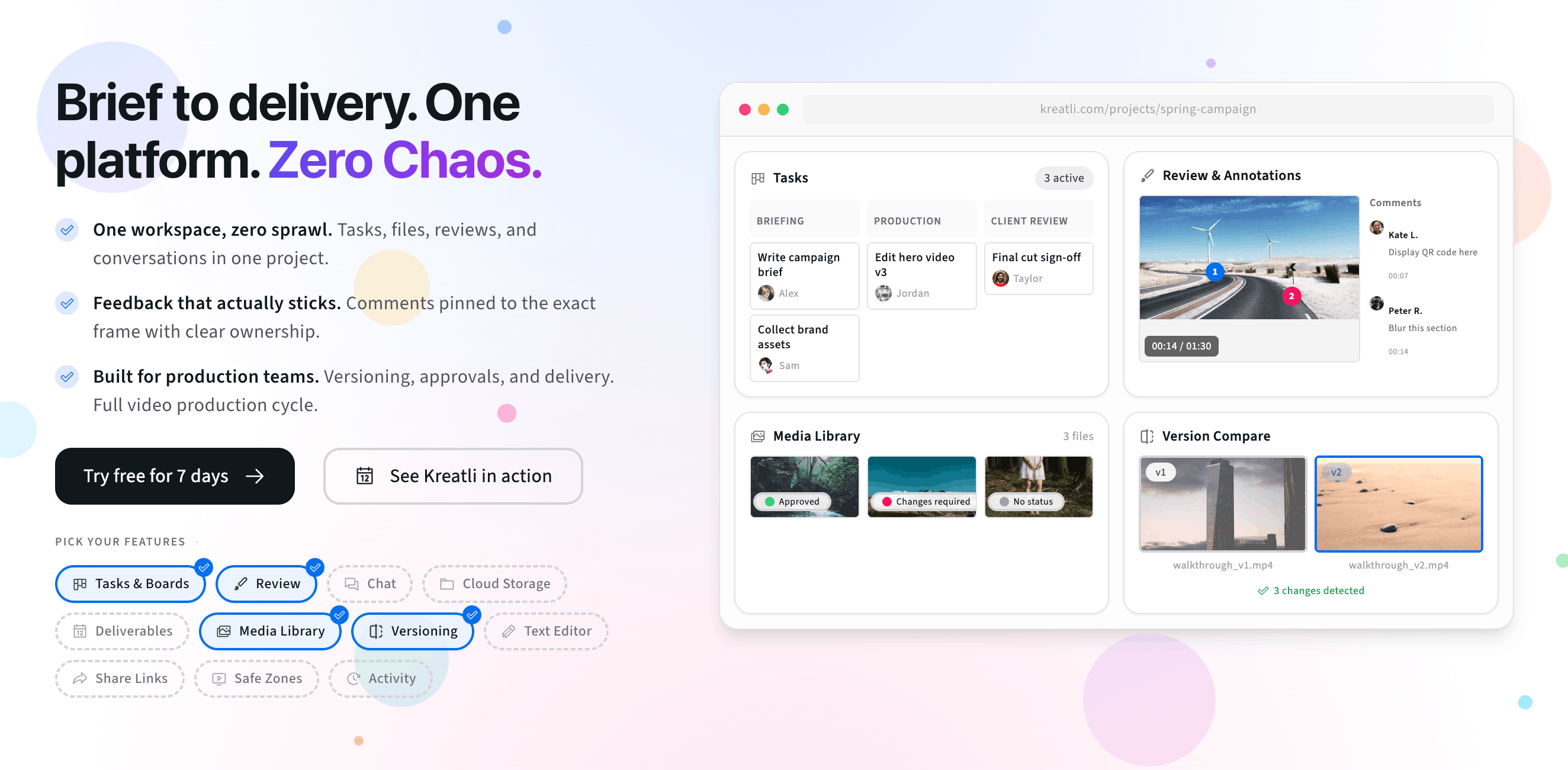
The interactive preview below mirrors copying a secure share link for a document. When you are ready, sign up free or book a demo.
Free tools, guides, and platform features
Below are free tools that pair with online document sharing, plus related guides and platform features to explore next.
Free tools for document links and review
Try tools that complement sharing, PDF review, and markup.
PDF Reviewer — Review PDFs online with location-pinned comments, annotations, and approvals. Share with clients; recipients do not need a Kreatli account.
PDF Annotator — Add location-pinned comments, highlights, drawings, and markup to PDFs. Share with clients; recipients do not need a Kreatli account.
Video Feedback Tool — Give frame-accurate feedback on videos with comments, annotations, and markup. Share review links with clients; recipients do not need a Kreatli account.
Image Reviewer — Review images online with location-pinned comments, annotations, and approvals. Share with clients; recipients do not need a Kreatli account.
More guides and examples
Read more about document review, approvals, and version-aware workflows.
What Is Proofing Software? A Modern Guide for Creative Teams
Proofing Software vs Production Management: Key Differences and the Best Choice for Creative Teams
More resources
Capabilities that support secure sharing, PDF feedback, and structured approvals.
Add Comments to PDF — Add comments to PDF with location-pinned, threaded feedback. Collaborate on PDFs without drawing tools.
Annotate PDF — Annotate and review PDFs with comments and markup. Add feedback directly on PDFs for precise, location-pinned review.
Secure Asset Storage — Enterprise-grade storage for creative assets. Organize files, track versions, and protect your media with reliable infrastructure.
FAQ: Share documents online
Is sharing a document online the same as emailing a PDF?
Not quite. Email sends a copy; a hosted link keeps one source file with permissions you can update. Review links also let teams collect feedback in context instead of across separate threads.
How do I control who can open a shared document?
Use invite-only access, password or tokenized links where supported, and expiration for time-bound reviews. Test the link in an incognito window to confirm what a recipient sees without your login.
Can external reviewers comment without creating an account?
Many creative workflows support guest review links. Stakeholders open the document in the browser and leave pinned notes or approvals without installing desktop software.
What file types work best for online document sharing?
PDFs are the most common handoff for decks, one-pagers, and proofs because layout stays locked. Some teams also share native exports through workspace storage—pick the format that matches your approval stage.
How do I handle a revised document after feedback?
Upload a new version in the same workspace so history stays traceable. Keep comments tied to the revision they belong to, then resolve items as the document updates.
Still have questions?
Reach us at support@kreatli.com and we will help you set up online document sharing for your team.
Ready to share documents without attachment chaos?