PDF Highlighter
A PDF highlighter marks text or a region for review. Kreatli stores highlights with the version. Use this DIY tool for highlighter searches; use the platform page for team workflow.
Upload a PDF to get started
Drag and drop a PDF here, or click the button below
What is a PDF highlighter?
A PDF highlighter marks text or a region for review. Kreatli stores highlights with the version. Use this DIY tool for highlighter searches; use the platform page for team workflow.
Use this page when you searched for PDF highlighter. For highlight a PDF, see highlight a PDF. The cluster pillar is PDF markup tool. See Kreatli pricing or read how to highlight a PDF.
How to Annotate PDFs Online
Add location-pinned comments, highlights, drawings, and markup to your PDFs. Follow these steps to upload, annotate, and share with your team or clients—all in your browser.
Upload Your PDF
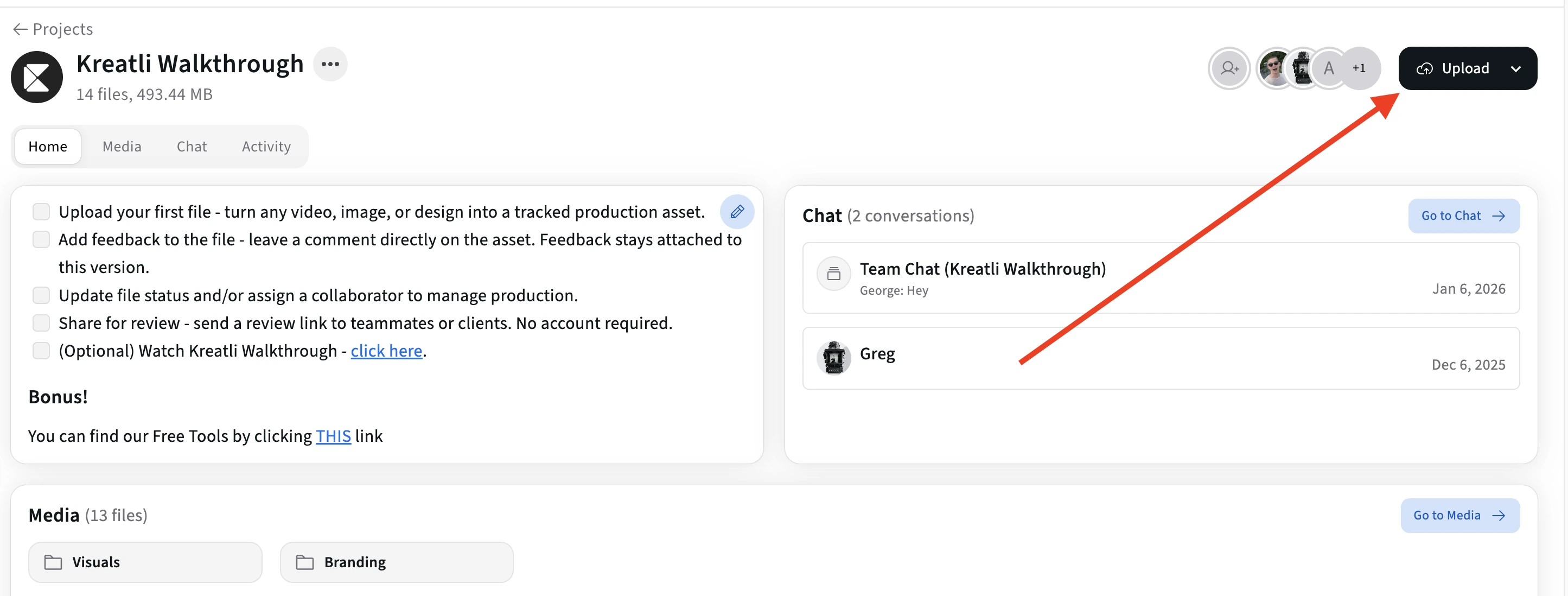
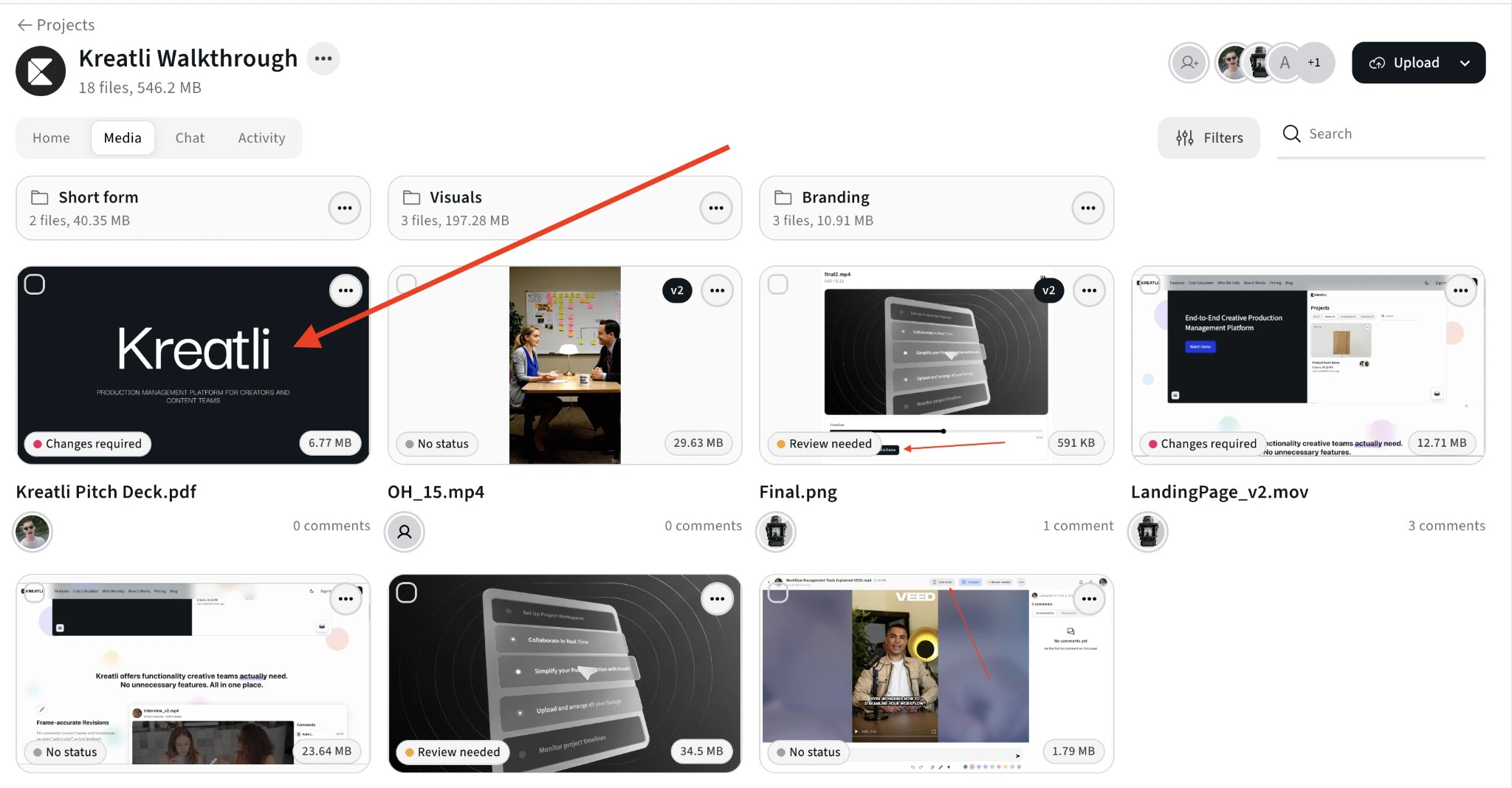
Upload your PDF to a Kreatli project. Your file is stored with version history so you can annotate and share for review in one place.
Open the PDF in the Review Interface
Open the asset to enter the review view. Navigate page by page and click or select any area where you want to add comments, highlights, or drawings.
Add Annotations on the PDF
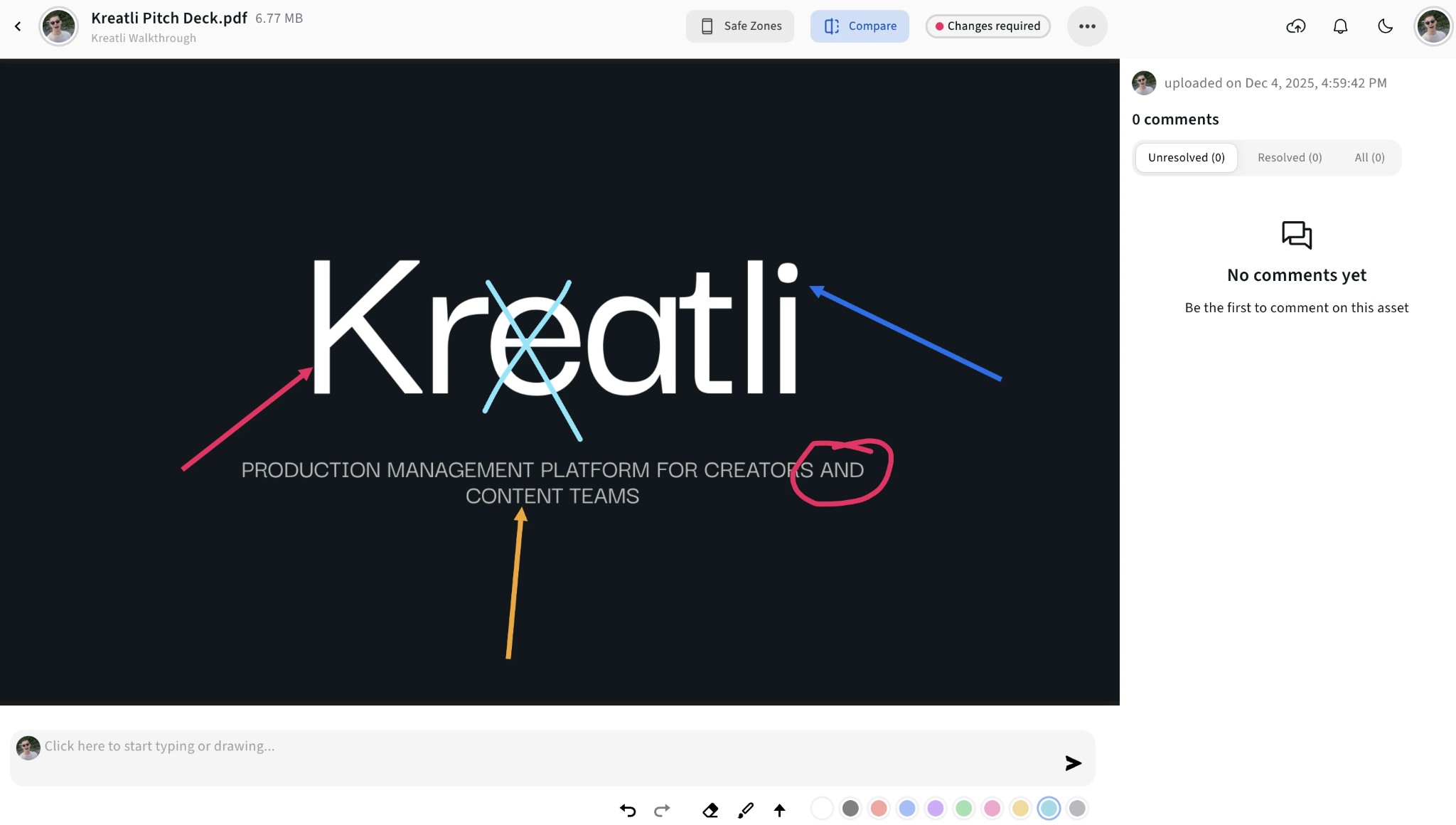
Add comments pinned to exact spots, use highlights and shapes to mark regions, and draw or use arrows to point to elements. All feedback stays tied to the right page and position.
See All Feedback and Jump to Spots
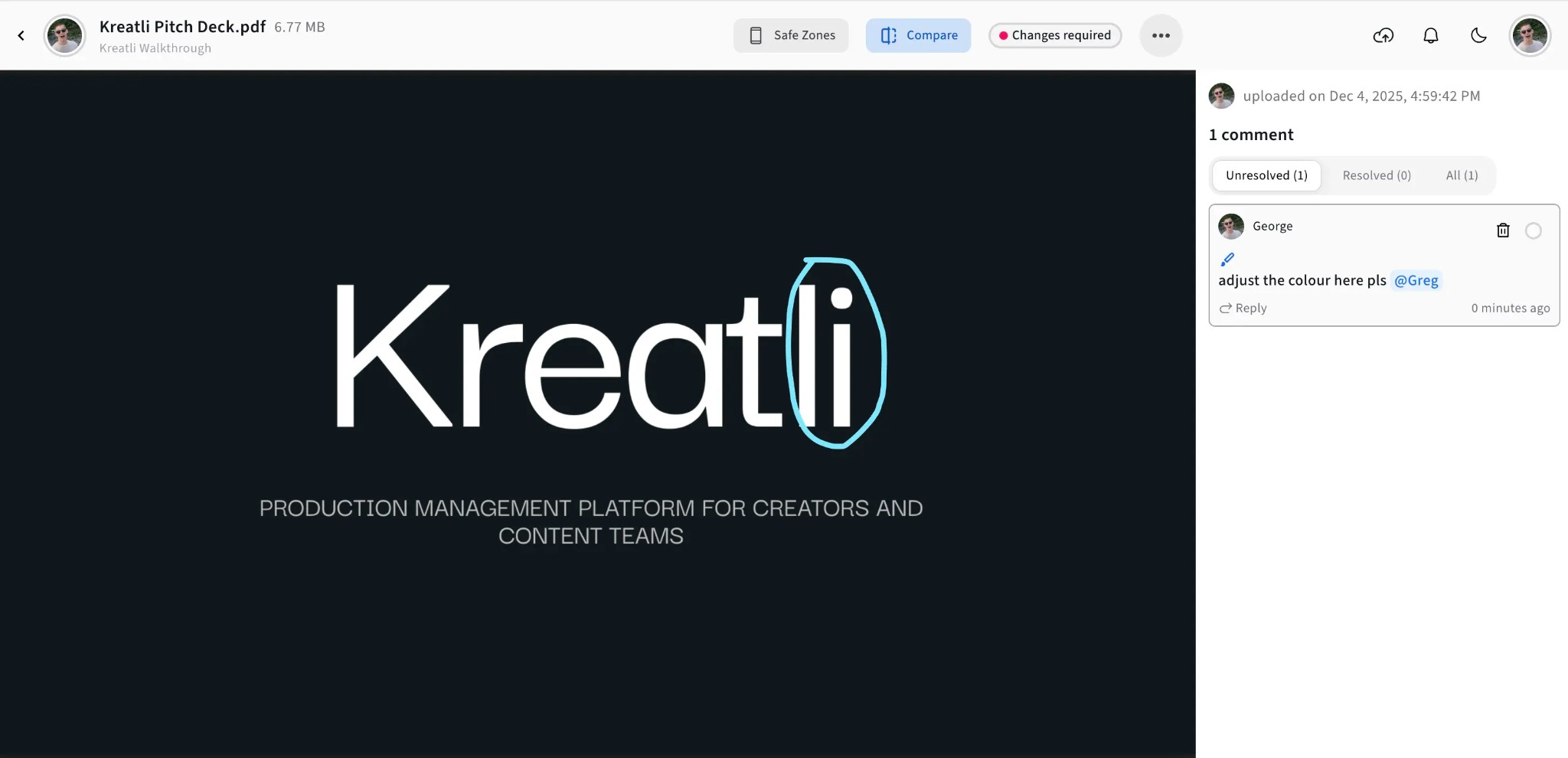
View all annotations in one place, filter by reviewer, and jump to any comment or markup. Track what’s resolved and what still needs attention.
Share for Approval or Track Resolution
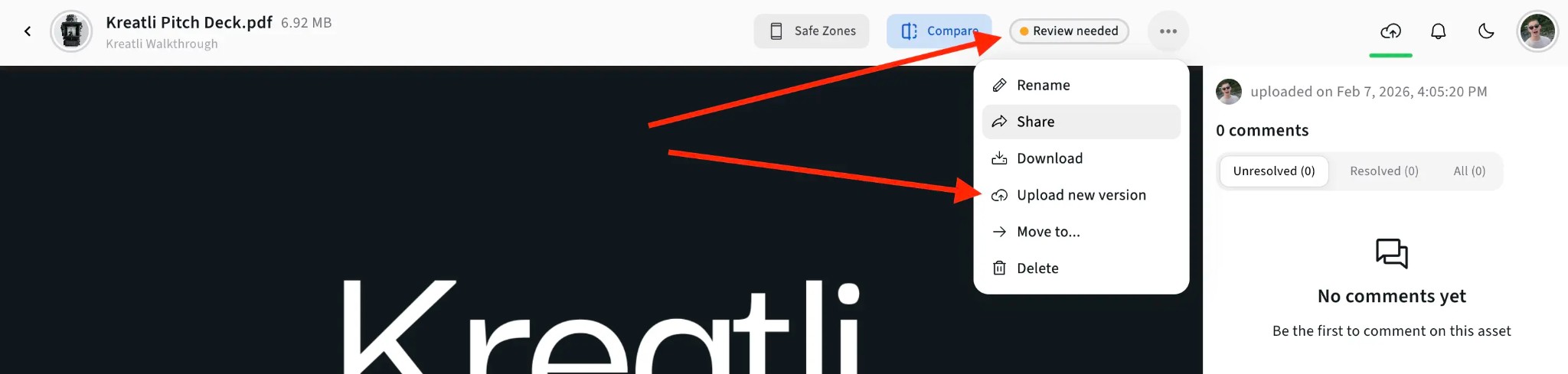
Share a review link so clients can annotate without signing up. Mark comments resolved as you address them and upload new versions when needed.
PDF Annotator Features
Location-pinned comments, highlights, shapes, and drawings—everything you need to give precise feedback on PDFs.
Comments & Markup
Pin comments to exact spots on a page. Use highlights, shapes, arrows, and freehand drawing to mark regions and point to elements so designers and writers know precisely what to change.
Guest Annotator Links
Share secure links so clients and stakeholders can open the PDF, add comments and markup, and submit feedback without creating an account.
Resolution Tracking
Mark annotations as resolved or unresolved. Filter to show only what still needs attention and keep a clear record of what’s done and what’s pending across review rounds.
Multi-Reviewer Annotation
Multiple people can annotate the same PDF. Each person’s comments and markup are visible to everyone, with indicators for who added what. Filter by reviewer and consolidate feedback in one place.
Explore PDF Annotation in Kreatli
Learn more about annotating PDFs, drawing on PDFs, and review workflows.
More Tools for Creative Teams
Sign up free — no credit card required — and try these tools in Exploration Mode. Start a 7-day free trial when you’re ready for unlimited access.
Video Feedback Tool
Give frame-accurate feedback on videos with comments, annotations, and markup. Share review links with clients; recipients do not need a Kreatli account.
Video Reviewer
Review videos online with frame-accurate comments, visual annotations, and approval workflows. Share with clients; recipients do not need a Kreatli account.
Video Comparer
Compare two video versions side by side with frame-accurate comments and annotations. Share with clients; recipients do not need a Kreatli account.
Video Link Maker
Create secure, shareable video review links in seconds. Recipients watch, comment, and approve without a Kreatli account.
Frequently Asked Questions
Common questions about PDF annotators, location-pinned markup, and collaboration.
Still Have Questions?
Contact us at support@kreatli.com.
More Resources
Explore other Kreatli platform features for PDF highlighting, annotation, and collaboration.
Annotate PDF
Annotate and review PDFs with comments and markup. Add feedback directly on PDFs for precise, location-pinned review.
Draw on PDF Document
Draw and markup directly on PDFs for precise feedback. Freehand, shapes, and annotations on PDFs.
Add Comments to PDF
Add comments to PDF with location-pinned, threaded feedback. Collaborate on PDFs without drawing tools.
Client Approvals
Client approvals tied to exact file versions, not links or emails. See status at a glance and maintain a complete audit trail that protects both parties.
Ready to highlight PDFs with your team?
Kreatli offers location-pinned PDF highlighting, annotation, and approval workflows. Highlight text and regions in one place with your video and creative assets.