PDF Version Control
PDF version control keeps each revision of a document with comments attached to that file, not a overwritten Drive copy. Kreatli records which version was approved. Use compare PDF files when you need side-by-side review.
Manage versions
What is a PDF version control?
PDF version control keeps each revision of a document with comments attached to that file, not a overwritten Drive copy. Kreatli records which version was approved. Use compare PDF files when you need side-by-side review.
Use this page when you searched for PDF version control. For document version control, see document version control. The cluster pillar is PDF review. See Kreatli pricing or read how to proofread a PDF.
How to use PDF version control in Kreatli
Follow these steps to upload your first PDF, add new versions from the file menu, switch versions in the viewer, and compare two PDF versions side by side.
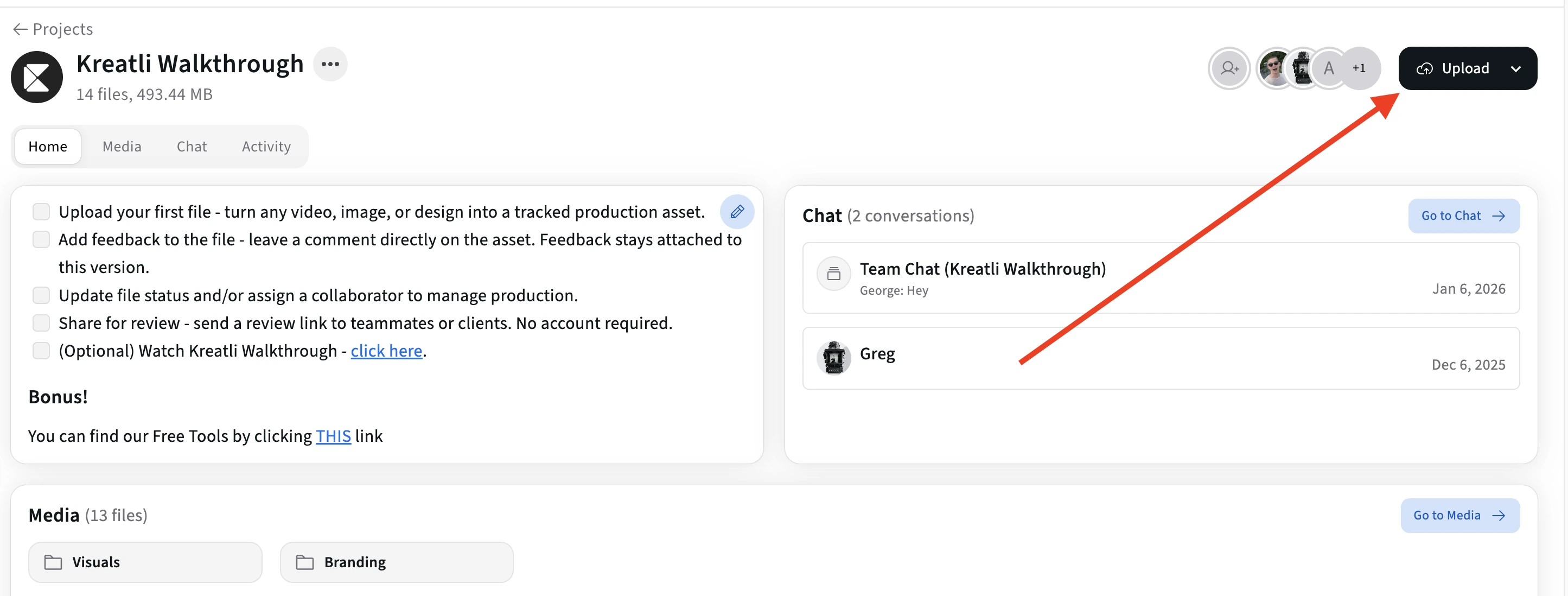
Upload your PDF to a Kreatli project
Sign in to Kreatli, open your project, and upload your first PDF. The file appears in the Media view and becomes version 1 (v1). You can add new versions anytime from the same asset.
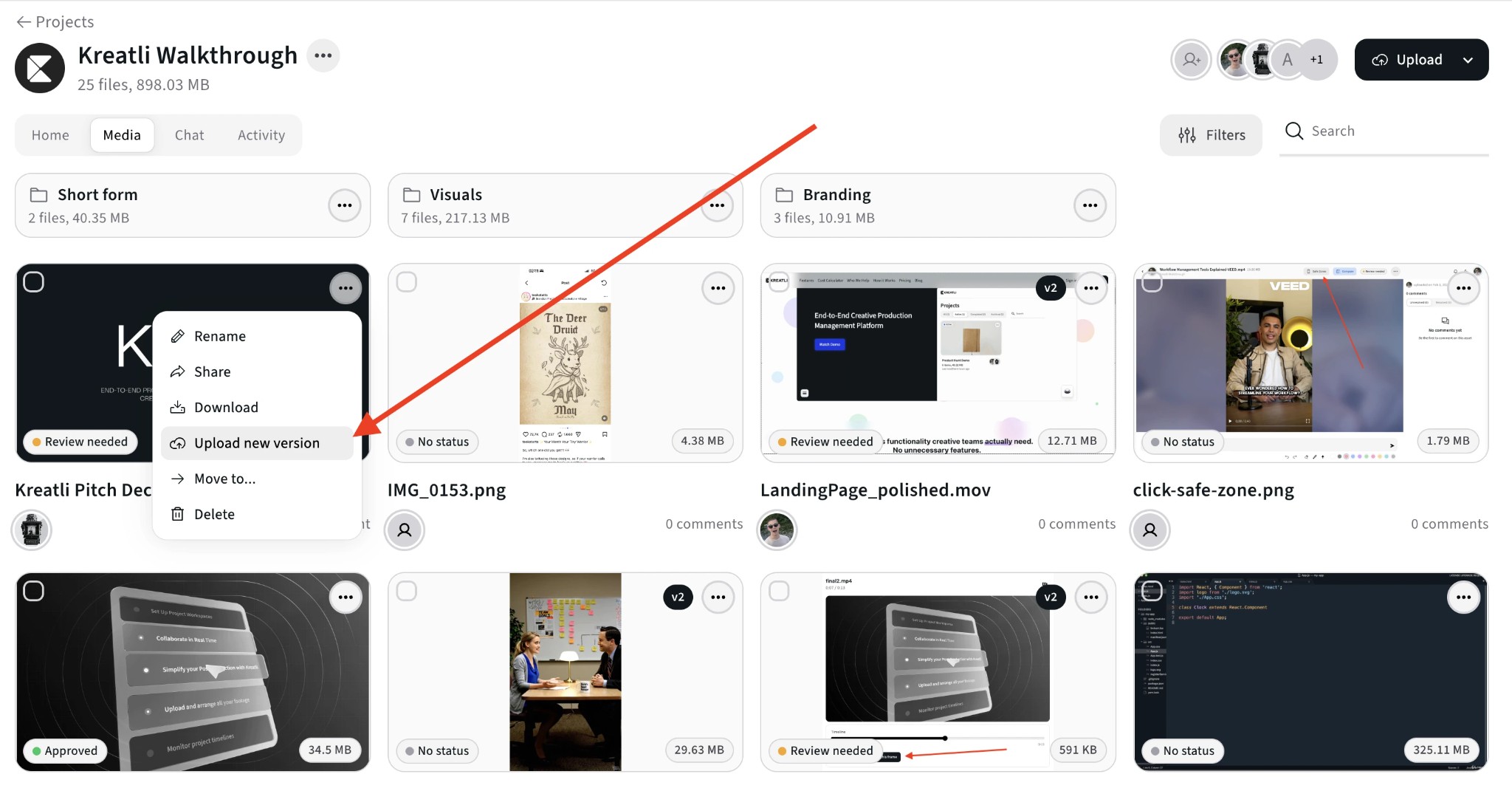
Open the 3-dot menu and upload a new version
In the Media view, open the 3-dot menu (⋯) on the PDF and choose Upload new version. The new file is added to the same asset as the next version (v2, v3, etc.) so all drafts stay in one place with full history. You can also choose Manage versions from the same menu.
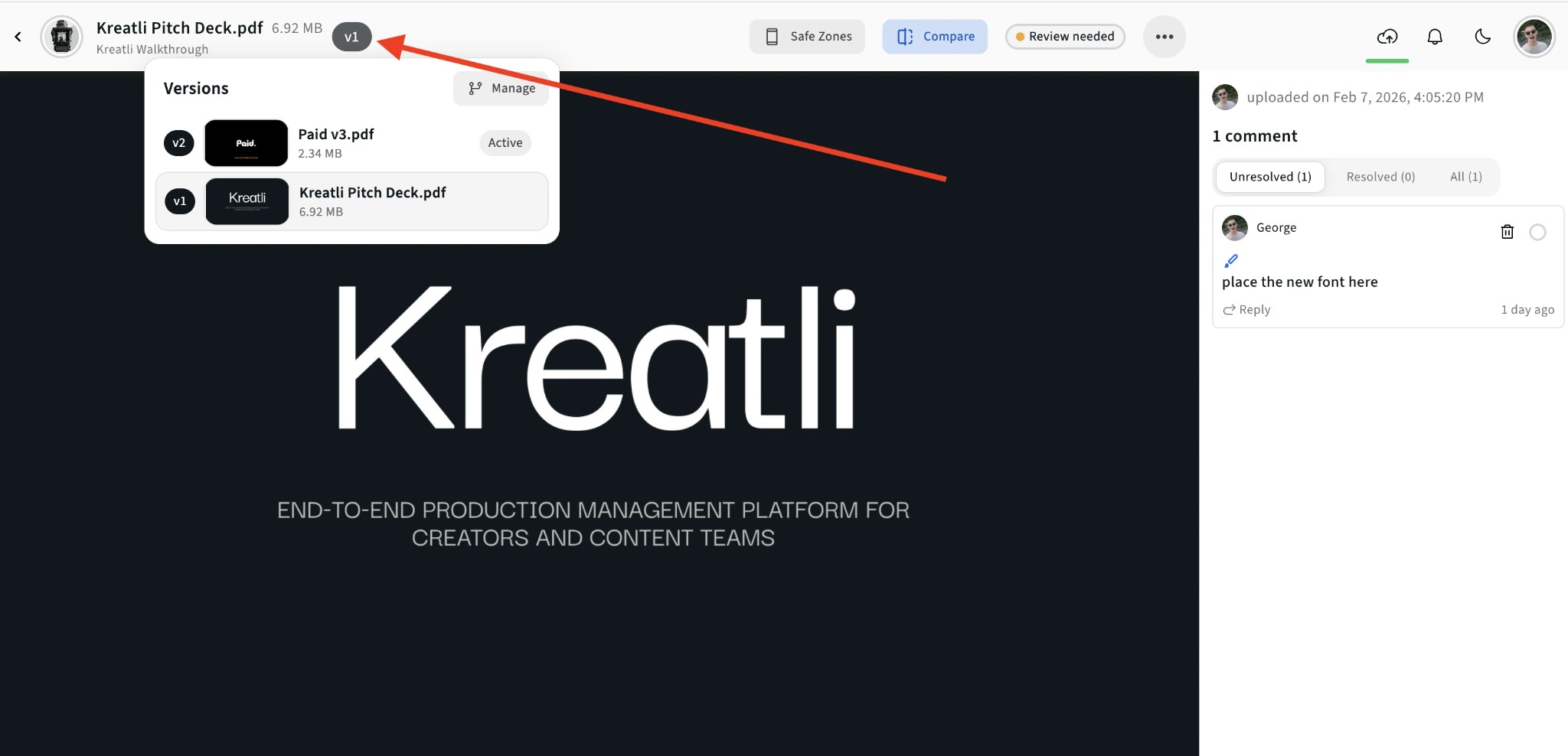
Switch versions from the Versions dropdown
Open the PDF in the review view and use the Versions dropdown in the header to see all versions with filenames and sizes. Click a version to switch, or use Manage to reorder, set the Active version, and manage the full version stack.
Compare two PDF versions side by side
Select two PDF versions in the Media view and click Compare to open them side by side. Each version shows its filename, size, status, and a preview so you can spot changes and track feedback per version.

Read Our Complete Guide
Learn how proofing and creative review work in one place with your video, PDFs, and other assets.
Read Complete GuideHow PDF Version Control Works
Version history, side-by-side comparison, and one-click uploads keep your PDF version control simple and traceable.
Version History
Every PDF you upload as a new version stays in the same project. PDF version control keeps a clear history so you always know which draft is current and can compare or revert as needed.
Side-by-Side Compare
Select two PDF versions and compare them side by side. Spot changes and see feedback on either version in one view.
Upload New Version
One click from the file menu to upload a new version. The new draft appears in the same project so you can compare with the previous version and keep review going without losing context.
Feedback Tied to Versions
Comments and annotations stay linked to the version they were added on. PDF version control in Kreatli keeps feedback organized so you know what was addressed in which draft.
Resolution Across Versions
Mark feedback resolved as you address it in new versions. Track what's done and what's pending across revision rounds so nothing gets missed.
Share the Right Version
Share review links for the version you want clients to see. When you upload a new version, you control who gets access so everyone stays on the same draft.
Why Use PDF Version Control in Kreatli
PDF version control with version history and comparison keeps your drafts organized and your team aligned.
No More Naming Chaos
Stop relying on "proposal_v3_final_FINAL.pdf." PDF version control keeps every draft under one asset with clear history, so you always know which version is which.
See What Changed
Compare two PDF versions side by side. Spot text and layout differences and keep feedback tied to the right version so revisions move faster.
One Place for All Versions
PDF version control in Kreatli keeps every draft in the same project with your video and other assets. One review link workflow, one approval trail, less tool-switching.
Client-Friendly Version Review
Share the version you want clients to review. When you upload a new draft, you decide who sees it. PDF version control keeps approvals clear and feedback organized for every round.
Free Tools for Creative Teams
Explore our collection of free tools designed to help creative and video professionals work more efficiently.
PDF Reviewer
Review PDFs online with location-pinned comments, annotations, and approvals. Share with clients; recipients do not need a Kreatli account.
Video Manager
Organize, store, and track video assets with version control and client share links. Manage feedback and approvals in one workspace.
PDF Annotator
Add location-pinned comments, highlights, drawings, and markup to PDFs. Share with clients; recipients do not need a Kreatli account.
Video Reviewer
Review videos online with frame-accurate comments, visual annotations, and approval workflows. Share with clients; recipients do not need a Kreatli account.
See How This Works in Practice
Explore guides and comparisons that show how teams use PDF version control and manage review in Kreatli.
Choose the Perfect Plan for Your Creative Journey
Sign up free — no credit card required. Upgrade to any plan when you're ready for full access.
per month
Designed for solo creators and teams who want to organize projects, review work, and create faster.
- Up to 3 members
- 500GB Storage
- Unlimited projects & reviewers
- Frame-accurate video review
- Shared asset libraries
per month
Built for established teams running multiple projects with shared assets, structured reviews, and consistent workflows.
- Everything in Creator
- Up to 10 members
- 2TB Storage
- File organization and management
- Versioning and comparison
- Asset-linked conversations
- Guest review links
- Comment threads and annotations
Tailored for enterprise organizations that need advanced controls, custom workflows, and dedicated support.
- Everything in Team
- Custom members
- Custom storage
- Single Sign-On (SSO)
- Dedicated Account Manager
- Custom Integrations & Features
Frequently Asked Questions
Get detailed answers about PDF version control and review workflows in Kreatli.
Still Have Questions?
If you didn't find the answer you were looking for, contact our support team at support@kreatli.com to learn how Kreatli can help you with PDF version control and streamline your review workflow.
More Resources
Explore other Kreatli platform features to streamline your review and collaboration workflow.
Review & Approval
Frame-accurate revisions and approvals for video content. Streamline your feedback workflow.
Creative Proofing
Review creative work and turn feedback into trackable work. Every upload creates a new version for easy comparison.
Annotate PDF
Annotate and review PDFs with comments and markup. Add feedback directly on PDFs for precise, location-pinned review.
Secure Asset Storage
Enterprise-grade storage for creative assets. Organize files, track versions, and protect your media with reliable infrastructure.
Ready for Simple PDF Version Control?
PDF version control with version history and side-by-side comparison in one place with your team and clients. Start using Kreatli today.